
Table of Contents
Navigating a virtual world is new for many learners exploring IMMERSE. Like knowing video game controls before joining a live online party, mastering movement in Live Classes and Community Spaces helps you maximize your learning.
Learning the Controls
Familiarizing yourself with the platform before you begin learning will help you succeed and make the acquisition process faster and more relaxed.
ℹ️ New User? Check out the article New User Tutorials first to orient yourself.
Point of View (POV) - Computer Only
To change your POV simply scroll on your mouse or trackpad to zoom in and out. Frist person POV is when you are zoomed all the way in and viewing the scene through the avatar’s eyes. Third person POV is when you are looking at your avatar from behind and can see them moving about the scene.
Movement
You can navigate our immersive learning scenes using various methods, depending on the platform you select.
🔁 Rotate View
- Computer: Click and drag across your screen to rotate.
- Or toggle on Locked Cursor in the settings menu to have your point of view follow where you point your mouse, without having to click and drag.
- Increase or decrease mouse speed in the setting menu.
- Scroll to zoom in and out.
- VR: Use the right thumb stick to rotate your view. How fast you rotate can be configured in the settings menu.
🚶Walk
-
Computer: Use W, A, S, D, or the arrow keys on your keyboard to move.
-
VR: Push and hold your left thumb stick in the direction you want to move
🏃 Speed Walk / Run
-
Computer: Hold down SHIFT while using W, A, S, D, or the arrow keys on your keyboard to move.
-
VR: Push down your left thumb stick, and while pressing down push it in the direction you want to move.
ℹ️ Why can't I hold things in both hands and move in VR?
In VR, you can only do one thing at a time with each controller. So, if you're gripping an object with both hands, using the joystick to move forward won't work. That's because the "grab" function stays active, and it prioritizes moving the object over moving you.
🌀 Teleport
-
Computer: Double click on the ground to quickly move to that location. Or select a glowing teleport circle in the scene to go there.
-
VR: Press and hold your thumb stick, aim at location on the floor, and then release to teleport.
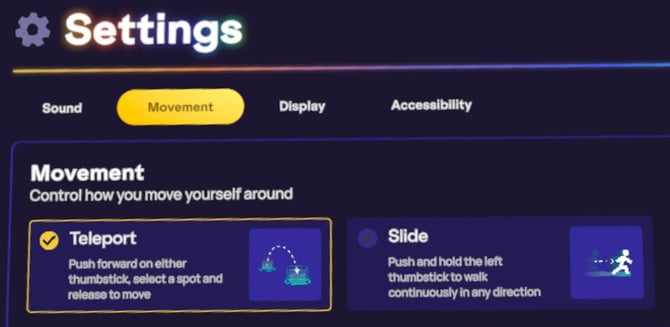
⚙️ Switching Between Slide & Teleport in VR
- Press X on the left controller to open the settings menu while in a live scene.
-
Go to the settings tab. (from your homeroom as well)
-
Scroll down to see movement settings
-
Mark the circle for the mode of transport you want
-
Press X to close settings menu
👋 Gestures
You can make fun gestures in live scenes in different ways.
Computer
-
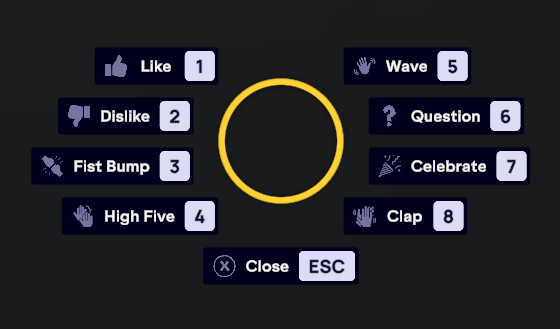
Press G on your keyboard, or click the Smiley Face icon to the bottom right of your screen. Then select the corresponding button on the screen or your keyboard to activate.
-
For High Five and Fist Bump, you’ll have to walk up to another user and touch their hand to make the gesture emotes activate
VR
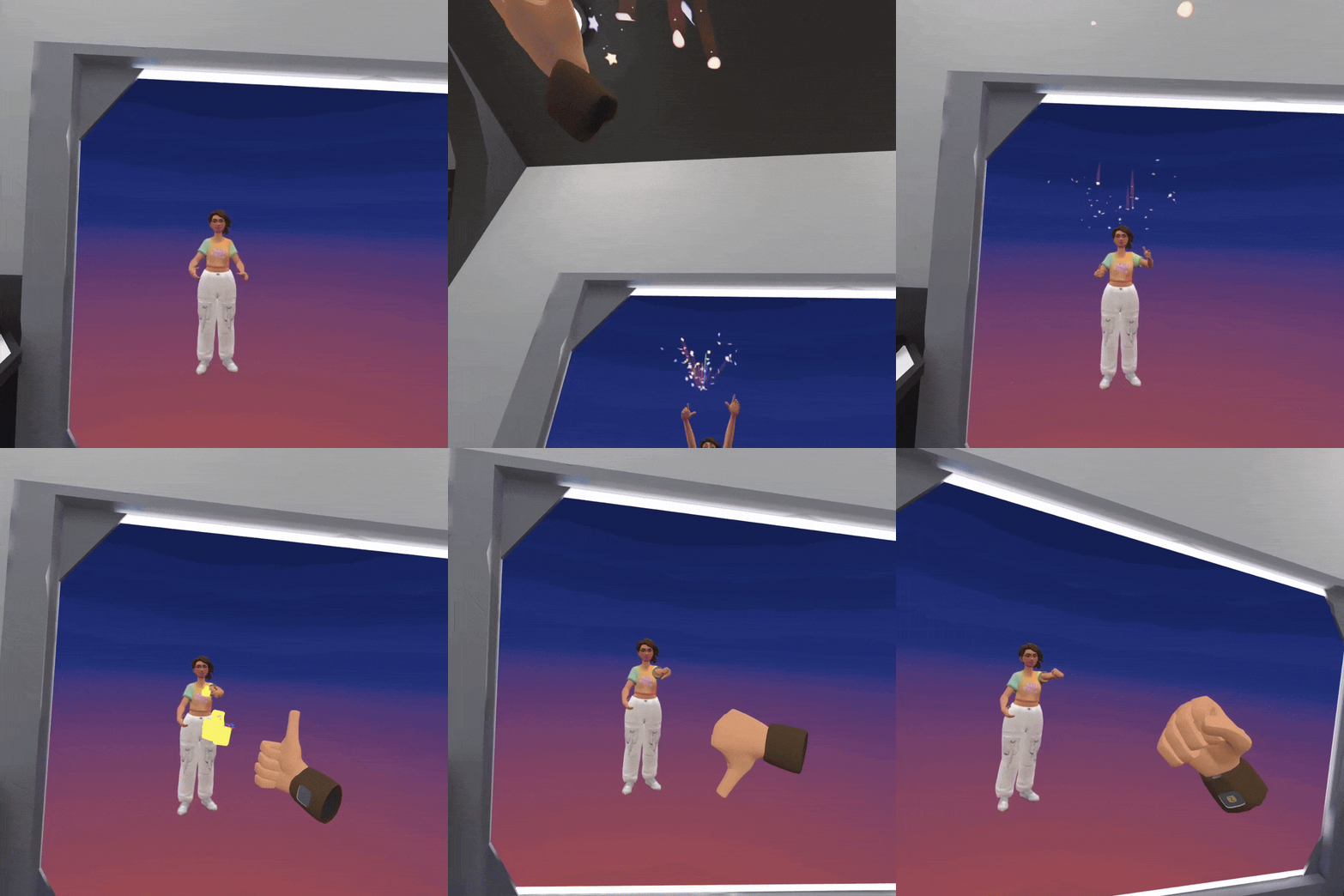
Move your body naturally to activate the following in-world gestures.
-
Thumbs Up: With your hand gripping the controller and your thumb resting gently on the 'A' button, lift your thumb up and thrust your arm out and upward.
-
Thumbs Down: This gesture does not trigger an emote to avoid spamming sadness. Instead, perform a "Thumbs Up" and then turn your hand over.
-
Fist Bump: With your thumb resting on the 'A' button (without pressing) and grasping the controller, outreach your arm to bump someone else’s fist.
-
High Five: Raise your arm into the air, ensuring your thumb is not resting on any buttons, and tap someone else’s raised hand.
-
Wave: With your hand raised and thumb off any buttons, move your wrist from left to right.
-
Question/Shrug: Shrug your shoulders as you would in real life.
-
Celebrate: Raise both hands above your head in a rapid, festive motion.
-
Clap: Grasp both controllers with thumbs in the air (off any buttons). Tilt your hands outward at a 45-degree angle (palms up) and bring the bottom of your palms together as if you were about to clap. Do not hit the controllers together. For rapid applause, use faster, tighter motions.
Object Interaction
IMMERSE offers an interactive learning environment with various objects designed to engage learners and enhance teaching. Below are essential actions and controls for interacting with these objects, along with tips for effective use during your sessions.
ℹ️ Will complete hand-tracking (aka controller free in VR) ever be compatible with IMMERSE?
Our immersive world is pretty complex, and with all the hotkey combinations on our controllers, it's unlikely that a no-controller option will ever be compatible. Still, we're definitely working on a one-handed accessibility feature!
🤌Grab
In the Immerse environment, many objects are interactive. Objects with white circles can be picked up.
-
Computer: Hover over the object and click the left mouse button.
-
VR: Point at any object with a white circle, then press the handle trigger on your controller to grab it.
Once picked up, you can interact with the item further.
🫴 Place
You can place objects on surfaces within the scene. Some objects require specific placement to trigger an action; you'll see a glowing yellow spot indicating the correct location.
-
Computer: While holding an object, move your mouse pointer to the location you’d like to set it down, and press the right mouse button
-
VR: Grab the object and then release it to stick it to a whiteboard or set it down elsewhere in the scene.
🤾 Throw
In VR only, objects can be thrown anywhere in the scene, which is useful for interactive games or dynamic activities. While holding an object, press and hold the front trigger button. An intensity arrow and haptic feedback will appear. Aim the item where you want to throw it and release the front trigger when the desired strength is reached.
🎬 Use
Some objects in our virtual world can be interacted with in a deeper way.
-
Computer: Grab the object and press 1, or click the action button (such as Play or Drink or Use) that appears at the bottom of the screen. See the front view of the interaction in the dynamic avatar mirror in the bottom right.
-
VR: To use an object with a hidden feature, press the front trigger button while holding it.
⚙️ Manipulating Objects on Computer
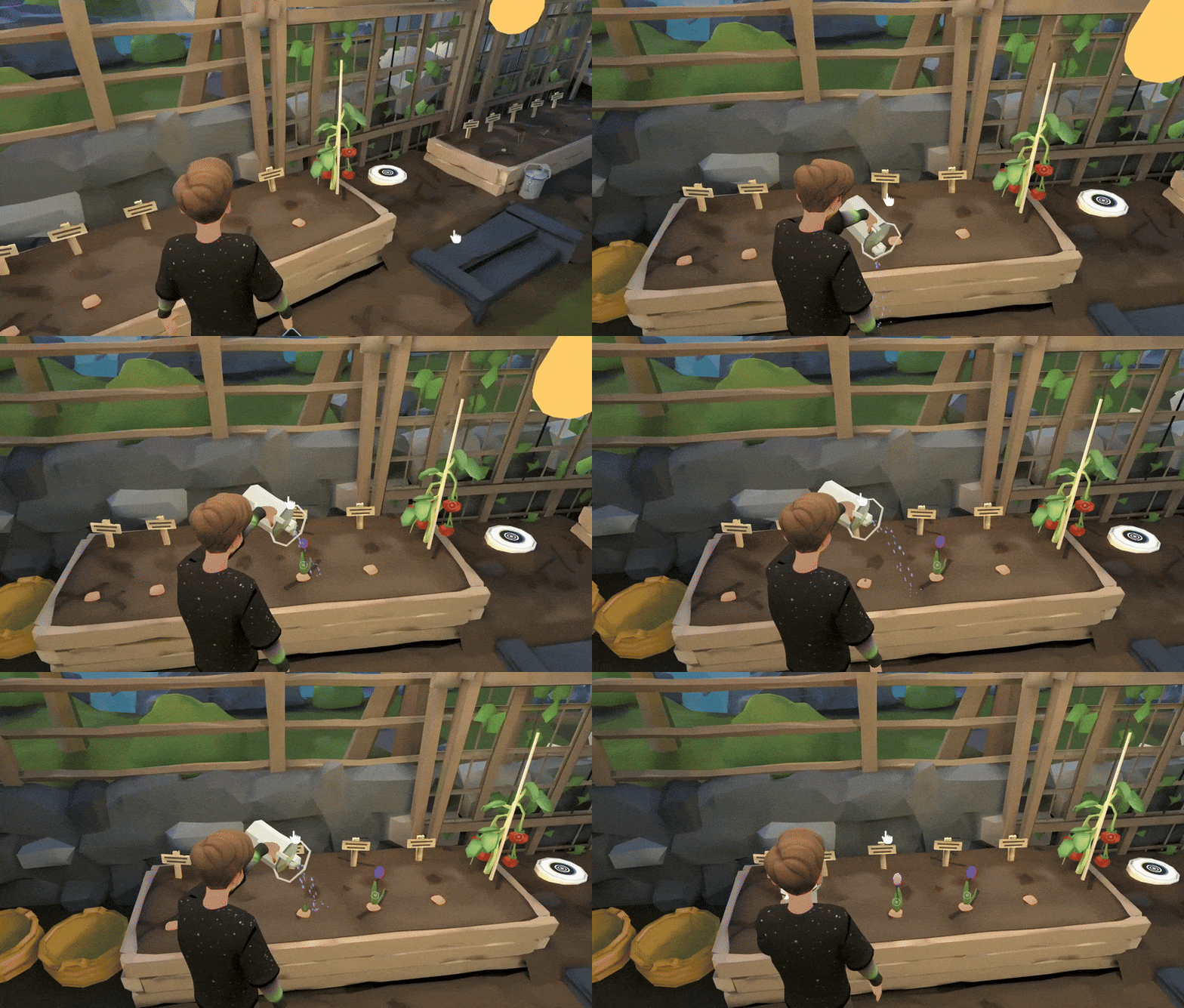
To interact with certain objects on a computer, you need to freely move the arm holding the object. This is achieved by holding down SHIFT and left-clicking your mouse. This action is useful for:
-
Pouring liquids
-
Chopping vegetables
-
Turning prompt cards for others to see
🗑️ Discard
Objects can be destroyed to keep the scene clear.
-
Computer: There are three ways to destroy objects you are holding:
-
Press 'X' on your keyboard.
-
Click the "destroy" button at the bottom of your screen.
-
Place or toss the object directly into a trash can within the scene.
-
-
VR: You can dispose of an item by dropping it in a nearby trash can within the scene. Alternatively, press B on your right controller to open your backpack and place the item in the personal red garbage can located beneath the backpack.
Opening the Settings Menu
The settings menu can be accessed while in Live Classes and Community Scenes to adjust your Sound, Display, Movement, and Accessibility features.
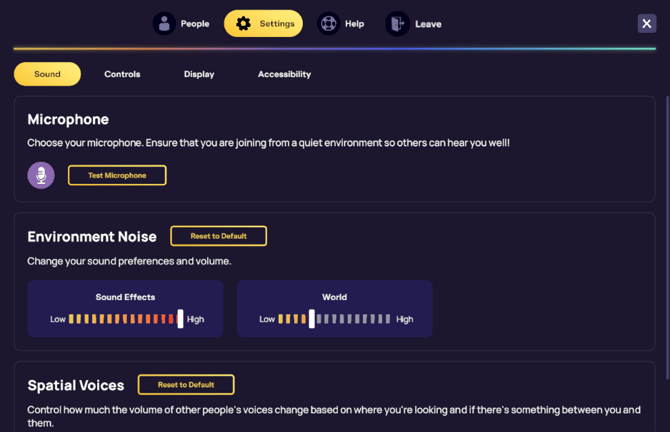
Here’s how to open:
-
Computer: Click ESC on your keyboard, or the 3-line button at the top left of your screen
-
VR: Press X on your LEFT controller
ℹ️ Learn More:
Exiting the Scene
To exit a live class or community scene and return to your Homeroom, simply open the settings menu and select Leave.
-
Computer:
-
Press SPACE on keyboard or click on the ESC icon on screen
-
Click the LEAVE icon in the right corner.
-
Choose YES in the pop up window.
-
-
VR:
-
Press the MENU button on your LEFT controller (flat with 3 lines)
-
Choose YES in the pop up window
-OR- -
Press X on your LEFT controller to open the settings menu.
-
Click the LEAVE icon in the right corner.
-
Choose YES in the pop up window.
-
Live Classes
IMMERSE features interactive tools, collaborative functionalities, and personalized resources designed to make every Live Class in our virtual world more engaging and effective.
Prompts
Prompts are activities enabled in the scene by the Guide during classes. They support activities by displaying and enabling interactions with the learning material in various ways such as graphic organizers, images, and questions displayed on cards.
Managing Interactions
Certain tools are necessary to manage social and personal interactions within an immersive digital space shared with other real people. Features such as submitting a help request to the Guide, hiding another learner’s avatar, and issuing a Guide megaphone were built to enhance your experience and maintain a positive learning environment.
Learner Tools
Features to aid your understanding of the target language have been designed to support you when and where you need it during Live Classes. Tools like the Object Scanner and Language Assist help you feel more fluent and add clarity to your classes.
ℹ️ Learn More:
Meta Quest Controller - Hot Key Overview
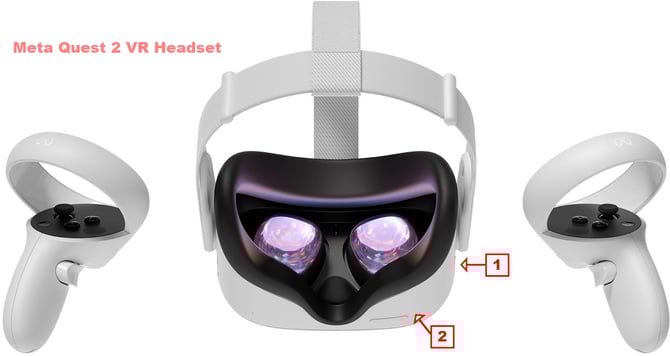
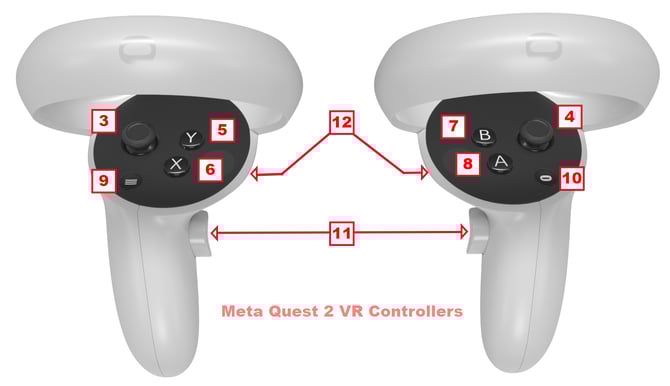
- Power button
- Volume button
- Left joystick = Movement
- Right joystick = Rotate/Look around the scene
- Y button = Mute microphone
- X button = Settings Menu
- B button = Laser Pointer
- A button = Geo Tools Menu
- Menu Button = Return to the Login page
- Meta button:
- Tap once to return to the Main Meta Quest 2 Menu
- Hold to Reset/Center the scene view
- Hold + Press the top right trigger to take a photo snapshot
- Hold + Hold the top right trigger button for 2 seconds to record a video
- Handle trigger buttons = Grab objects
- Front trigger buttons = Select objects or menu options after pointing at them
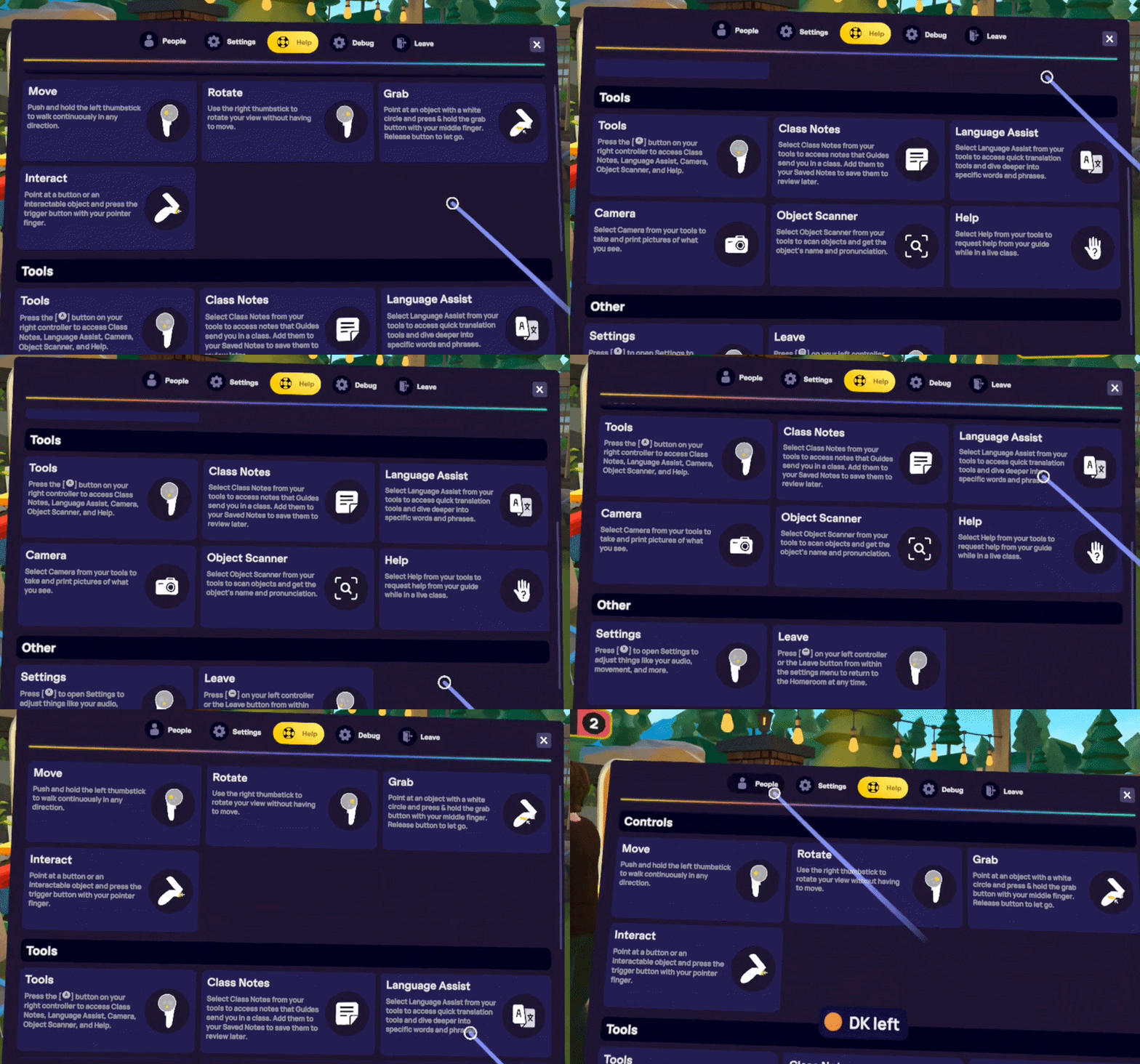
Note: You can access a button guide within live scenes through the life preserver help tab in your settings menu.
❓ Questions about how to do something within IMMERSE? Contact our Support Team for help by emailing us at support@immerse.com.