
Table of Contents
Our dedicated in-house team rigorously tests every update, scene, and interaction to prevent discomfort. They meticulously analyze visual flow, speed, and spatial consistency to ensure a seamless, comfortable experience. Your comfort is our priority, allowing you to fully immerse yourself without worry.
⚠️ Make sure you understand the basics before diving into these personalized settings.
Movement
If you’re prone to feeling ill in VR, you likely already know that teleporting to move in IMMERSE is a better bet than sliding. This is because teleporting better aligns with how our senses process movement when our physical body is stationary. But did you know there are additional controls to help prolong your time in IMMERSE and make your experience more comfortable?
To Access Movement Settings Menu While in a Scene:
-
Press X on LEFT Controller
-
Click > Settings
-
Click > Movement
-
Scroll down to view full menu
Rotation
To fully enjoy virtual reality and minimize motion sickness, try to keep your head still and use the right joystick to rotate your view. This can create a smoother and more comfortable experience! Choose from the options below:
Snap
Quarter-turn increments allow for instant body rotation without visual gliding. This option offers maximum comfort if you have heightened sensitivity.
Motion
To enhance immersion while preventing motion sickness, smoothly turn your body in eighth-turn increments. This method retains the crisp, "snap" movements that counteract visual gliding.
Smooth
Full rotational movement enhances the immersive experience, creating a truly dynamic and engaging visual journey. However it may be the least comfortable long term if you tend to experience motion sickness.
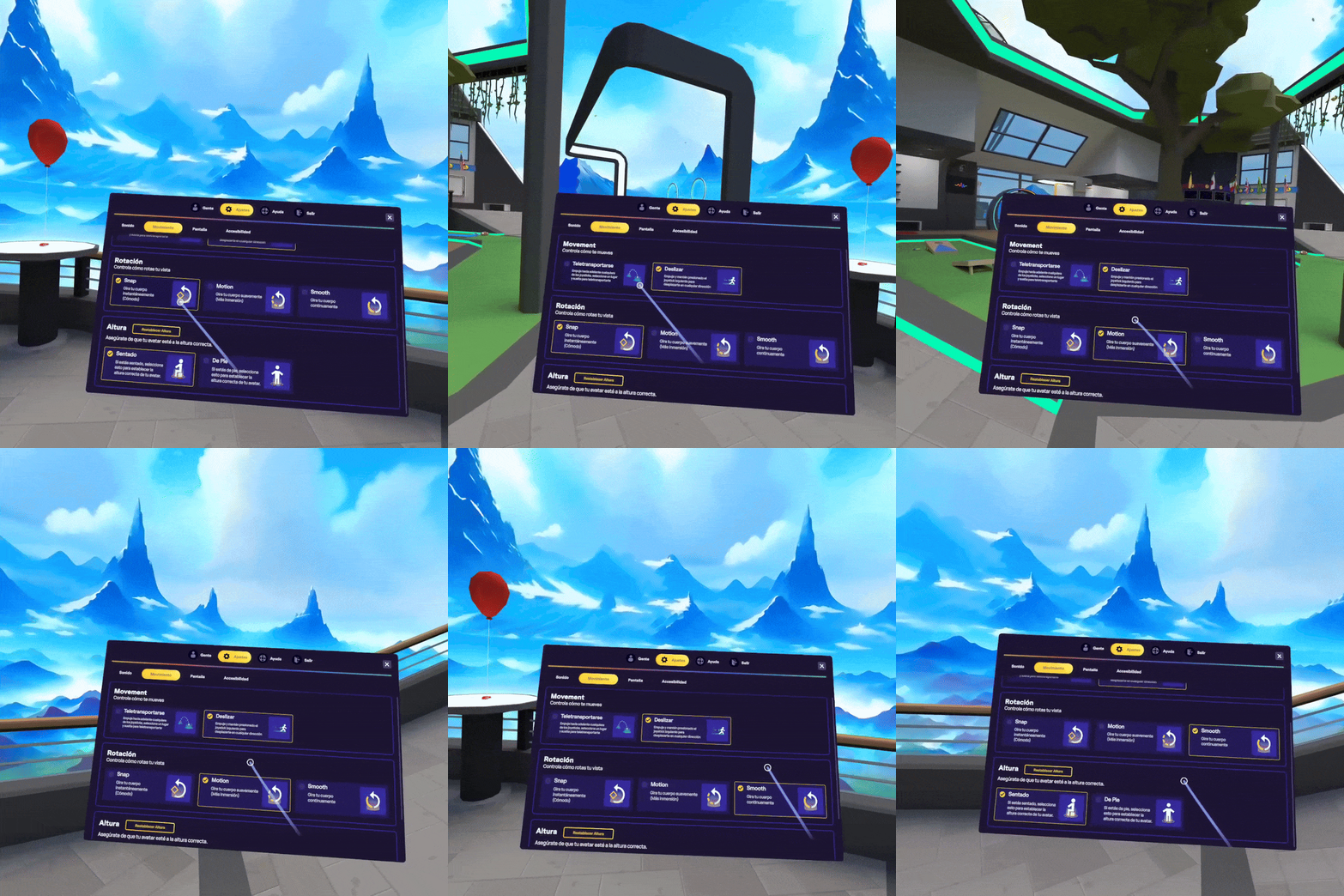
⚙️Adjusting Height
Adjust your avatar's height to match your real-life posture by clicking sitting or standing. If you transition from standing to sitting within a life scene, remember to click the "reset height" button that appears after selecting sitting.
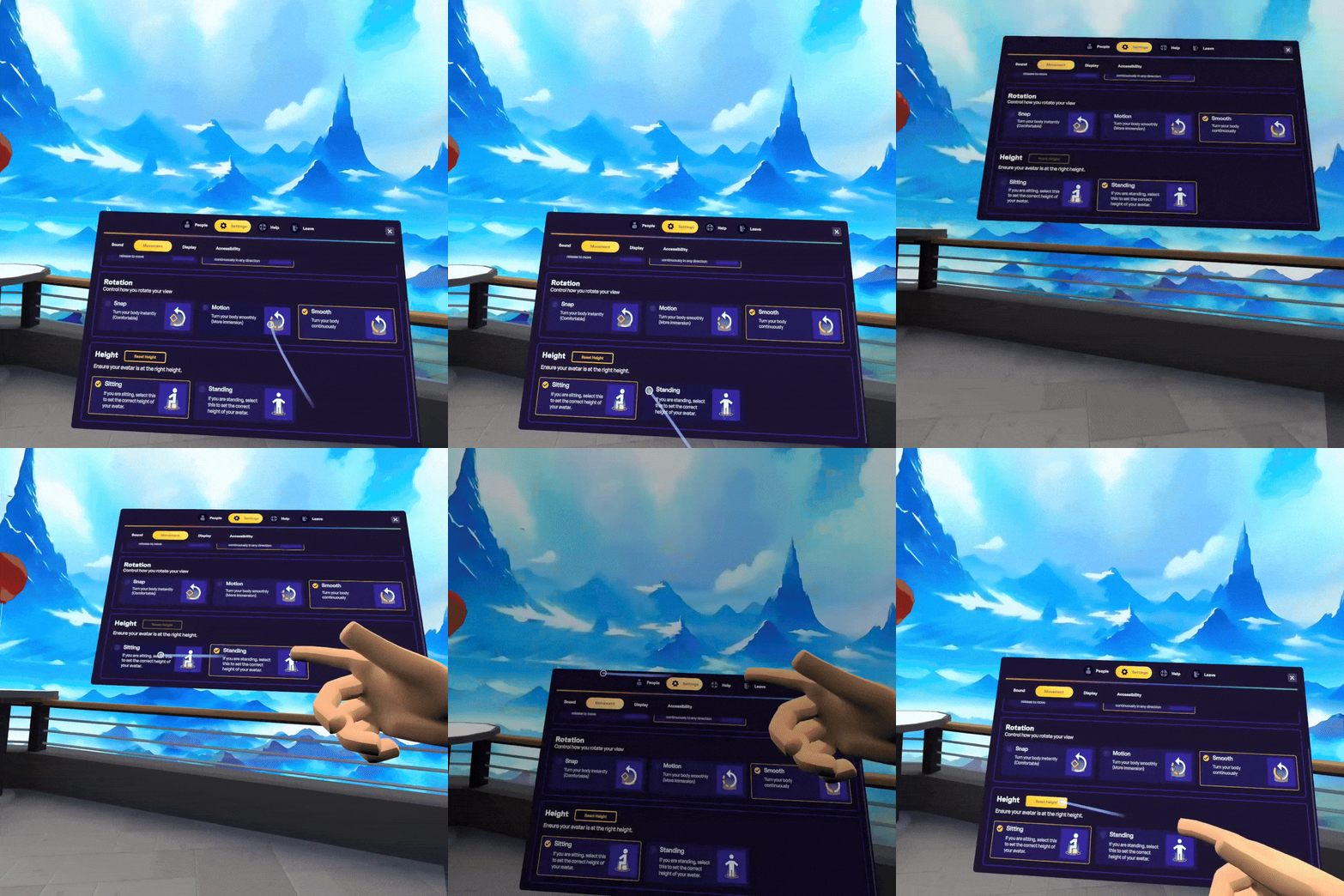
Other Features
These additional settings are located in the Accessibility portion of your settings menu. Accessible in a scene by following the steps below, or from your Homeroom by clicking on the gear icon.
-
Press X on LEFT Controller
-
Click > Settings
-
Click > Accessibility
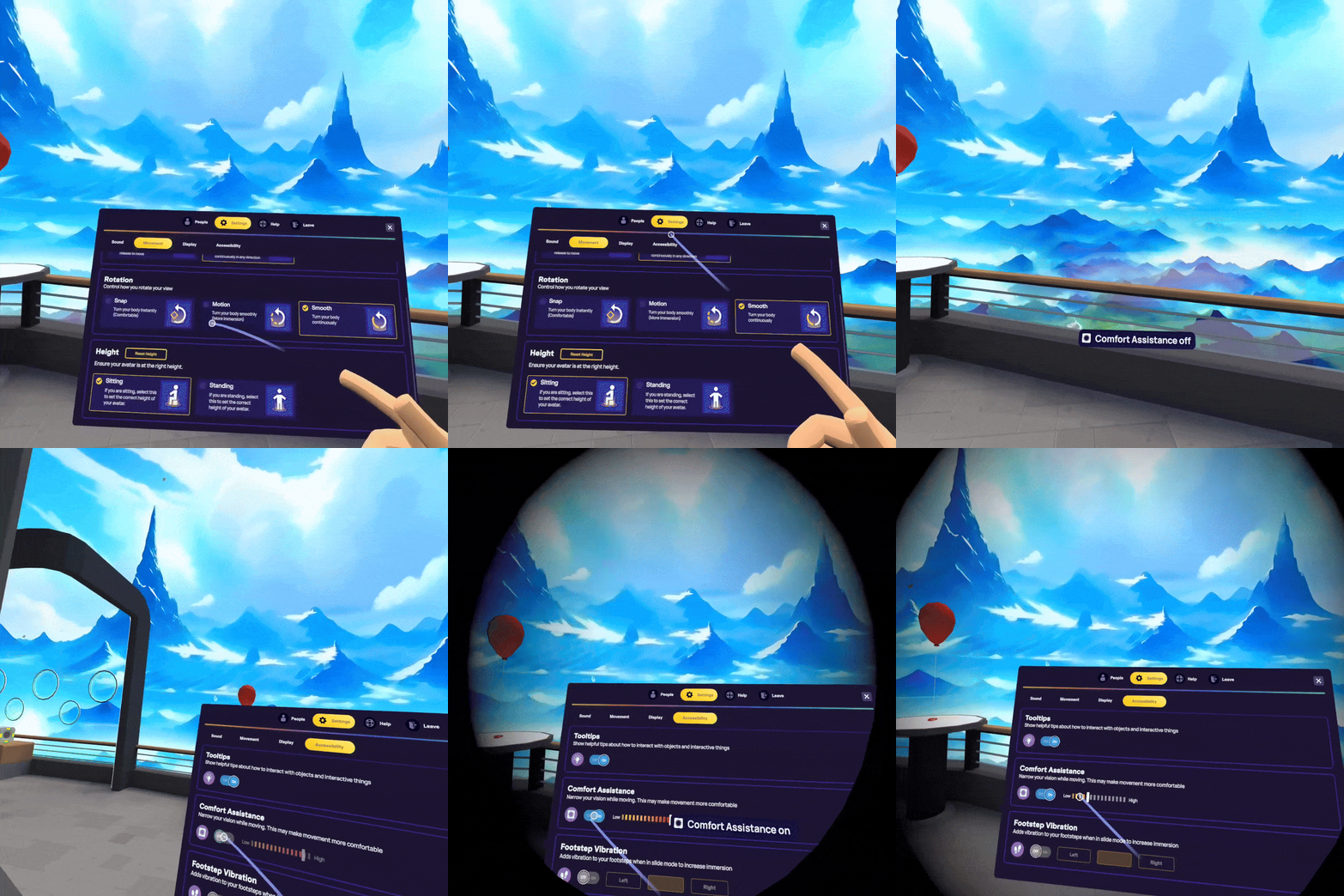
Comfort Assistance
When moving, you can narrow your field of view with a “tunnel vision” effect. This reduces peripheral motion, which can make movement feel more comfortable and help delay motion sickness. Increasing the comfort assistance level will make the black vignette (shadow) more prominent, further decreasing your field of view.
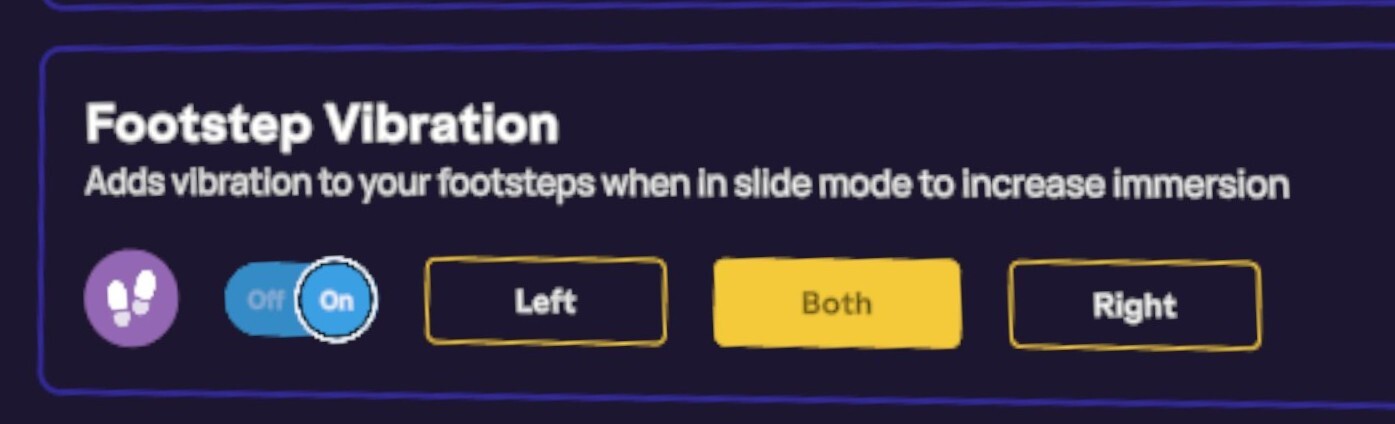
Footstep Vibration (Haptic Feedback)
While in slide mode, activate this setting to enhance your immersive experience with haptic feedback. This feature adds vibration to your footsteps, delivered through your controllers. You can choose to feel feedback in both feet or favor one side over the other.
Repositionable Panels
Some panels and menus within IMMERSE and your headset can be moved, repositioned, or reoriented to suit your comfort and workflow.
The Geo Menu
Geo is IMMERSE's virtual learning companion, available in VR to guide and support you throughout your sessions. As well as offering assistance, Geo acts as a hub for displaying several key menus and features:
Learn more about Geo.
How to Display and Move Geo
- Press the A button on your right Meta Quest controller to bring up Geo.
- Press the Trigger on either controller to activate your pointer.
- Aim your pointer at Geo.
- Hold the Bottom Trigger (Grip) button on the side of either controller to grab Geo.
- Drag Geo to any position on screen.
Moving Geo also repositions any menu currently displayed beneath him, so your full Geo menu moves together and can follow you around the scene.
The Meta Library Overlay
Press the Meta button on your controller to open the Library menu overlay. If the overlay appears in an awkward position, you can reorient it to align with your current head position by pressing and holding the Meta button. This snaps the Library menu to wherever you're looking, making it easier to navigate without having to turn or reach. You can double-tap the Meta button to dismiss this menu when you’re done making adjustments.
Moving App Panels
Once an app panel is open, it can be moved in two ways:
- Select the long bar underneath the panel, or
- Select the area just above the panel to reveal a thin white bar, then press either the Trigger or Grip button to grab it.
With the panel grabbed, drag it to any position in your space. To adjust how close or far away the panel sits, push the joystick up or down to move it towards or away from you.
❓ Questions about these settings? Reach out to our Support Team at support@immerse.com for further insight.