
Table of Contents
Failure to Launch in IMMERSE Atmosphere
> Error Message Example & Status Codes
Failure to Launch in IMMERSE Window
After switching to NVIDIA TURN features, you’re much less likely to encounter major GeForce NOW errors, as detailed later in this article.
If an issue does occur when launching your IMMERSE experience after logging in, you’ll typically stay on the same page and see an instruction to “retry launch” via the red button beneath the loading icon. In some cases, a pop-up modal with a generic error message may appear.
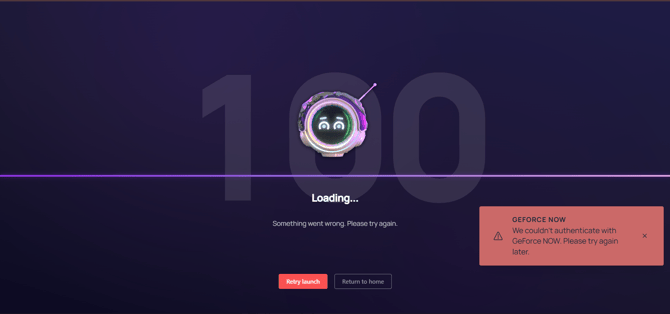
To resolve this, try the following steps:
-
Retry the launch using the red button.
-
Close the tab or browser window, then log back in to IMMERSE.
-
Clear your browser cache and cookies, then log in again.
-
Disable any VPNs (or enable one if you’re in a region with access restrictions).
The Game Quit - Try Again
If you are inside IMMERSE and the screen suddenly kicks you out with this message, it usually means there was an issue with the NVIDIA streaming connection. This modal comes from the NVIDIA cloud-streaming interface and is outside IMMERSE's control.
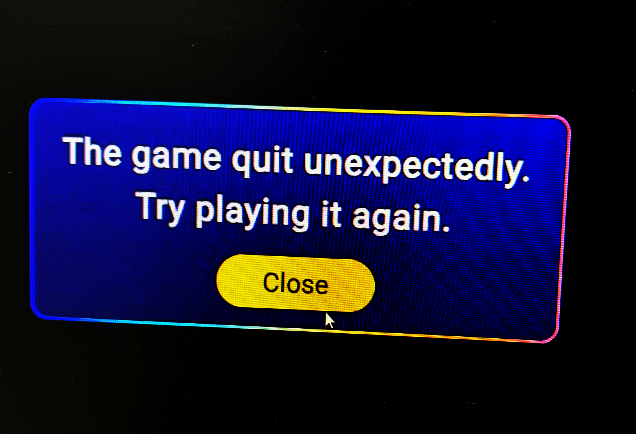
To resolve this, first check the NVIDIA GeForce NOW Server Status page for any ongoing service disruptions in your area before trying the Connectivity Troubleshooting steps in our support article here: Connectivity & Audio Troubleshooting Tactics for IMMERSE
Common NVIDIA Error Scenarios
|
Scenario |
Status |
Sub-status |
Description |
|
Successful Session |
0 |
NA |
The session ended successfully. |
|
Partner Error |
1 |
NA |
Error due to invalid query parameters, invalid nonce, or nonce authentication failure. |
|
GFN Errors |
2 |
Streaming error codes |
Internal errors related to GFN streaming services. |
|
Campaign Suspended |
3 |
NA |
The campaign is temporarily suspended by GFN. |
|
GFN Error Limit Reached |
4 |
NA |
You have exceeded the session limit per device for GDN. |
Error Message Example and Status Codes
When the error message "We Ran Into a Problem" appears, it’s often accompanied by a status code at the end of the URL, such as status=4.
Sample URL:

"nvidia.com/en-in/omniverse/cloud/denza-n7-3d-configurator/?status4"
This status code provides insight into what went wrong:
-
Status=4: This error indicates that the session limit per device has been reached. This happens when you try to access NVIDIA services too many times in a short period.
Troubleshooting Steps
-
Check Status Code in URL: Look at the URL in your browser’s address bar to find the status code (e.g.,
status=4). This will help you have more clarity on the specific issue. -
Wait and Retry: If you encounter a
status=4error, wait a few minutes before trying again. This allows the session limit to reset. -
Clear Cache and Cookies: Sometimes, cached data can cause issues with authentication. Clearing your browser’s cache and cookies can help resolve this.
-
Verify Query Parameters: Ensure that the URL you're using doesn’t contain any typos or invalid parameters. Common issues include incorrect nonce values or missing parameters.
-
Check NVIDIA GeForce NOW Server Status: Visit the NVIDIA Status Page to see if there are any ongoing service disruptions.
Note:
This generic error message doesn’t provide specific information about what went wrong. By understanding the status codes, you can better diagnose and resolve the issue.
If you continue to experience problems, feel free to contact us with the status code and a brief description of what you were trying to do, and we’ll help you troubleshoot further.
Additional Resources
-
NVIDIA Support: You also have the option to reach out to NVIDIA support, yourself, for assistance.
-
Community Forums: Engage with other users on the NVIDIA Community Forum to see if others are experiencing similar issues and find potential solutions.