
Table of Contents
> Open directly to ask a question
> Click on a word to translate
> Dive Deeper into Grammar & Culture
IMMERSE’s Language Assist feature is designed to help you understand and use new vocabulary, cultural insights, and grammar with ease. Whether you're in VR or on your computer, this tool provides real-time translations, pronunciation help, and usage tips, all at your fingertips.
What It Is
Our team developed this generative AI-powered learning aid and integrated it with OpenAI’s Large Language Model (LLM) Database. This resource supports you during interactions within IMMERSE. It serves as a searchable database, offering knowledge to help you stay engaged in conversation when searching for the right words.
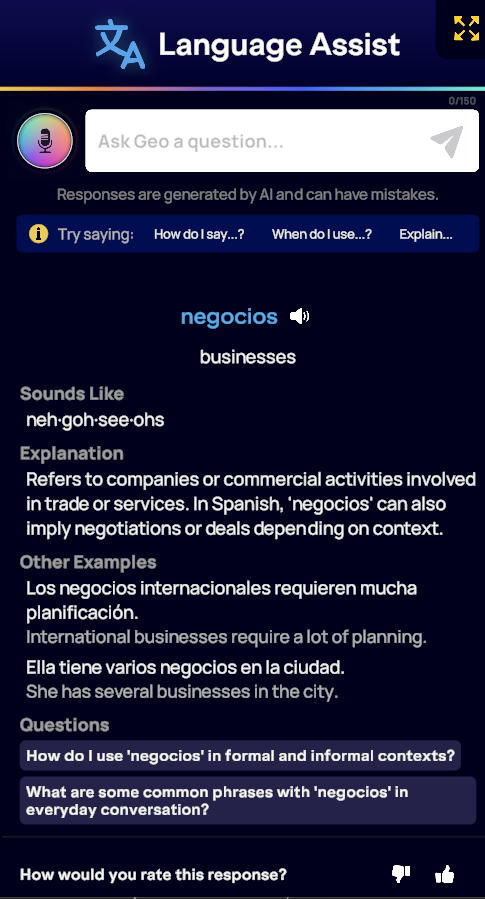
It also provides translations beyond our primary display languages, benefiting users who want native support unavailable as a display option.
Learn About Changing Your Default Translation Language
How to Use It
The Language Assist feature can be activated by opening the tool itself directly to ask a question, or by hovering over written content in various learning activities and clicking to translate. Choose your preferred option below to learn more.
Open directly to ask a question
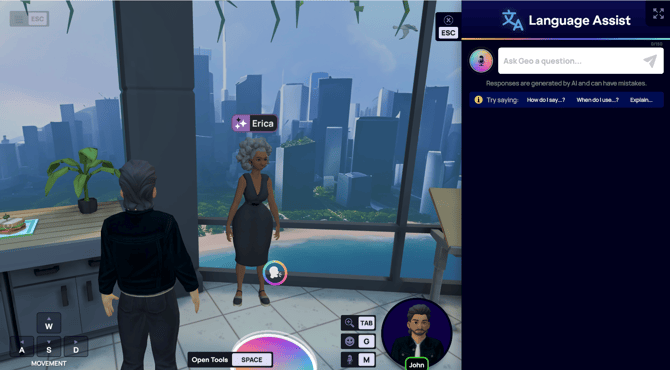
When in a live class or community scene, follow the steps below to open the Language Assist feature directly.
Computer
-
Press the SPACEBAR on your keyboard, or click the Tools button on your screen.
-
Select > Language Assist
VR
-
Press the right wrist button with your virtual finger, or press the A button on your right controller.
-
Select > Language Assist
✅ Once Language Assist is Open:
- Click the microphone icon to give verbal input.
- Click into the typing box to give written input.
- Click the send arrow to submit.
Click on a word to Translate
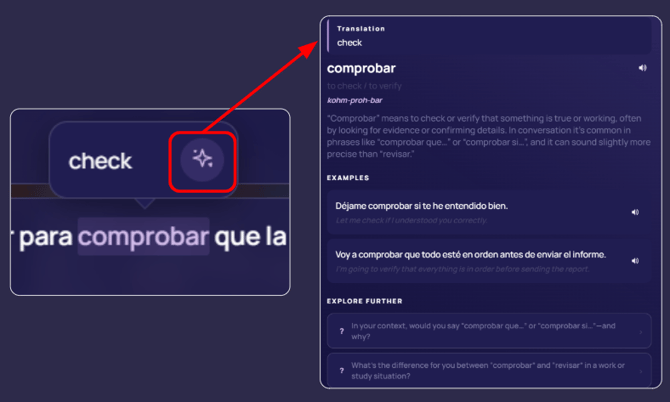
For most asynchronous content, you can click on any word to access its translation. Clicking the translate icon next to the results will open Language Assist, offering more details and examples related to the word.
-
Click a word in to translate it and hear it said aloud again
-
Click and hold on full sentences to translate and hear the entire phrase.*limited to Self-Paced Lessons and inside the Language Assist feature itself.
-
Click on the AI Sparkle icon to view more info and other examples.
-
View the extension questions at the bottom of the results to expand your learning.
ℹ️ This feature is available in the following areas:
- Self-Paced Lessons
- Class Notes
- VR Live Class Practice Activities (Flashcards, Fill-in-the-blank, and Pronunciation)
- Moment Transcripts
Advanced Usage
These options are excellent for use in VR, which doesn’t currently have the Capture feature.
Understand Vocab & Context
The Language Assist feature can help you with vocabulary and phrasing beyond basic translation. For instance, you can:
-
Learn word usage: Get examples of how to use a word in a sentence. For instance, you could ask, "How do I use 'recomendar' in a sentence?"
-
Find synonyms: Discover alternative words. For example, "What are other ways to say 'computadora'?"
-
Understand phrase appropriateness: Inquire about the right context for a phrase. An example query might be, "Is it appropriate to say 'Calláte' to someone at work?"
-
Discover additional nuances: Explore frequently asked questions in search results to delve deeper into the information!
Dive Deeper into Grammar & Culture
Want to understand your target language better without the need for in-person classes or expert interaction? The Language Assist feature provides independent learning opportunities, allowing you to:
-
Inquire about grammar and structure: For instance, "What's the difference between 'ser' and 'estar' in Spanish?"
-
Request verb conjugation examples: Such as, "Can you show me examples of the 'pluscuamperfecto tense' in negative and question forms?"
-
Discover alternative expressions: For example, "What are some different ways to express that I am confused?"
-
Learn about word origins: Like, "Where did the word 'almohada' come from?"
-
Explore culture or history: For example, "What is Cinco de Mayo all about?"
Current Limitations
While Language Assist is a powerful learning aid, it's still growing. Here are some current limitations:
-
Contextual Limitations: The AI may produce incorrect translations if there is insufficient context or if words in the target language resemble those in the display language.
-
Speech Recognition Challenges: The system may have difficulty recognizing languages with special characters (such as Polish or Arabic).
-
My Notes: Currently, adding new words or sentences to My Notes is not possible due to storage and data limitations.
-
Translation Language Availability: This feature is only available to translate to 15 additional languages beyond our display language options.
Rating the Results
Responses from Language Assist are AI-generated and may contain errors or irrelevant information. Your feedback helps improve this feature. You can rate the results each time you use Language Assist. When rating, focus on content accuracy, detail, clarity, relevance of additional questions, and your overall experience.
Frequently Asked Questions
Do I have to rate the Language Assist feature results?
-
No, rating is optional but it does help our team to know where this AI-feature needs improving. You can simply exit the feature if you choose not to rate.
How many languages do the Language Assist & Translation features support?
-
The feature supports 21 total translation languages, 15 languages in addition to our core 5 display languages (English, Spanish, French, Portuguese, Japanese). You can view the full list of languages here.
How can I set my default translation language?
-
The easiest way to set your translation language is from the settings menu in your Homeroom: Settings Gear Icon > Display > Translation Language Default. Check out this support article for the full run down.
How is Translation Language different from Display Language?
-
The IMMERSE application offers display language options in English, Spanish, French, Portuguese, and Japanese. These programmed written elements are distinct from the AI-based translation tools integrated into platform activities, such as chat bubbles in Self-Paced Lessons and the Language Assist Feature. These AI tools leverage an extensive database and generative capabilities, providing a wider range of translation options than can currently be built into the virtual world's physical elements. For more information please visit this support article.
Why can’t I perform “open input” searches within the Homeroom using the Language Assist feature?
-
We appreciate your patience as we work to implement a similar language assistance functionality in a future build. Currently, the infrastructure to support this feature is not built into the static build of the Homeroom scene. We understand how helpful this would be for your learning!
Why can’t I click and hold to select a full sentence in Guide or Class Notes?
-
The language assist feature has been disabled in Guide Notes and Class Notes within live scenes and the Homeroom. This decision was made to enhance your learning experience.
-
The feature's click-and-hold programming struggles with Guide Notes because they lack a consistent pattern and punctuation. This can lead to the selection of entire class notes, potentially including irrelevant information for translation or multiple languages simultaneously, which could cause confusion.
❓Have questions about (or have run into an issue with) the Language Assist feature? Let our team know at support@immerse.com.