
Table of Contents
Settings Overview
The IMMERSE app uses two distinct language settings: the display language and the translation language. Our team programs the display language, which controls the fixed elements of the app. Conversely, the translation language determines how dynamic content is presented through AI translation services.
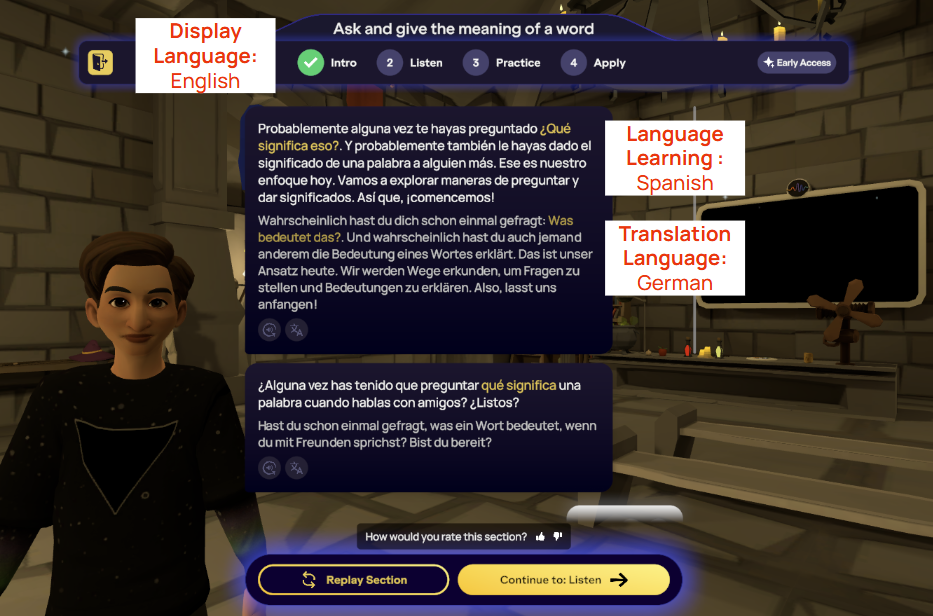
User-Interface (UI) Display Language
The system display language controls the language of the IMMERSE app’s user interface, things like your menus, buttons, navigation labels, and system messages. These elements are carefully configured in-house by our localization experts and development team.
Languages Offered:
-
English (North American)
-
Spanish (Latin American)
-
French
-
Portuguese (Brazilian)
-
Japanese
👩🏼🏫 If you're confident in your second language skills, try switching your display language to match your target language! This will help you test your fluency by seeing how well you navigate IMMERSE and discover new terms.
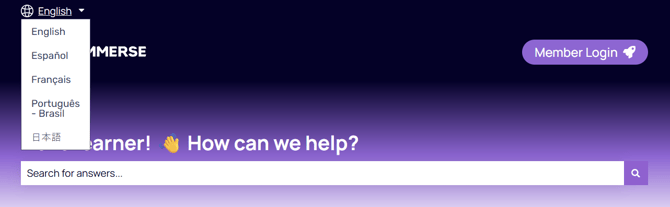
⚙️ Our Help Center and support articles are also offered in English, Spanish, French, Portuguese and Japanese. To change between languages, choose from the drop down menu at the top left of the page.
Translation Language
The system translation language dictates the output language of any dynamic or AI-generated translations that appear within the IMMERSE app. This includes text translations and AI-generated responses in Self-Paced Lessons, as well as results from the Language Assist feature. Our integration of third-party generative AI APIs allows us to support more languages in these tools than are available through our standard display language options.
Languages Offered:
*display language options shown in italics*
-
English
-
Spanish
-
French
-
Portuguese
-
Japanese
-
German
-
Italian
-
Dutch
-
Swedish
-
Polish
-
Romanian
-
Russian
-
Ukrainian
-
Turkish
-
Hungarian
-
Korean
-
Simplified Chinese
-
Traditional Chinese
-
Indonesian
-
Vietnamese
Changing the Settings
Before Logging In
You can change your display language on the login screens of both the Web/Mobile App and the VR Homeroom. Simply select your preferred language from the dropdown menu before entering your credentials.
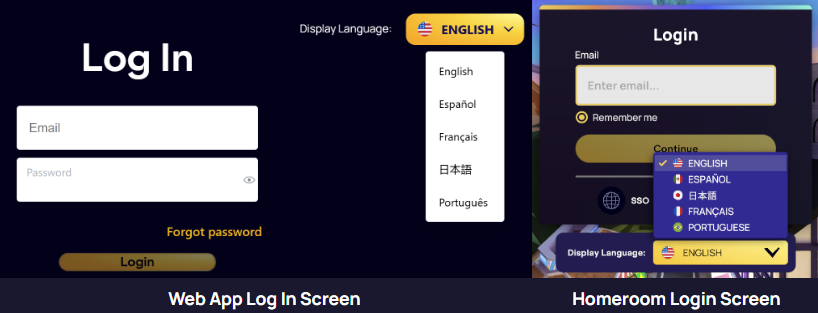
After you’ve logged into IMMERSE on computer, mobile or VR, there are several places from which you can change your display and translation languages. Including while in a Live Class or Community Scene.
Computer/Mobile Settings Menu
- Log into IMMERSE on computer or mobile
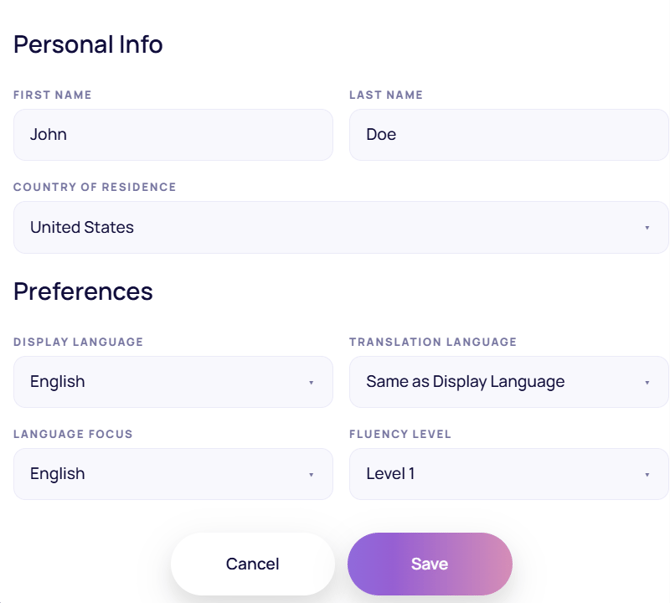
- Click > Profile Icon > Settings
- Click > the pencil icon in the Account Info box
- Click into the Display Language or Translation Language box
- Select your desired language from the drop down menu
- Click > Save
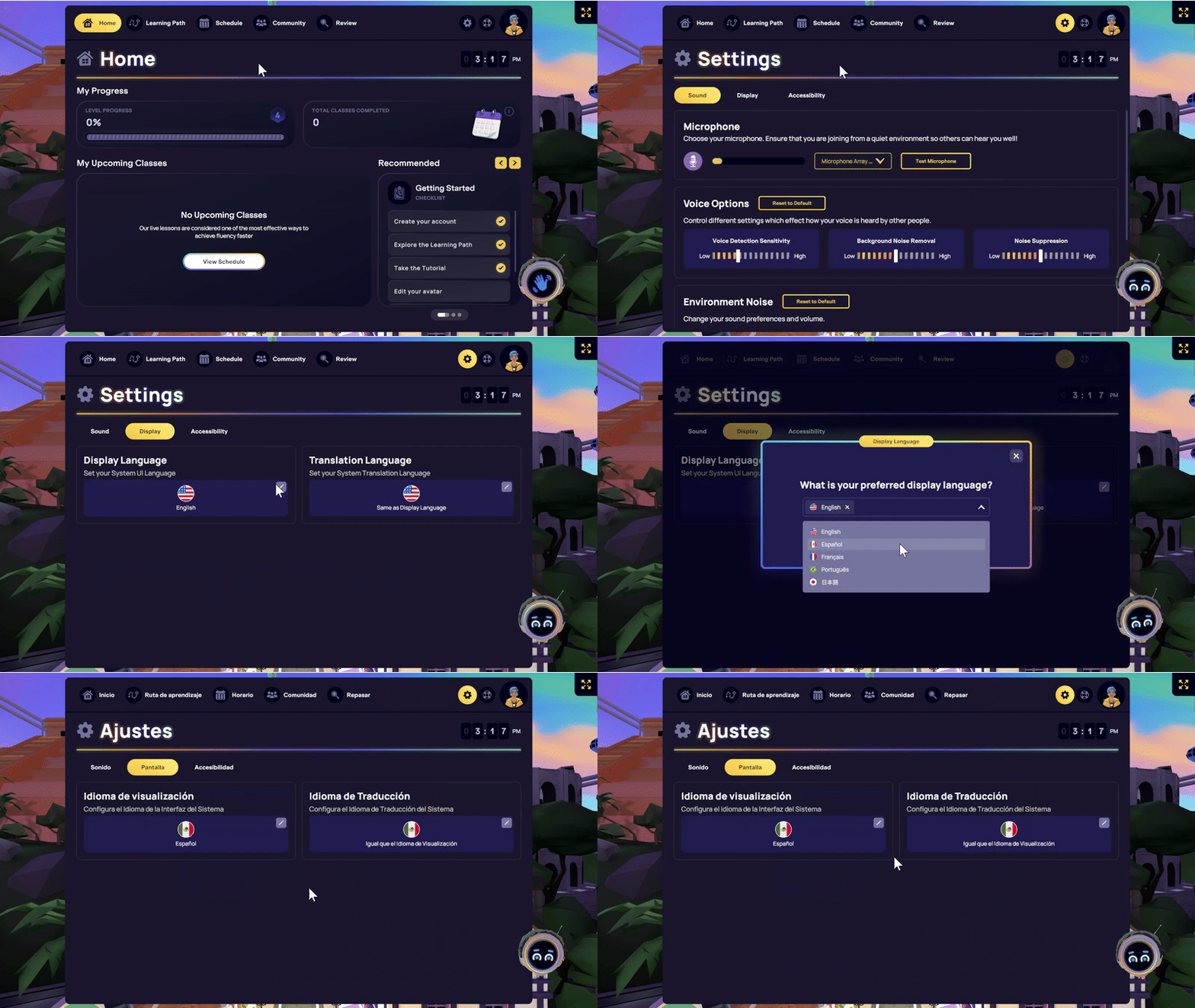
VR Homeroom Settings Menu
- Enter the IMMERSE Homeroom in VR.
- Click > the gear icon, next to your profile icon, to access the settings menu.
- Click > Display.
- Click > the pencil icon within the Display Language or Translation Language box
- Select your preferred language from the dropdown menu.
- Click > Update, to save your selection.
Live Scene Settings Menus
Once inside a Live Class or Community Scene, you can change Display and Translation Languages from your in-scene settings menu. Follow the steps below for the platform you operate on.
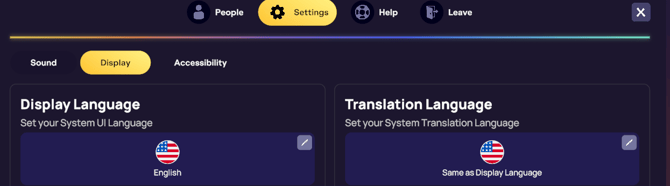
Computer
- Press > ESC on your keyboard, or click the button to the top left of your screen.
- Click > Settings > Display
- Click > the pencil icon within the Display Language or Translation Language box
- Select your preferred language from the dropdown menu.
- Click > Update, to save your selection.
- Click > ESC again to exit the menu.
VR
- Press X on your LEFT controller to open the settings menu.
- Click > Settings > Display
- Click > the pencil icon within the Display Language or Translation Language box
- Select your preferred language from the dropdown menu.
- Click > Update, to save your selection.
- Press X again to close the menu.
ℹ️ Looking to change your Language Program instead? 👉 Changing Language Programs or Fluency Levels
❓Have questions or concerns about what you read in this article? Reach out to our support team for guidance at support@immerse.com.