
Table of Contents
Virtual World Specific (VR)
> Accessing the "Original" Practice Activities
> The "Original" Practice Activities Explained
Getting the most out of your Live Class starts before you ever join the session. IMMERSE offers several ways to prepare ahead of time — from self-paced lessons and AI-powered practice conversations to class notes and guided study activities — so you can walk in with confidence. The tools available to you can depend on which device you're using, so this guide breaks down your preparation options by platform to help you make the most of every class.
General Recommendations
These options are available across all IMMERSE platforms.
Complete the Associated Self-Paced Lesson
Click on the “View on Learning Path” option when hovering over your booked classes, to complete the Self-Paced Lesson version of the Live Class before joining the virtual world with others. These lessons are also great for reviewing afterwards.
Learn More About Self-Paced Lessons
Use Your Class Notes
During a lesson, your Guide will send you notes and phrases that you can save for later review. You can access these notes during and after the session from either VR or a computer. Here are some ways to use class notes for review or future aid.
- Review Past Class Notes - You can review notes from previous classes in the Review tab of your Homeroom.
- Create Your Own Notes - Preemptively build notes with key phrases, vocab, and grammar rules that you want on hand to support you during the class you’re about to take.
- Curate a Saved Notes List - All Past Class Notes are saved permanently by default. To create a personalized note list, you can selectively save key terms using the Add to Saved Notes option. This lets you save specific vocabulary or concepts for later use and review.
Practice with an AI Avatar Conversation Partner
Want to check your understanding? Use the open-conversation AI Avatar in the Practice Scenes to test yourself! Try directing the conversation toward the grammar points or topics you want to practice. This helps you see how well you can apply what you've learned in a free-flowing conversation before or after class.
You can speak to the AI practice avatar in any language, and the dialogue box will automatically translate your words.
Learn more about AI Avatars in Community Spaces
Web & Mobile App Specific
These options are only available from the IMMERSE Mobile and Browser Apps.
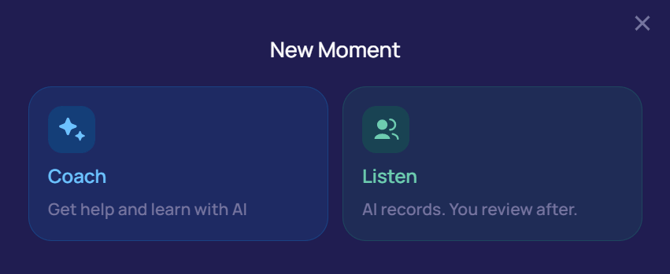
Capture a New Moment
Using your Booked Class title and description, ask the AI Coach feature to help you prepare. Then go back and for asking questions and practice relevant concepts.
- Locate the Booked Class you want to prepare for by going to Schedule > Booked > Upcoming Live Classes
- Click into the Booked Class to view the name and description
- Take a screenshot so you can read verbatim what the class is about to the AI Coach
- Navigate to the Capture feature
- Click the Capture button
- Choose Coach
- Prompt your AI Coach using the Live Class name and description, then ask follow up questions such as:
- I need help preparing for a Live Class I’m taking called [Name] where I’m supposed to learn [learning objectives] in order to [description].
- What sort of phrases would be good to know for this scenario?
- Can you give me an example of a structured response that meets the learning objective?
- Explain the key grammar points related to this class. I want to know how, when, and why to use them.
🧑🏫 To go further in depth, Create a Lesson from the Moment you just captured. Practice or Lecture would be the recommend option for preparing for a Live Class.
Review Existing Capture Materials
After confirming the Live Class name and description you want to review for, examine your previous Moments and Threads for similar situations or helpful artifacts.
ℹ️ Learn More About:
Virtual World Specific
These options are only available within the VR app.
Accessing the “Original” Practice Activities
Each Live Class in IMMERSE is supplemented with about 15 minutes of self-guided practice activities. These are designed to help you prepare before and review after both Classes and Lessons. Some activities are created by our expert language Guides, while others are powered by AI.
⚠️ These activities are only available for IMMERSE VR. They cannot be accessed from the Mobile or Browser App (app.immerse.online).
For a Booked Class
You can easily find the preparation materials for a class you've already booked:
- Launch IMMERSE VR and enter your Homeroom.
- On the Home tab, find your booked class under My Upcoming Lessons.
- Hover over the lesson you want to prepare for.
- Click > “Practice” to start the Prep Material
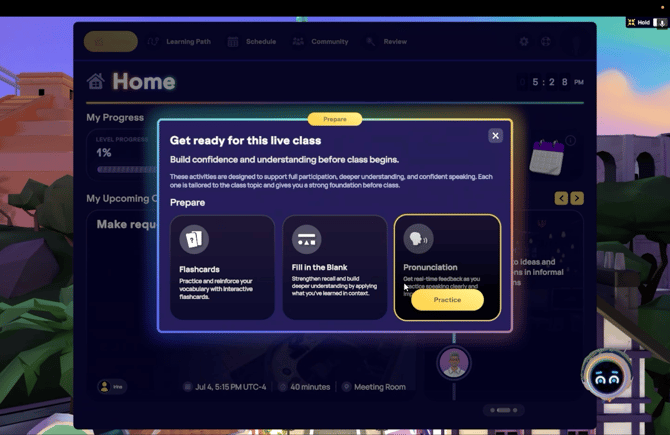
For an Unbooked Class
You can still access practice activities even if you haven't booked a specific class time:
From the learning path:
- Click > Learning Path
- Go to desired section if other than current one
- Toggle on Live Class Toggle
- Hover over Live Class tile
- Click > Prepare
- Hover over desired activity
- Click > Practice
From the Schedule page
*only accessible if you have Live classes on your plan
- Click > Schedule
- Select a date
- Select a class and time
- Click > Practice
- Hover over desired activity
- Click > Practice again
From a floating Live Class tile on the Learning path:
- Click > Learning Path
- Find a floating class tile and hover over it
- Click > Book
- Select a time
- Click > Practice
💭 Can I access this practice material with no access to Live Classes?
Practice activities associated with live classes remain accessible to users, even if their plan does not include live class access. There simply will not be a Book option.
The “Original” Practice Activities Explained
Each learning outcome has an associated study space in the virtual world, where you can practice vocabulary, pronunciation, and conversations related to the lesson content to prepare for a live class.
🎓 Recommended Practice Plan
- Before your lesson: Focus on flashcards and pronunciation activities to build confidence.
- After your lesson: Work on the fill-in-the-blank and Guided Conversation activities to reinforce what you’ve learned.
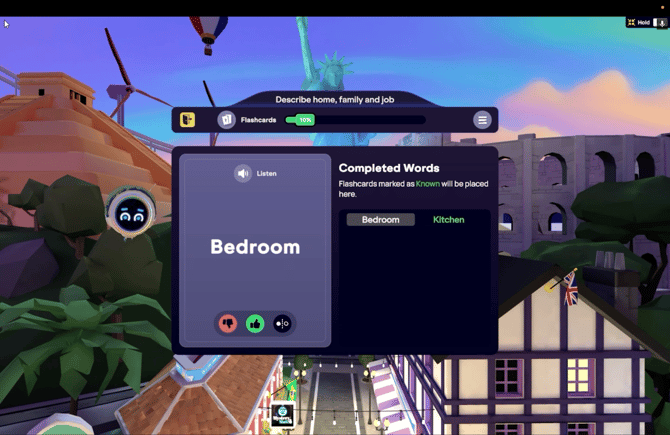
Flashcards
Flashcards help you recognize words and phrases you might encounter in your lesson.
- Reveal Button: Select to reveal the definition or image.
- Mark as Known: Thumbs up to remove from your current list once you've learned it.
- Mark as Unknown: Thumbs down to shuffle it back in for more practice.
- Vocabulary Bank: See all words/phrases, marked as Green(known) or Red (unknown). Red words turn green when marked as known.
- Listen to Example: Select the speaker button to hear the word or phrase spoken.
- Progress Bar: Shows your progress as you mark words as known.
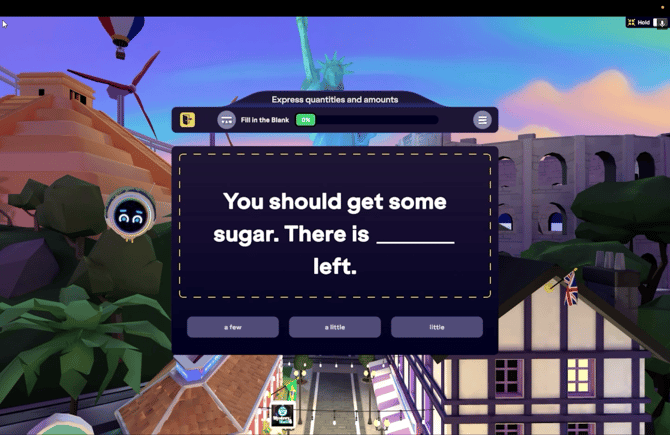
Fill in the Blank
This activity quizzes you on new words and phrases by presenting phrases with a missing word and three options to choose from.
- Answer options: Select one to see if your answer is correct.
- Progress Bar: Shows your progress as you answer each phrase.
Pronunciation
Practice pronouncing words and phrases and receive feedback on your performance.
Color Scale Quality Indicator
- Red: Poor pronunciation, try again!
- Yellow: Weak pronunciation but closer, needs work!
- Yellow Green: Good Pronunciation, needs some fine tuning!
- Green: Great Pronunciation, nailed it!
Pronunciation Score - Grading/Rating Parameters
- Accuracy: How closely your speech matches a native speaker.
- Completeness: How many words you pronounced compared to the reference.
- Fluency: How naturally your speech flows.
Feature Options:
- Record your voice: Select the record button to speak.
- Listen to Example: Select the speaker button to hear the word or phrase spoken.
- Pronunciation feedback: Visual representation of your performance.
- Listen to your recording: Hear your own voice.
- Try again: Redo the pronunciation.
- Next Word or Phrase: Move to the next item.
- Progress Bar: Shows your progress as you complete each word or phrase.
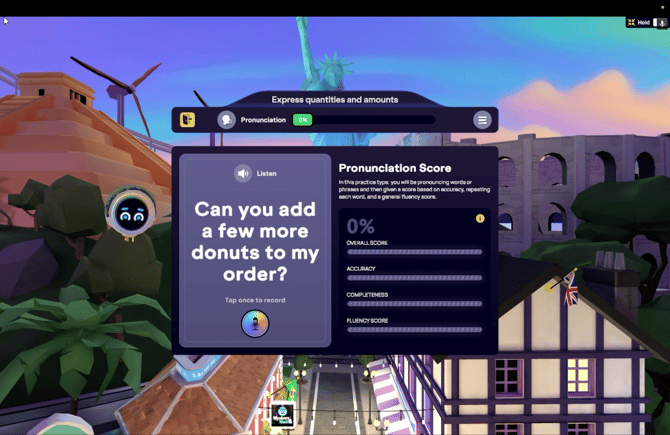
ℹ️ Navigating Between the Practice Activities
To switch activities, click the three-lined button in the upper right. A confirmation screen will appear, warning that unsaved progress in the current activity will be lost. It is advised to complete the current activity or accept the loss of unsaved work before proceeding.
Frequently Asked Questions
Why aren’t the practice activities marked as completed after I’ve done them?
- Practice activities are always available for you to revisit whenever you need to refresh your understanding of a specific lesson's learning objective. We do not mark them as complete after an attempt because our intention is for you to utilize them multiple times. Additionally, they do not contribute to your level progression, so completing them is not mandatory.
Why don’t the practice activities count towards my level progression?
- Self-Paced lessons are the only activities that count towards your level progression. While Live Classes and their virtual world practice activities are optional for leveling up, they are designed to extend your learning.
Do I have to complete the practice activities or associated Self-Paced Lesson in order to attend the Live Class I booked?
- Not at all! Completing the associated practice activities, or the Self-Paced Lesson version is not required to book and attend Live Classes. However, Live Class completion will not contribute to leveling up progress.
Do I need to change the level on my account to match the level of a booked class I am trying to access the practice activities for?
- In the virtual world Homeroom, you can access all practice activities for any booked class regardless of the level your account is set to. Keep in mind you'll still need to switch to that level in order to view your booked class on the Learning Path or Schedule itself.
Why can’t I access the “original” practice activities from the Mobile or Web App?
- In the redesign, the new Capture Feature replaced these standalone activities, offering deeper practice and improved fluency. They remain in VR and the NVIDIA GeForceNOW interface as virtual world activities because the Capture feature is unavailable within the virtual world.
❓ Questions about how to prep for a live class or the practice activities themselves? Send our support team a message at support@immerse.com