
Table of Contents
⚙️ For the best experience and to prevent echoes within the application, IMMERSE advises computer-based learners to use a headset or earbuds with a microphone.
Configuring Your Microphone
To ensure optimal microphone performance within IMMERSE, please adhere to the following preparatory steps:
-
Grant Access: Verify that your computer's browser and the app.immerse.online domain are authorized to utilize your microphone.
-
Select Input Device: You must manually designate the preferred microphone for use as the input source.
-
Verify Functionality: Utilize the IMMERSE settings menu to test the microphone and confirm proper operation.
Please review the comprehensive instructions provided below for each stage of the setup process.
⚠️These directions are specifically for microphone inputs that have already been configured and used within your device settings. They do not cover adding a new microphone input. For instructions on adding a new microphone, please consult resources on Google or YouTube.
Granting permission for microphone access
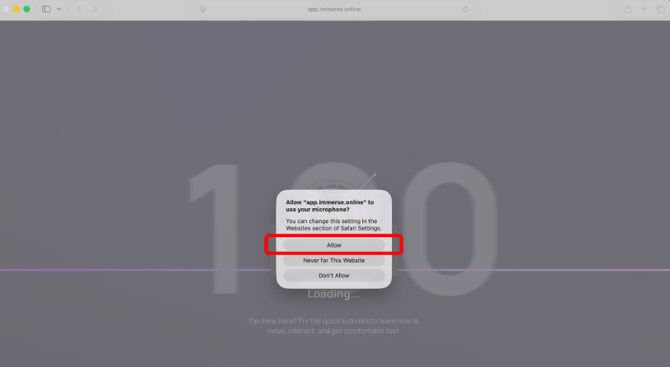
The first time you launch the IMMERSE browser application, you will be asked for browser microphone and clipboard access. Please be sure to click the Allow button.
Self-Paced Lessons
If app.immerse.online hasn’t been given microphone permissions automatically and you try to record a verbal response within a self-paced lesson, you will encounter a pop up modal asking you to enable your microphone permissions. Please be sure to click the Allow button.
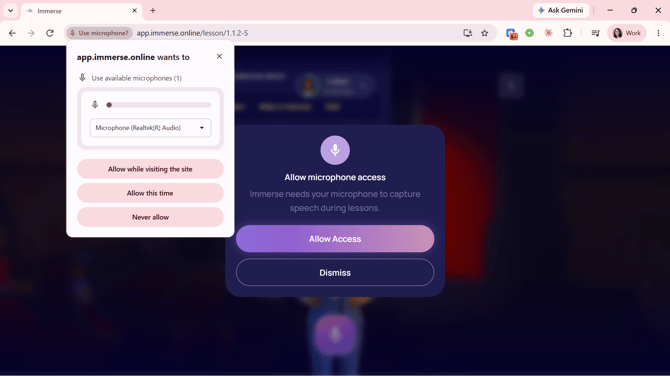
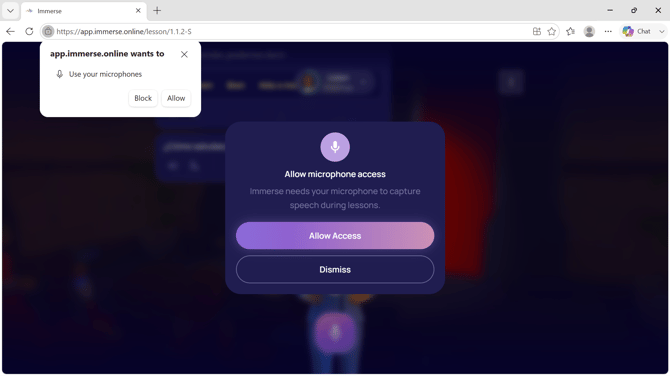
Live Classes & Community Scenes
The first time you launch the IMMERSE virtual world by going to join a Live Class or enter a Community Scene, you will be asked for browser microphone and clipboard access if you did not previously configure it for Self-Paced Lessons. Please be sure to click the Allow button.
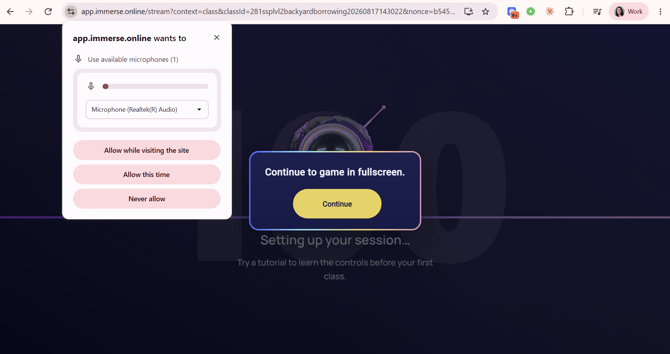
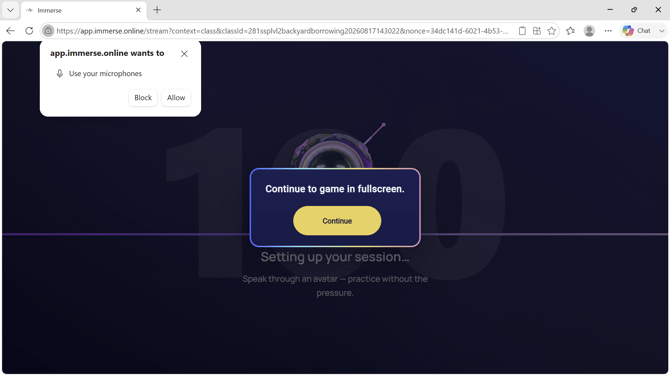
Changing your microphone input
You can change microphone input at any time. This can be configured before launching IMMERSE virtual world, or by exiting full screen mode if already within the virtual world.
ℹ️ You can also follow these steps to grant mic access if you didn’t allow it when the pop-up first appeared.
Select your browser below for specific steps.
Chrome
- Click the settings toggle to the left of the URL
- Click the arrow to the right of microphone
- Select the input you want to use from the drop down.
- Re-activate full screen (if in the virtual world).
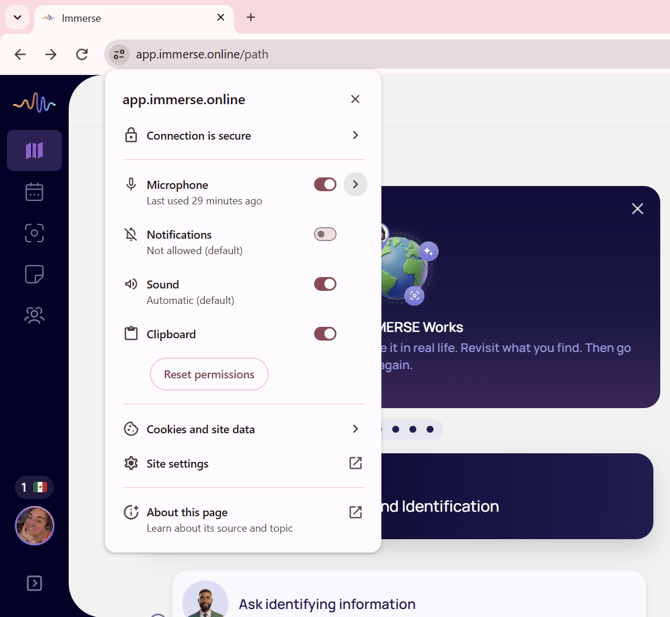
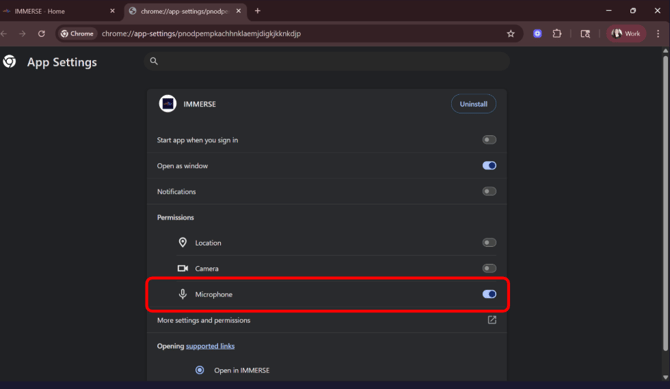
⚙️What to do if the mic permissions aren’t viewable:
- Click site settings to open the app settings in a new tab
- Toggle on the microphone permissions
Edge
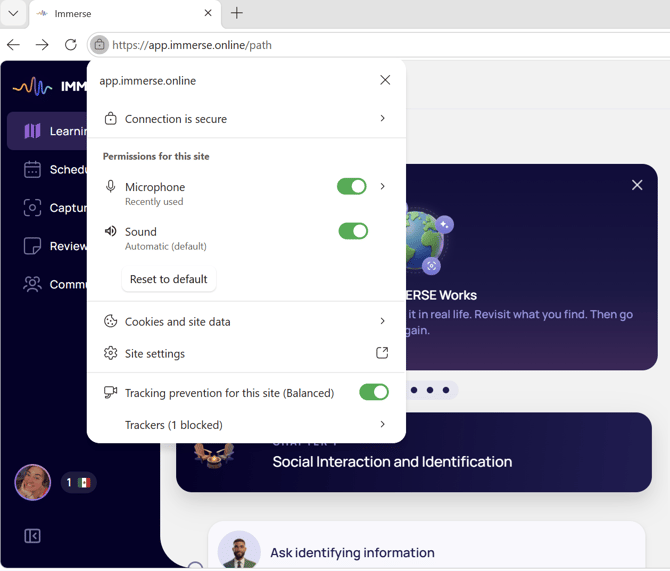
- Click the lock to the left of the URL in the browser search bar.
- Click the arrow to the right of microphone
- Select the input you want to use from the drop down menu.
- Re-activate full-screen (if in the virtual world).
Safari
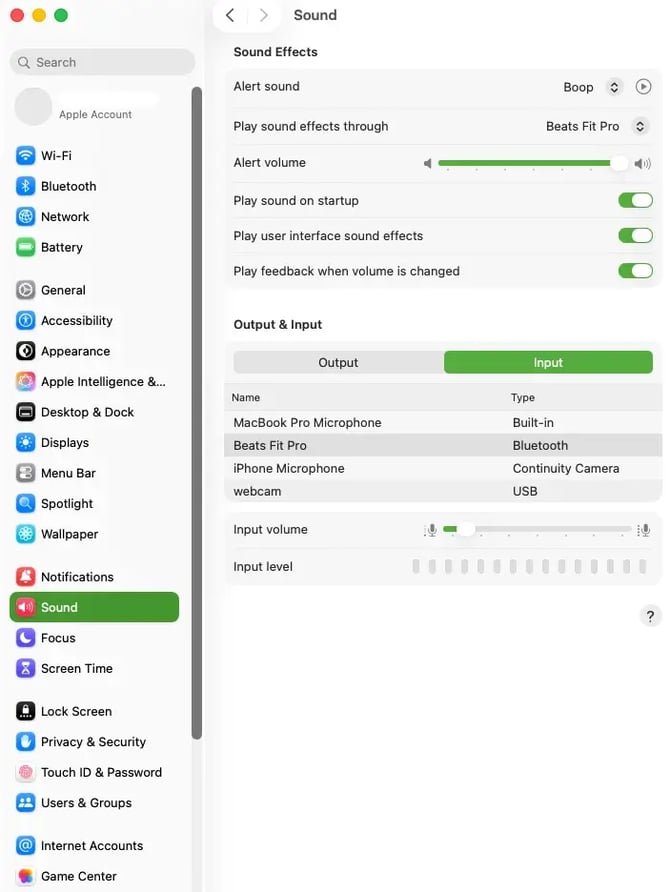
- Open the MacOS native “System Settings” App
- Click > Sound
- Select > “Output” and choose your preferred audio output method (headphones/speaker)
- Select > “Input” and choose your preferred audio input method (mic)
- Close the “System Settings” app
- Refresh your browser so the new input registers in its settings.
Testing Your Microphone in IMMERSE
⚠️ You will not be able to view mic inputs from inside the IMMERSE Homeroom on the browser. This is only viewable from your browser settings toggle.
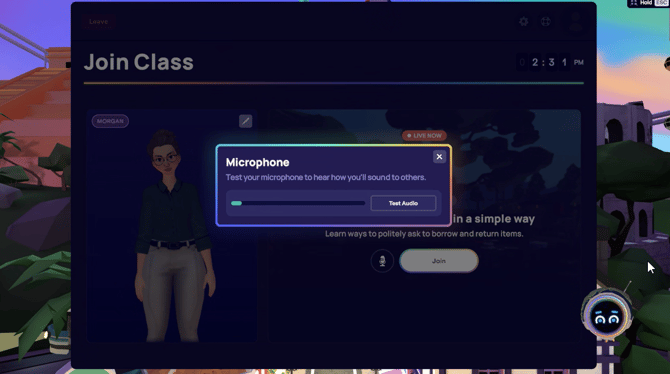
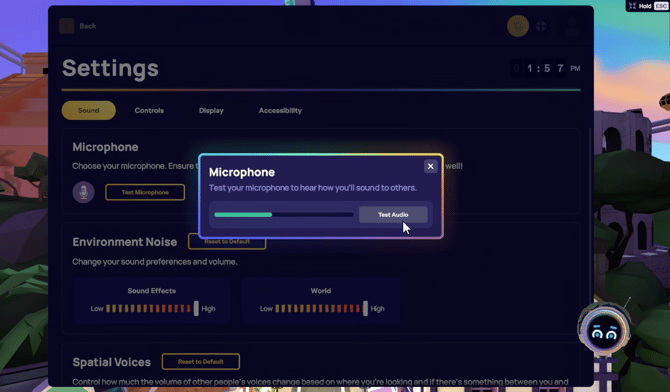
- Launch the IMMERSE virtual world by Joining a Live Class or Entering a Community Scene.
- Joining a Live Class: Click the microphone icon next to the Join button
- Entering a Community Scene: Click the gear icon to the left of the profile picture.
- Click "Test Microphone"
- Click > Test Audio to run an audible test of your incoming audio/voice.
ℹ️ How do I know if my mic is working?
The Microphone icon slider/bar next to the "mic icon" in your Microphone menu will move left and right when you speak if an input signal is successfully detected, and you’ll hear your input play back to you during the test.
Frequently Asked Questions
Can I use a Bluetooth headset or earbuds?
-
Yes, you can certainly use a Bluetooth headset or earbuds. However, please be aware that using a wireless connection may occasionally introduce more audio and connection issues due to the need for wireless data transmission.
What if I don’t have a microphone or headphones?
-
Please ensure you maintain a positive learning environment for the Guide and other members by joining from a quiet location, muting yourself when not speaking, and lowering your device volume to avoid an echo.
How do I ensure my voice is clear while minimizing background noise in a loud environment?
-
You can change voice detection and background noise settings once inside the IMMERSE app. Check out this support article for details: Configuring In-App Audio Settings
❓Still experiencing voice detection issues within IMMERSE? Reach out to our Support Team at support@immerse.com with details.