
Table of Contents
Professional Info for Enterprise Learners
Reset Your Password
Account details are most easily updated on a computer from the WebApp or via the Mobile App. However, individual subscribers can also manage all details, except for password resets, directly within the VR app.
Profile Settings
Your Profile icon is where you will locate options for changing the personal information associated with your IMMERSE account. Follow the steps below to edit any field.
- Log in to IMMERSE on the Computer WebApp or Mobile App.
- Click > Profile Picture > Settings
- Click the pencil icon in the Account Info box
- Click the field you want to edit.
- Edit your information by typing an input directly, or selecting from the drop down menu.
- Click > Save.
Fields
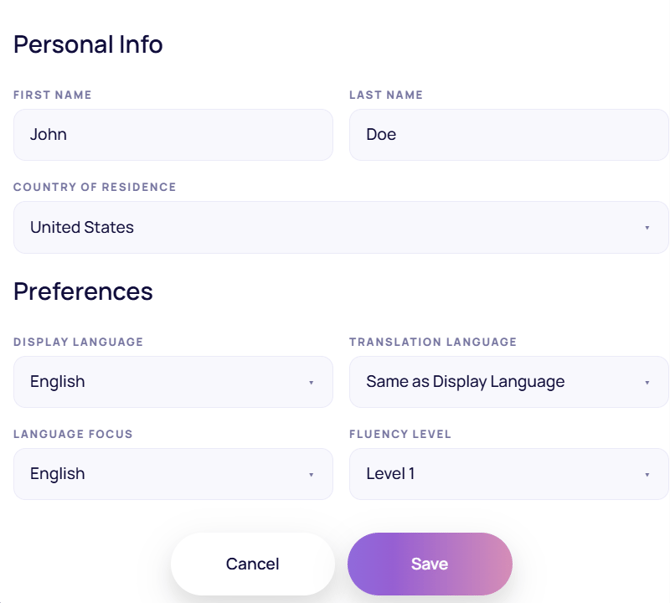
- First and Last Name - Use only for misspellings, legal name changes, or nicknames. Your account name must clearly link to your billing information to validate your account.
- Country of Residence - We use your country to determine your time zone for schedule info, booked classes, and reminders. This does not affect learning content or available classes.
- Display Language - Change the language of your IMMERSE app’s interface, affecting navigation and visual explanations.
- Translation Language - Change the language AI features like Language Assist and Self-Paced lessons use to localize content.
- Language Focus - Change the target language you are learning.
- Fluency Level - Change the level of learning material on the Learning Path and Live Class Schedule.
⚠️ Changing Your Email Address
Since your email address is the primary piece of information linking all your learner activity records and platform access, we do not allow manual changes. To ensure uninterrupted account access and learning, it needs to be updated in several locations.
Please email our Support Team, at support@immerse.com, with your current IMMERSE account email and the new email you'd like to use for all communications, login, and billing. We will be happy to make the switch for you.
Professional Info for Enterprise Learners
As an enterprise learner, you can directly update some of your demographic information in your IMMERSE account. This eliminates the need to contact your HR Admin or Program Administrator. We understand that your details may change as your career progresses or you relocate, and we want to ensure you feel accurately represented in your classes.
.gif?width=670&height=103&name=IMMERSE_TheFluencyPerformancePlatform-26June2026-ezgif.com-video-to-gif-converter%20(1).gif)
The information you share in your profile also influences your IMMERSE experience. Your answers are used by our AI tutors in Self-Paced Lessons, AI Conversation Partners in Community Scenes, and during personalized Geo Review Sessions. Sharing details about your daily life helps personalize your learning, leading to faster progress and greater enjoyment.
Editing Professional Info
- Log into IMMERSE on the Mobile or Web App.
- Click > Profile Icon > Settings
- In the Professional Info box, click the pencil icon to make changes.
- Click into the drop down box for the field you want to edit.
- Select or input your option.
- Click > Save
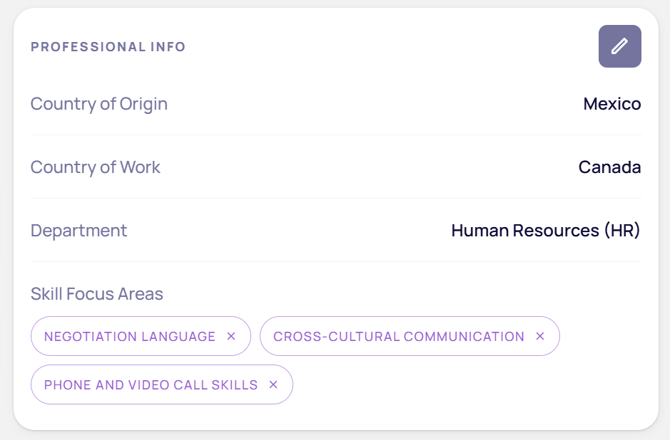
Fields
- Country of Origin - Tell us where you come from so we can incorporate relevant history and culture into your lessons.
- Country of Work - Tell us what country you work in, especially if it is different from your country of origin, so we can incorporate relevant history and culture into your lessons.
- Department - To help us tailor your learning experience with terminology relevant to your role and area of expertise, be sure to let us know your department within your company.
- Skill Focus Areas - These role-specific skills let us tailor activity language more narrowly than your department. Select what you need to practice most for your role.
ℹ️ Don’t see your department, related field, or particular skill area listed? Submit an improvement request to our team. Learn About Reporting Issues, Giving Feedback, and Tracking Your Support Tickets
Reset Your Password
Forgotten Passwords
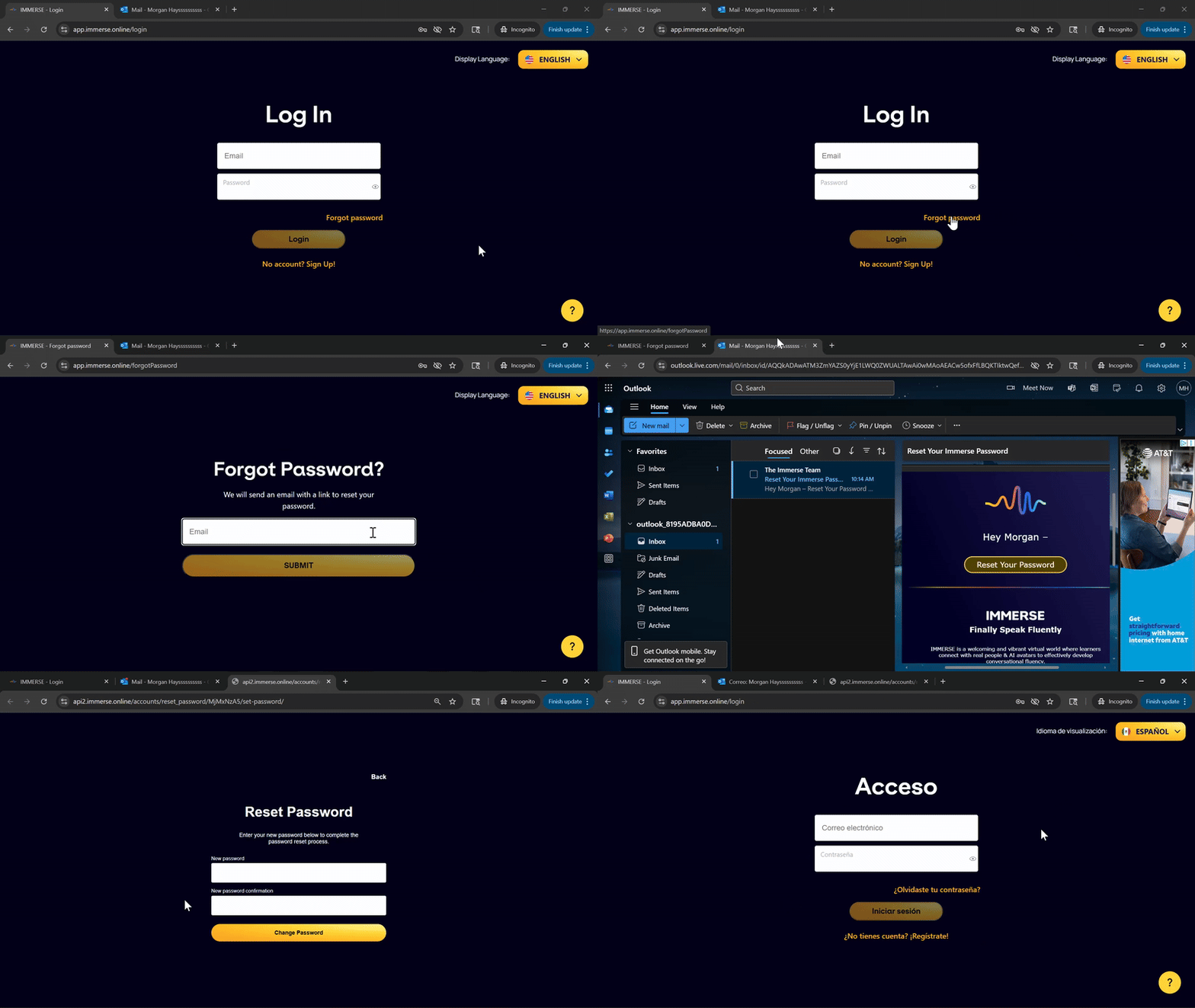
All learners can recover or change their password by going to the Forgot Password page. Follow the steps below to reset your password:
- Go to Computer WebApp or Mobile App log in screen.
- Click > Forgot Password
- Enter your IMMERSE account email address
- Click > Submit
- Go to your email inbox and open the email
- Click > Reset Password
- Enter and confirm your new password.
- Click > Change Password to save.
- Return to the login screen and log in using your new password.
🚨 Didn’t get the reset email?
Sometimes, email providers block the reset email because they don’t recognize the sender. To ensure you receive it, please add noreply@info.immerse.online to your contacts list and try again. Also be sure to check in spam, junk, and promotions inboxes.
If you still don’t receive the email, please contact support@immerse.com . We’ll reset your password for you and investigate the issue.
Known Passwords
If you believe your password was compromised, or shared without your permission, you can change a known password at any time from your Profile Settings.
- Log into IMMERSE on the Mobile or Computer Web App.
- Click > Profile Icon > Settings
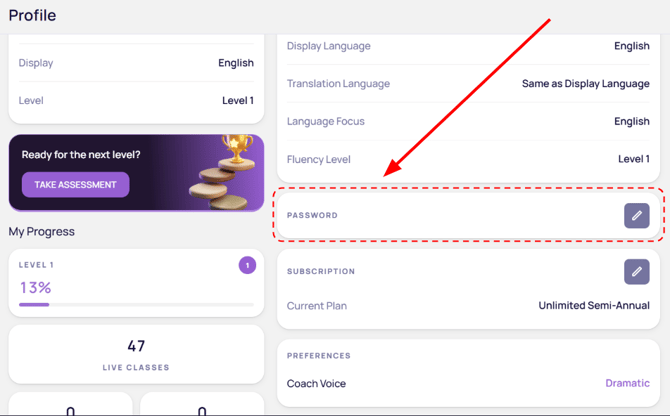
- Locate the Password box.
- Click > the pencil icon to edit
- Enter your current password.
- Enter a new password.
- Confirm your new password.
- Click > Save
ℹ️ Passwords must:
- Be at least 8 characters long
- Not closely resemble email or other user attributes
- Not be a common or easily hacked password
- Not be entirely numeric
❓Having trouble adjusting these settings? Reach out to our Support Team at support@immerse.com for assistance.