
Table of Contents
> Complete a Self-Paced Lesson
> Check out the Capture Feature
> Take the Virtual World Tutorial
> Attend Your First Live Class
Welcome to IMMERSE! We're excited for you to begin your language training. All you'll need to do is complete a few additional details after you receive your registration email, and you'll be ready to start.
Activating Your Account
⚠️ Employee Funded Licenses - Corporate Promo Code
If you received a corporate promo code but paid for access via Stripe, your corporate account still requires manual configuration. Please allow up to 48 hours to receive a registration email. Do not create an IMMERSE account through the individual learner sign-up process. For questions or concerns about your payment and registration, contact your program administrator or our support team.
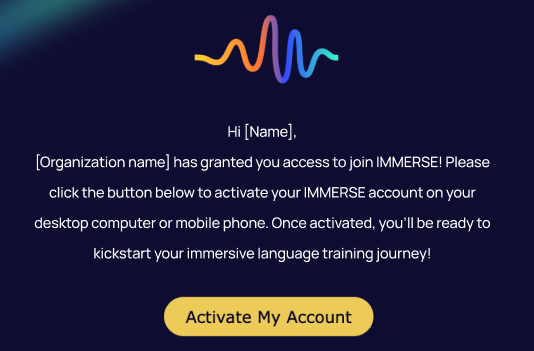
Once you receive your registration email from noreply@info.immerse.online, you’ll follow the steps below to activate your account:
- Click > Activate My Account, in the email you received
- Confirm your name, enter your phone number (optional) and create a password.
- Click > Next.
- Select your demographic information from the drop down options.
- Click > Next.
- Take the Placement test or Choose your level: IMMERSE Leveling & The Placement Test
- After completing the Placement Test (required by some institutions), click > Let’s Go
- After selecting your level, click > Get Started
- Go through the onboarding sequence clicking Next on each window (or click “skip and explore”).
⚙️Update Your Demographics Anytime!
You can easily update your Country of Origin, Country of Work, Department, and Skill Focus Areas in your Profile Settings whenever you like. For detailed instructions, refer to the article below.
Next Steps
After activation, you'll head straight into IMMERSE to start learning! Here are the next steps to achieve fluency:
Explore the Learning Path
Understand the structure of your learning program and how it will help you build fluency.
Complete a Self-Paced Lesson
After familiarizing yourself with the learning path, you can begin your journey to fluency by starting your first Self-Paced lesson.
Learn About Self-Paced Lessons
Check out the Capture Feature
Learn from your experiences by capturing real-life moments and generating personalized lessons from them.
Learn About the Mobile AppTake the Virtual World Tutorial
Feel confident focusing on language learning, knowing you can easily navigate the platform without tech-related concerns.
Edit Your Avatar
Choose a skin to represent you in our virtual world. If you have a VR headset, you can create your own Meta avatar and link it to IMMERSE for even more personalization.
Attend Your First Live Class
For those with Live Class access as part of their license, this marks a significant step in your learning journey!
Join a Community Scene
Check out where you can meet up with other learns in public and private rooms, or chat with AI Conversation Partners.
Logging Back In
After account activation, the registration email link becomes inactive. To log in, please go to app.immerse.online from a computer, or download the Mobile App, and use your registered email and the password created during activation.

⚠️ Reminder: On mobile devices, you can book classes, engage in asynchronous activities, and adjust settings. However, for live classes or to participate in public scenes, please log in from a computer or VR headset.
❓Questions about getting set up as a Enterprise Learner? Don’t hesitate to reach out to your Program Admin or Activation Specialist directly, or send our Support Team a message at support@immerse.com.