
Table of Contents
Virtual World Tutorial
⚠️ Currently available for Computer only. VR will need to rely on the in-scene help menu showcasing what the different buttons do. See the Meta Quest Controller Hot Key Overview at the end of Understanding the Controls for more detail.
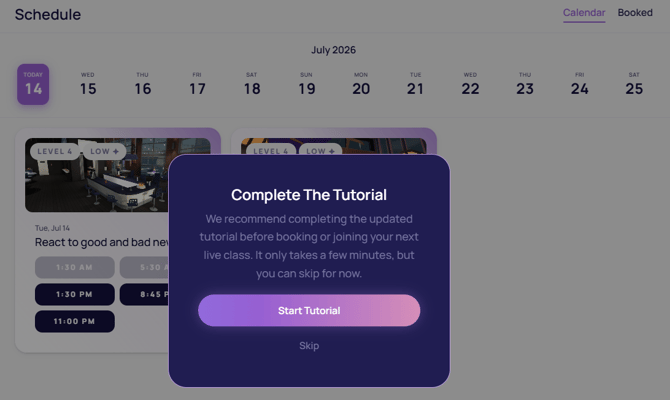
ℹ️ New users must complete a short tutorial before booking a Live Class or joining a Community Scene. If you try to book a Live Class or join a Community Scene without finishing the tutorial, a pop-up will prompt you to complete it first.
How to Access
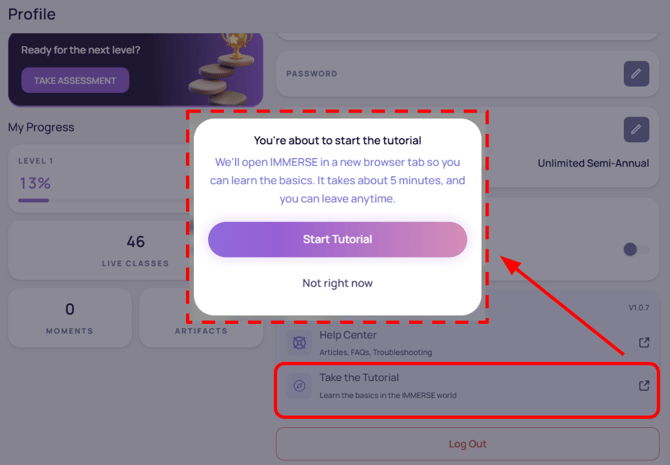
Navigate to your Profile to return to the tutorials anytime for practice with movement and tools.
- Log in to the IMMERSE Web App on computer.
- Click Profile icon > Settings
- Scroll to the bottom of the page.
- Click > Take the Tutorial > Start Tutorial
- Follow along with the tutorial at your own pace in a new browser tab.
What is Covered
- Movement
- Looking around
- Transportation methods
- Interactions
- Using a graphic organizer from live classes
- Handling grabbable objects
- Using placeable whiteboard placed by Guides in live classes
- Radial tool menu
- Open class notes
- Open help requests
- Open settings
ℹ️ For a full understanding of what’s possible within the virtual world, please review Understanding the Controls
Self-Paced Lesson Tutorial
⚠️ This tutorial is only available inside the VR app as part of Homeroom. It isn't available on the web or mobile apps. See the example videos below for navigation in self-paced lessons on the web or mobile apps.
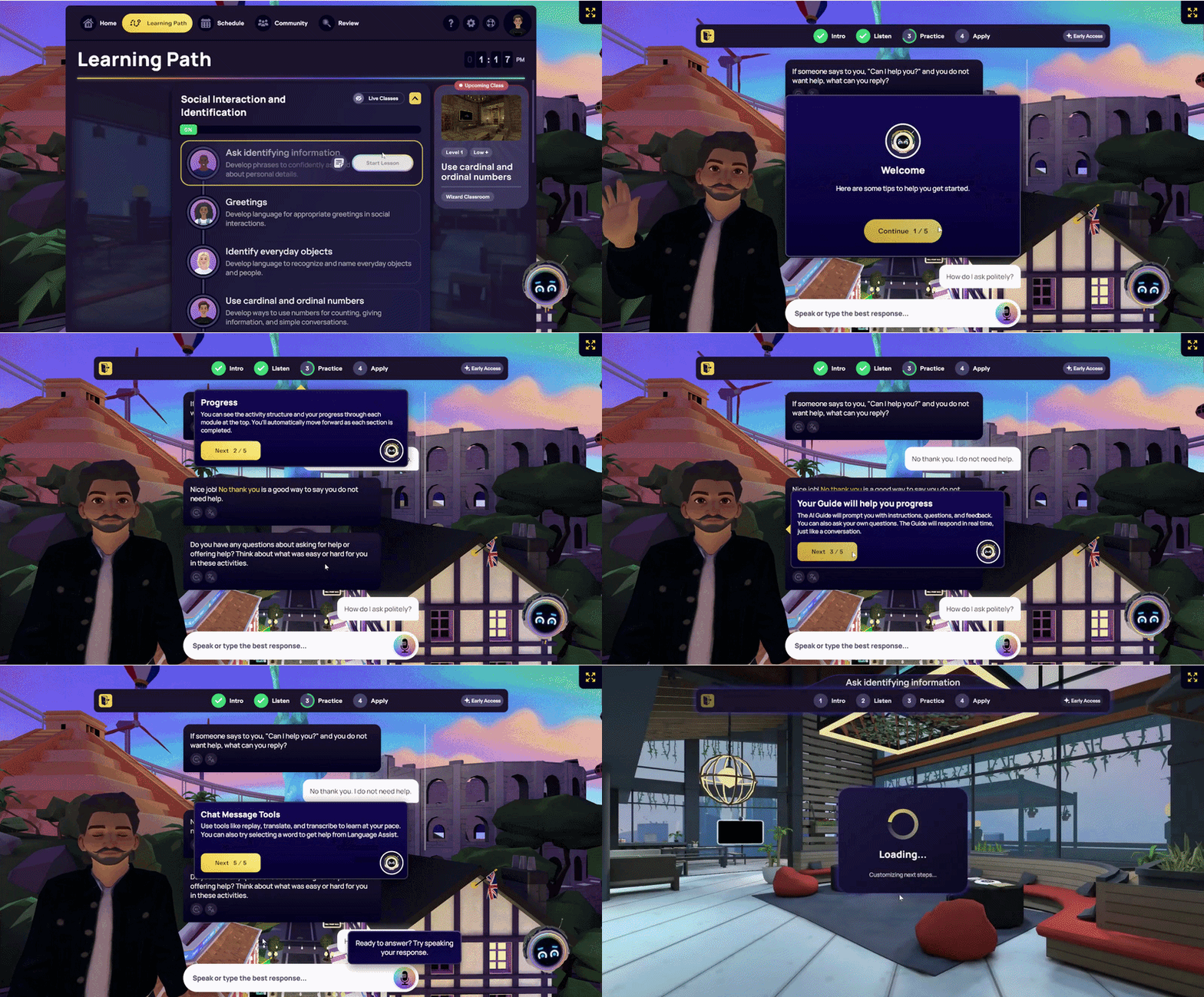
The first time you start a self-paced lesson, you can take a brief tutorial or skip it and begin the lesson immediately. This option appears only if you haven’t completed a self-paced lesson before.
What is Covered
- Viewing module progress
- How Your AI Tutor operates
- Options for responding
- Available Learning Tools
Full Navigational Controls
ℹ️ Learn More about Self-Paced Lessons and the Learning Path here.
Computer & Mobile Interface Navigation
VR Interface Navigation (modeled on computer)
Interacting with the AI Guide:
- Skip: Click the skip button to jump to the end of the current AI Guide message and load the next one.
- Replay: Click replay to listen to the current message again from the beginning.
- Translate: Click translate to translate the entire text to your display language if it differs from your target language.
- (VR only) Listen: Click listen (the speaker button) on any translation to hear it spoken aloud.
Responding to the AI Guide:
- Record a Response: Click the microphone icon to record your response.
- Send a Recorded Message: Click the send icon to share your recorded message.
- (VR only) Replay Your Sent Message: Click the volume icon to replay what you have sent.
- (VR only) View Transcript: Click the transcript button to view a written version of your spoken response.
- Type a Response: Click within the text window to type a response.
- On the Web and Mobile apps, you’ll need to be in Chat mode in order to type responses. You can select this from the beginning, or change to chat by clicking the 3-dot settings menu in the top right of the lesson.
- Select an Option (Practice Activities): For practice activities with selections, click in the test window to choose an option instead of typing or speaking.
Navigating Lessons:
- Redo Previous Stages: Click on a previous stage of the lesson from the top to go back and redo it without exiting.
❓Questions about getting started in IMMERSE or how to navigate the platform and its features? Reach out to our Support Team at support@immerse.com.