
Table of Contents
Viewing & Booking Classes from Mobile or Web
Viewing & Booking Classes in VR
Adding Booked Class to Your Calendar
> Class Cancelations by IMMERSE
IMMERSE Live Classes are dynamic and engaging, accelerating your path to fluency through active interaction and real-time guidance from expert Guides. These passionate instructors create enjoyable learning environments with interactive activities, lively discussions, and practical exercises, transforming challenging concepts into memorable lessons. They offer personalized feedback and build a supportive learner community.
Focusing on practical communication skills for real-world application, IMMERSE Live Classes go beyond rote memorization. They equip you with linguistic tools and cultural insights for travel, cultural connection, or career advancement. Discover the IMMERSE difference for an enjoyable and accessible language learning experience.
⚙️ Note: You can book and attend Live classes before completing the associated Self-Paced Lesson on the Learning Path. While the Live Class will be marked as complete, you must still finish the Self-Paced Lesson to earn progress for your level and receive a Lesson Feedback summary.
🚨Live Classes require a Pro (Unlimited) Subscription. Essentials Plan members can attend Live Classes during their trial but must upgrade their subscription to maintain access.

Viewing & Booking Classes from Mobile or Web
Viewing and booking classes is now easier than ever! Simply log in to IMMERSE on Mobile or Web to select your next in-person session.
On the Learning Path
On the Learning Path, the entire curriculum is laid out in order from easy to most difficult, broken down into sections grouped by themes. When the Learning Path page loads, the sections automatically scroll to your last active lesson.
Self-paced Lesson cards will showcase an option to book the associated live class whenever it’s available on the schedule.
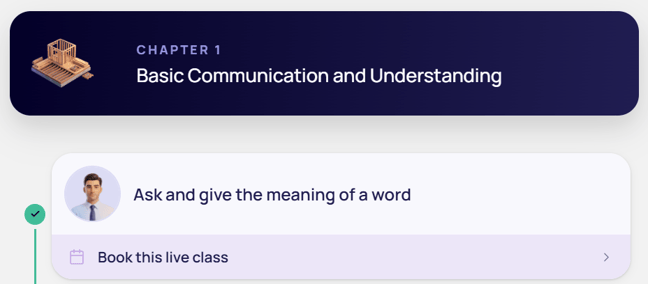
To book:
- Click > Learning Path
- Scroll through lessons until you find one that prompts you to book the live class
- Click > Book this live class
- Select the date/time you want to book
- Click > Book Class
On the Schedule
The Live Class schedule displays two weeks of classes at your current level. We aim to offer two Live Classes per level, per day. You'll notice High and Low indicators on classes to orient you to where the class falls within the level.
To book:
- Click > Schedule
- Select a date to see classes for that day
- Select a time on the class card you wish to book
- Click > Book Class
ℹ️ Joining a Live Class Without Booking in Advance
If a Live Class has already started, the Book option listed for a given class time in the areas you are able to join from, will remain for the first 5 minutes of the session. After this point you will not be able to book or join unless you registered for the Class in advance - in which case Guides will wait up to 10 minutes before closing admittance to the session.
Viewing & Booking Classes in VR
Launch your IMMERSE Homeroom in VR to view and book Live Classes.
On the Home tab
⚠️ This view is only available to Pro subscribers. Those will Essentials will not have this tab within their Homeroom.
The Recommended section of your Homeroom Home tab will cycle through different options, including showcasing upcoming Live Classes on the schedule that you may be interested in booking.
When one appears here, you can follow these steps to book:
- Click > Home
- Hover over the Live Class Tile in Recommended
- Click > View
- Select a time
- Click > Book
On the Learning Path
While similar to the Learning Path on Mobile and Web, the VR version has a few additional features and ways to book classes.
Live Class Toggle
To see the live classes for each self-paced AI lesson in a section, turn on the Live Class toggle. Remember that each Learning Path section has its own toggle, and you need to activate the toggle within a specific section to see its live classes.

✨ Expanding Sections
Want to see those AI-Powered Self-Paced Lessons and Live Classes? Just hit the “yellow drop down arrow” in the top right of each section, clicking the toggle won't do it. Heads up, only one section opens at a time for the best experience.
To book from here:
- Click the “Yellow Carrot” to open your desired section
- Click the “Live Class Toggle” to show Live Class Cards
- Hover over your desired Live Class Card
- Click > Book
- Select a time
- Click > Book
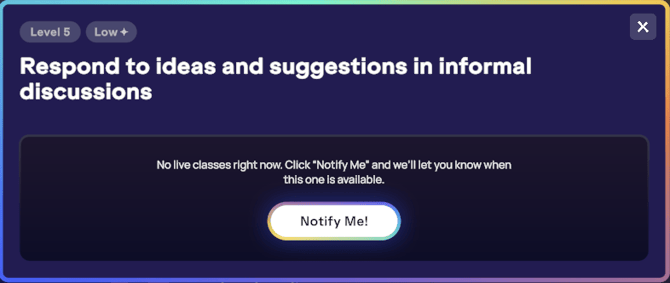
ℹ️ Get Notified Once a Class is Available
If the live class you wish to book from the Learning Path is not yet scheduled, you can opt to be notified when it becomes available again. Simply click the "Notify Me" button, and we will send you an email once booking is open.
Upcoming Class Tiles
If you are on a plan where you can attend live classes and one is available on the schedule for the section you are viewing, a floating Upcoming Live Class tile will appear on the right of your screen.
It displays:
-
An image of the scene the class takes place in
-
The class difficulty rating (Low/High)
-
The Class Title
To book from here:
- Hover over the Upcoming Class Tile when visible
- Click > Book
- Select a time
- Click > Book
ℹ️ Note: The Upcoming Live Class tile will remain pinned to the side of the section you’re viewing when you scroll through lessons, and then hide out of view when you transition to the next section of the learning path.
On the Schedule
On the Schedule tab of your Homeroom, you'll find classes displayed non-linearly, meaning they aren't presented in the same order as your learning path. This view only shows classes relevant to your current fluency level, and you'll typically see two weeks of classes available at a time.
⚙️ Click > View on Learning Path to see where in the curriculum (order of lessons) this falls to determine if you’ll feel comfortable with it if it’s outside your current section.
To book from here:
- Click > Schedule
- Select a date to see classes for that day
- Select a time on the class card you wish to book
- Click > Book
Adding Booked Classes to Your Calendar
After booking a live class you’ll receive a Booking Confirmation email. Within this email there is the option to create a calendar event for Google or Outlook Calendars. Follow the steps below to add your class to the calendar of your choice.
-
Click the link shared within the booked class email to open the lesson details in your Google Calendar.
-
Click > Save after adding any additional details you'd like
-
Go to the day of the class and check that it’s on the calendar.
Outlook
-
Open the .ics file attached to the booked class email, or click the drop down arrow
-
Click > Add to Calendar, after adding any additional details you'd like
-
Go to the day of the class and check that it’s on the calendar
Live Class Cancelation
If you're unable to attend a class, we ask that you try to cancel with as much notice as possible. Classes can be canceled up until 5 minutes before their start time. This allows your seat to open for another learner who may want to join.
How to Cancel a Class
We’ve made it easy for you to cancel classes in advance from a computer or mobile device.
- Login to IMMERSE on Mobile or Computer.
- Click Schedule > Booked, to view your upcoming classes
- Scroll to locate the class you want to cancel
- Click Cancel Booking > Yes, cancel
✅ If you’re already in the VR app, you can use these pathways to cancel a booked class:
- Home > My Upcoming classes > Class Tile > Cancel
- Schedule > Date > Booked Time > Cancel
- Learning Path > Section > Live Class Toggle > Live Class Tile > Book > Booked Time > Cancel
💭 What happens if I don't cancel before the class?
We completely understand that sometimes life happens, and you might not be able to make it to a class you’ve booked. If that’s the case, please do us a favor and cancel your spot. It’s a small courtesy that makes a big difference for other learners who might be waiting to join!
If you happen to miss a class, don’t worry – we’ll send you a friendly "Missed Class" email because we genuinely miss having you around and want to encourage you to book another class soon. The reminder about canceling 24 hours in advance that you’ll see in these emails is just that: a reminder to be courteous. However, if we notice a pattern of frequent bookings without attendance, we might just reach out to see how we can help!
Classes Canceled by IMMERSE
If a class you've registered for is canceled by us, perhaps due to an unavailable Guide or a technical issue, we'll send you an email and mark the class as canceled within the Homeroom. Make sure to give the page an opportunity to refresh and show this updated status, by occasionally navigating to another page and returning, or reloading the app. We'll do our best to give you as much heads-up as possible, and we apologize for any inconvenience a canceled class causes for your learning. 🩵
❓ For answers to further questions, please contact our team at support@immerse.com