
Table of Contents
All Platforms
The following areas have the same functionality across all platform types.
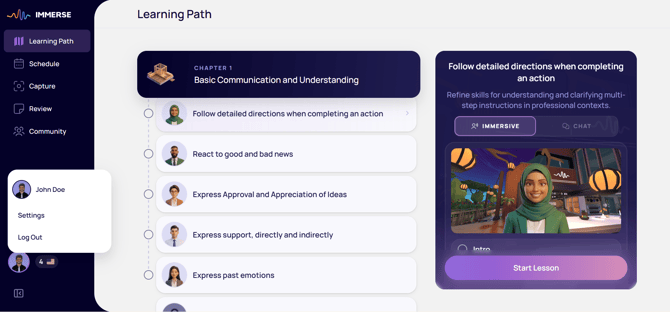
Learning Path
All of our self-paced lessons are grouped by section and listed in order from easiest to most difficult within a level. Every lesson has a corresponding live class available (if your plan supports live classes) which can be booked from the Learning Path once available on the schedule.
Learn More About Self-Paced Lessons and the Learning Path
Learn More About the IMMERSE Curriculum
Alternatively, in VR or through NVIDIA GeForceNow, you can toggle on a Live Classes view to see associated class and practice activities unique to these platforms.
Learn More About Preparing for a Live Class
Schedule
If your plan has access to live classes, this is where you will view the class schedule, book lessons in advance, and find practice opportunities.
Learn More About Viewing and Booking Live Classes
ℹ️ Only Classes at Your Level Shown: You will only see classes at your fluency level on the Homeroom schedule. To change levels, go to Profile Settings.
Community
IMMERSE has spaces where you can meet other learners, attend social meetups, or practice on your own! Learn More Here
Public Spaces
Public spaces in IMMERSE are open community areas where you can interact with different IMMERSE members. These spaces are designed for social meetups, practicing language with others or AI Avatars, and exploring different virtual environments.
ℹ️ Community Note: When joining any Public Space, be friendly and respectful while following the Community Guidelines. You will see a notification that pops up after you press > Join.
Private Spaces
Private spaces in IMMERSE are exclusive rooms where you can connect with friends or other learners using a shared room code. These spaces offer a more closed setting for focused practice or social interaction away from the public community areas.
ℹ️ Open-Convo AI Avatars in Practice Scenes: IMMERSE features AI-powered Meta Avatars in Public (and Private) Practice Scenes to enhance your immersive language learning. Learn more about how to interact with these AI Avatars.
✅ Interested in playing language games instead of chatting? Check out what Language Games are available in IMMERSE?
Review
Our Review menu is a place to review notes given from past classes or notes you, yourself have created.
Past Classes
You can find notes that were administered during past classes you have taken. You can see details like the Instructor name, the scene, notes from the Instructor, and the option to Save Notes permanently.
My Notes
You can create your own custom notes to save and have handy later.
Mobile & Web App Specific
If you’re used to logging into IMMERSE VR, you’ll notice some stylistic changes and new features within the Mobile and Web interfaces.
Capture
Unique to Mobile and Web, this feature turns real-life language experiences into structured, personalized study material.
Learn How It Works: Capturing Moments
Profile
Your Profile icon will lead to your settings where you can:
- Manage your language focus, current level, and personal information.
- View details about or manage your active subscription.
- View your progress and take the Level Up Assessment.
- Change settings for Lesson Sound Effects and Coaches Voice.
- Manage your connected AI Glasses.
- Access the Help Center and tutorials.
VR Homeroom Specific
After logging into the IMMERSE VR App, you’ll notice some differences from the Mobile and WebApp, mainly a distinct Home Tab for Pro Plan subscribers.
Home
The Home tab offers a personalized view of your IMMERSE journey.
⚠️ This tab of the Homeroom does not exist for Essentials subscribers or K-12 access.

My Progress
Track your overall progress through your current/selected level, as well as a tally of your Live-Classes completed across all levels.
My Upcoming Lessons
This section will show classes you’ve booked in advance across all levels.
If you have no booked lessons, press “View Schedule” to go to the Schedule. This tab is only visible if you have access to Live classes on your plan.
Recommended Section
This section adjusts based on your learner status:
-
New learners will see > Getting Started Checklist:
-
Create your account
-
Explore the Learning Path
-
Take the Tutorial
-
Edit your Avatar
-
-
Returning learners may see > rotating recommendations, such as:
-
Tutorials (these disappear once completed)
-
The next scheduled live class at your current level
-
Live community spaces (rotating hourly)
-
Reminders to jump into your notes to [Review]
-
Settings Menu
The Settings (Gear Icon) tab has four sections:
-
Sound - Configure Microphone, Voice Options, Environment Noise, and Spatial Voice Settings. Learn more about configuring your audio in IMMERSE.
-
Movement - Choose Teleport or Slide Movement. Adjust Comfort Settings.
-
Display - Change the display language of your app. Enable helpful pointers for interacting with the world.
-
Accessibility - Enable Tooltips to show how to interact with objects in the virtual world.
Help Menu
The Help tab (life preserver icon) provides resources for learners:
-
Tutorials – Practice controls and learn about IMMERSE.
-
Controls – Visual guide to essential VR controls.
-
Help Center – Clickable link to open a browser window to our Support Center.
Profile
Your Profile Icon tab has three sections:
-
Overview - manage your language focus, current level, and profile.
-
Edit Your Avatar - Edit your IMMERSE Avatar. Switch to Meta Avatar edit Meta avatars via computer/browser.
-
Subscription - View details about or manage your active subscription.
Why are there navigational and feature differences between the Mobile/WebApp and the VR app?
Our virtual world (VR) Homeroom is the original IMMERSE landing page. With the Summer 2026 release of our Mobile and Web applications, we created a new landing page and simplified the interface for all subscription types. We removed the Home tab and relocated its information for the Web:
- Upcoming Booked Classes → Schedule tab > Booked
- Progress → Profile
- Settings → Profile
- Help & Tutorials → Profile
❓For further assistance navigating the Homeroom, please reach out to our support team at support@immerse.com.