
Table of Contents
Receiving Notes During Live Classes
Reviewing Class Notes in the Homeroom
> My Notes: Curating Your Personalized List
> Accessing Saved Notes in Live Classes & Community Scenes
Class notes, provided by instructors (Guides) during Live Classes or added by you during review, are crucial for language acquisition. They encompass grammar rules, new vocabulary, phrases, and pronunciation advice. A curated list of these saved items can then be utilized as a reference during interactions with other learners and Guides on the platform.
Receiving Notes During Live Classes
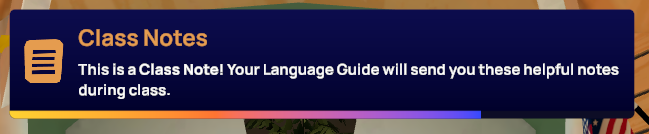
When a Guide sends you a class note during a Live Class, you will see a brief pop-up notification. Reminder notifications will also appear on your Toolbox Icon (computer only) and Class Notes icons.
Opening Class Notes
To interact with your notes, open the Class Notes menu.
On Computer:
- Press SPACEBAR on your keyboard or click the Open Tools button on your screen.
- Select Class Notes from the radial menu.
In VR:
-
Open Geo and the Class Notes Menu by pressing the A button on your RIGHT controller or the menu button on your right wrist with a virtual finger.
-
Select Class Notes.
-
Click and drag the window to different locations to suit your learning needs.
Guide Notes
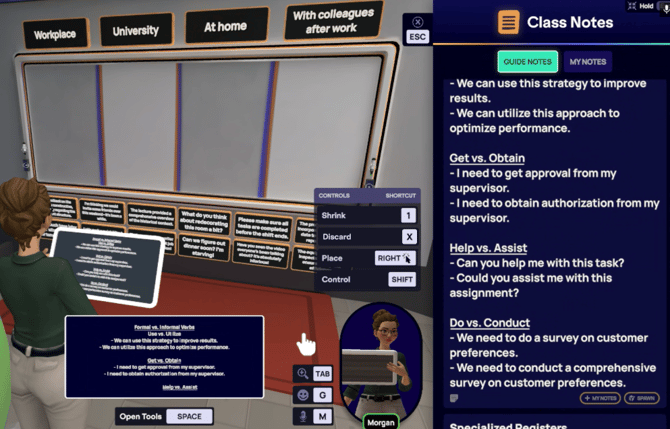
Upon opening the Class Notes menu, you will be directed to the Guide Notes tab. This tab automatically saves all class notes sent by a Guide during a session, which can later be accessed and reviewed in the Homeroom. Each Guide Notes entry includes two buttons: Spawn and + My Notes.
Spawn
This feature creates a note card in your hand, providing support during an activity.
⚙️VR Controls for Spawned Notes
-
Expand: While holding a small card, press the front trigger button on the controller.
-
Hang in Mid-air: After expanding the card, simply release it to keep it in place.
-
Shrink: While holding an enlarged card, press the front trigger button on the controller.
+ My Notes
This option allows you to save the term to your personal notes, which include entries from all classes, levels, and languages.
Jump to Curating Your Personalized Notes to Learn More 👇🏼
Reviewing Class Notes & Creating Your Own
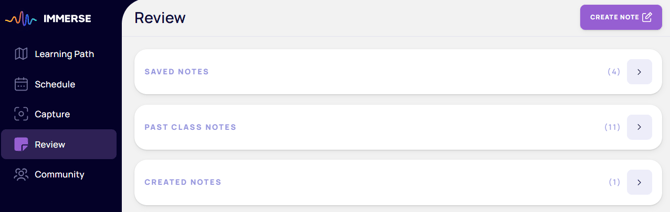
All notes from live classes and your personal saved notes are located in your Review tab. To begin reviewing, log in to the IMMERSE VR app or launch IMMERSE from the Web/Mobile App.
Past Classes
You can review guide notes from live classes you have attended under Past Classes. Follow these steps to get there:
Computer/Mobile
- Click > Review (within the 3 dot menu for mobile)
- Click > Past Classes
- Select the class you want to see the notes for
VR
- In your Homeroom, click > Review > Past Classes.
- Hover over the class tile you want to see the Guide Notes for.
- Click > View Notes.
- Click the yellow Back arrow to return to the list of past classes.
My Notes: Curating Your Personalized List
My (Saved) Notes allows you to create a personalized note list. You can save key terms from Guide Notes sent during Live Classes or enter your own notes, enabling you to concentrate on specific vocabulary or concepts for various learning and review opportunities.
ℹ️ On Web & Mobile, "My Notes" Is Called "Saved Notes"
On the web and mobile apps, this section is labeled Saved Notes rather than My Notes. This is because web and mobile have a separate Created Notes area (which does not exist in VR).
Adding Terms to "My (Saved) Notes"
Terms can be added to your My Notes collection in three ways:
- During a live class: Click + My Notes next to any term in the class guide notes to save it instantly.
- From Past Class Notes:
- Computer/Mobile: Click the three dots, then Add to Saved Notes:
- VR: If a term is already saved, the + My Notes / Add to Saved Notes button will be dimmed until you remove the term.
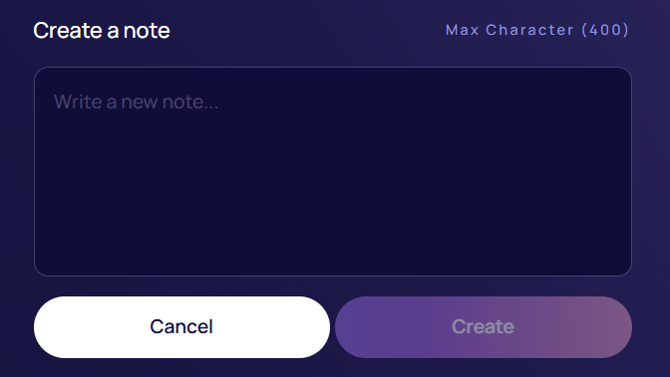
- From the "Create a Note" option of the Review tab:
- Computer/Mobile: Manually add custom notes and choose which get saved to your Saved notes.
- VR: Manually add your own custom notes from the My Notes area of the Review tab. These will save directly to your My (Saved) Notes.
⚠️ All Languages, All Levels
Currently, your "My (Saved) Notes" list displays all saved entries chronologically, without categorization by language program or fluency level.
🧑🏫 Best Practices for Using "My (Saved) Notes"
Our team of experienced educators has put together some recommendations to help you get the most out of this feature:
-
Track your learning progress – Save unfamiliar terms and remove them (by pressing the trashcan icon) once you've memorized them, knowing they will always be accessible in your Past Class Notes.
-
Prepare for upcoming class– Curate a focused list of vocabulary in My Notes to review before a challenging class.
-
Specific Language Review - If you’re taking classes for multiple languages, you may wish to consider preparing a specific list of notes for the language lesson you’re about to head into.
-
Use for meetups & discussions – Add custom notes, grammar tips, or helpful insights from external sources to reference during language meetups.
Accessing Notes in Live Classes and Community Scenes
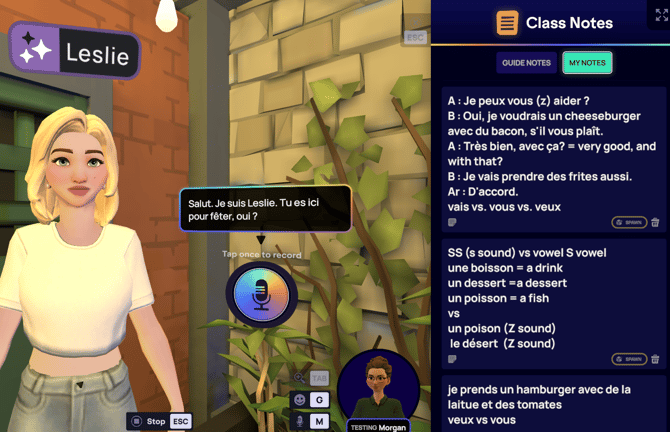
You can always access your saved notes when participating in Live Classes (regardless of the language) and visiting Community Scenes. Simply follow the same steps you would use to open Guide Notes during a class.
In IMMERSE VR
-
Press the A button on your RIGHT controller to open Geo and the notes menu.
-
Select Class Notes > My Notes to see all saved notes.
-
Click and drag the window to different locations to suit your learning.
On a Computer
-
Press SPACEBAR to open the Tool menu, or click Open Tools on screen.
-
Select Class Notes.
-
Click the My Notes tab.
⚠️ Notes:
- Saved (My) Notes are NOT available during Self-Paced Lessons.
- Open your Notes before starting a chat with an AI Conversation Partner in Community Scenes. You will not be able to open them once the activity is underway.
Frequently Asked Questions
Is there any way to export or download Class Notes?
-
Exporting or downloading Class Notes is not available at this time. We understand this may be inconvenient. As a workaround, you can take screenshots of your notes and then rewrite key terms or phrases in your preferred note-taking tool if you’d like to reference them outside of IMMERSE.
Is there a search function so I can quickly locate past class notes or certain phrases?
-
A dedicated search function is not available at this time, though it is a frequently requested feature. If the ability to search your notes would be valuable for you , please let us know at support@immerse.com so we can better prioritize it in a future update.
Is there any way to filter/sort class notes by level, language or topic?
- Not at this time. If the ability to better organize and interact with your notes would be valuable for you , please let us know at support@immerse.com so we can better prioritize it in a future update.
Can I create my own notes while inside of Self-Paced Lessons, Live Classes, or Community Scenes?
- Not at this time. Class Notes are unavailable within Self-Paced Lessons. You can view them in a Live Class or Community Scene, but you can only create notes in the Review section of your Homeroom or Mobile/Web App.
❓ Questions about Class Notes? Send a message to our Support Team at support@immerse.com for assistance.