
Table of Contents
When you first create your account, either on the Computer based WebApp or in VR, you will select the language that you wish to learn and take a proficiency test to find your fluency level. These settings can be changed at any time to allow you to take classes for any language and at any level.
Learn About the IMMERSE Levels and Placement Test
Learn About Current & Future Language Programs
Important Notices
⚠️ To see the Live Class schedule and Learning Path for a different language or fluency level, you must update your account settings.
🚨Some enterprise learners may not be able to change these settings on their own. If you are unable to make changes to your language program or fluency level due to account restrictions, please reach out to your HR team, program administrator, or contact us directly at support@immerse.com.
👩🏼🏫 Not sure if you're ready to move up? Try taking the Level Assessment Test first, it’s a helpful way to check if you’re prepared for a higher level.
.png?width=670&height=401&name=immerse_levels_by_language%20(1).png)
How to Change
The first steps to changing Language Focus or Fluency level are the same across platforms:
- Log in to IMMERSE on Mobile, VR, or a Computer
- Click your Profile Icon
🌐 Placement Tests for Different Programs
When you switch your language focus for the first time, you'll be asked to complete another Placement Test to assess your fluency in the new language. If you prefer to skip the test, you can manually select your proficiency level by following the steps outlined below.
On Computer & Mobile
- Click the pencil icon in the Account Info box
- Click into Language Focus or Fluency Level
- Select the option you want to change to
- Click > Save
.gif?width=670&height=332&name=Immerse-19August2026-ezgif.com-video-to-gif-converter%20(1).gif)
In VR
Ensure you’re on the Overview tab within your Profile.
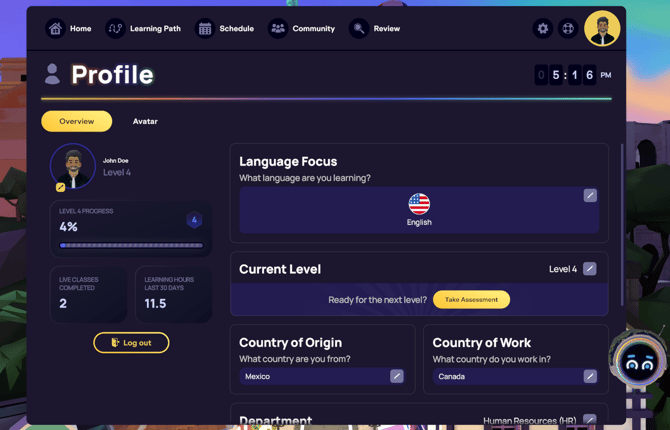
Language Focus
- Click the pencil icon in the Language Focus box
- Select a new language
- Click > Update to apply the change
Fluency Level
- Click the pencil icon in the Current Level box
- Select a new level
- Click > Update to apply.
ℹ️ You can see additional indications of your current fluency level in the following places:
-
Upcoming Live Class Tiles (VR only): If you can access Live Classes, look for floating "Upcoming Class" indicators.
-
Live Class Schedule: Each class card on the schedule page features a pill-shaped icon. This icon indicates the class level and its position (high or low) within that level.

Frequently Asked Questions
Will French be getting Level 5?
-
While our current French learner base does not necessitate immediate development of higher business levels within our standard curriculum, we are fully prepared to offer these advanced levels. They can be quickly developed and outlined in a contract upon request from a corporate client, demonstrating our commitment to meeting specific client needs as our programs grow.
Why can I only view one level at a time on the Homeroom schedule tab?
-
The schedule is specifically tied to each level and its Learning Path, which are pre-programmed into the system. This design ensures a more personalized learning journey as students progress and prevents the confusion. Individual subscribers have the flexibility to switch their learning level (higher or lower) at any time, based on their availability and confidence in the topic. In contrast, corporate learners may be required to maintain a Level lock, ensuring they progress linearly within a specific level.
Regardless of the chosen level, all booked classes are listed in the "My Upcoming Classes" section.
❓Having issues? If you can’t switch languages or levels, please contact us at support@immerse.com