
Table of Contents
> Returning to the Learning Path
Self-Paced Lessons are an on-demand way to build language skills on your schedule, in your space, and at your speed. These unique lessons combine educator-backed prompting with generative AI to fast-track your fluency, while providing a linear and scaffolded learning experience built around specific communicative skills.
The Learning Path
The Learning Path section within the Homeroom provides access to all Self-paced Lessons. It's designed to offer a clear and adaptable framework for enhancing your skills at your current level. When you enter the Learning Path, you'll be taken directly to your most recently viewed lesson. The page will then automatically position you at the exact point in your progress where you left off.
How to Access
-
Log in to your IMMERSE Homeroom on PC, VR, or Mobile.
-
Click on Learning Path from the menu.
Sections
We've organized lessons by theme and difficulty, getting harder as you go along within each section. This way, you'll build specific communication skills step-by-step. The number of sections varies by your language level, and you can tackle them in any order you like.
View the Breakdown of Sections by Level
Section Review
Each section concludes with a Review Experience, guided by Geo. This dynamic and optional activity can be repeated and is context-sensitive. Drawing on recent lesson engagement and individual progress, it suggests relevant material for review. These exercises are designed to target your areas needing improvement to help you achieve the section's communication objectives.
Learn More About Reviewing With Geo
ℹ️ VR Specific Features
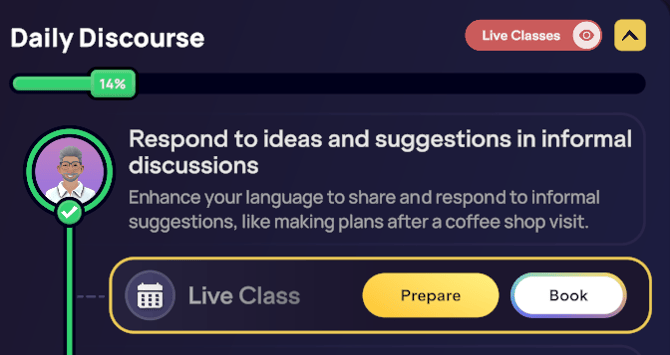
Section Progress
At the top of each section, there is a green progress bar that visually represents overall section progression as you complete lessons.
Live Class Toggle
At the top of each section is a grey Live Class toggle. When toggled ON, it turns red and the associated Live Class for each Self-paced Lesson in that section is displayed. Depending on your plan type, you can then book a Live Class or simply practice with the Live Class prep materials. Learn More About Live Classes
Starting & Continuing Lessons
Each step in the path represents a lesson and is identified by an avatar icon and a Lesson Card. The Lesson Card provides a title and a description for the lesson.
-
Click > Start Lesson to begin a new lesson from the Introduction.
-
Click >Continue Lesson to resume a lesson you previously began, at the start of the stage you left off on.
-
Click > Redo Lesson to retake an already completed lesson from the beginning.
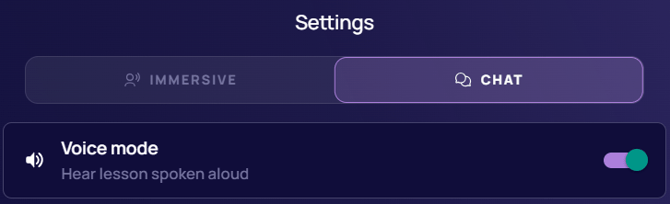
💡 On Mobile and Web applications, you can choose between an immersive or chat experience:
- Immersive: the AI Tutor avatar remains present, the scene is visible in the background, and the lesson is read aloud
- Chat: the AI Tutor and scene background go away and the lesson is only read aloud if you toggle on Voice Mode.
Each lesson begins by demonstrating new concepts through realistic avatar conversations, which are then broken down with guided instruction and hands-on practice. To complete the module, you will apply your new knowledge in a roleplay scenario with an avatar, receiving instant, AI-driven feedback that is precisely aligned with the lesson's communicative goal. This entire process allows you to revisit and practice the material as often as needed to achieve mastery.
Introduction
The Introduction establishes the content, goal, and real-world relevance of the lesson by activating your background knowledge and setting clear expectations for learning outcomes. At this stage, you will understand the purpose of the lesson and what you should aim to achieve at its end. To start, a carefully considered activation question is included. This is designed to encourage your initial interaction with the subject matter and provide a glimpse into the material that will follow.
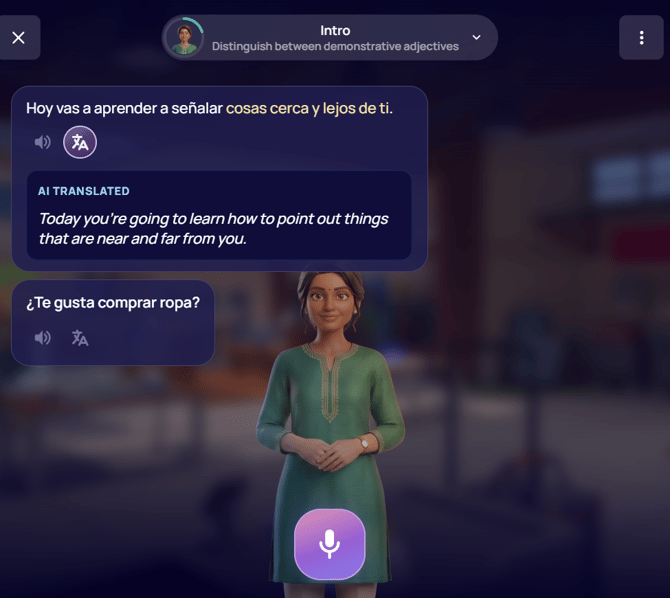
⚙️ To ensure the lesson's objective is clear at Level 1, the initial message of the introduction stage in all lessons will automatically translate into your selected translation language. View Available Translation Languages
Listen
In each Self-Paced Lesson, the "Listen" stage begins with a conversation between two avatars. This conversation is carefully written to show how people really talk in everyday situations related to the lesson's goals. You'll hear natural language used in context, which will give you a great example for the rest of the lesson.
After the AI tutor introduces what the conversation is about, you’ll have time to digest the information before jumping right into the conversation. Simply click on the “Start Conversation” button to continue when you’re ready.
ℹ️ Interacting with the Dialogue:
- Click > Pause to stop the conversation
- In VR: Click > CC (Closed Captions) to open an interactable transcript of the dialogue
- Click > Skip to jump to the end of the conversation and open all the dialogue
- Click any line of text to restart the conversation from there
- In VR: Use the Replay button to the right of the line of text.
⚠️ Note: The Language Assist feature cannot be used within dialogues at this time.
Following the conversation, you will move on to micro-lectures. These short segments, also scripted, are full lectures divided into three to five parts for easy digestion. They focus on key vocabulary, grammar, pronunciation, and communicative strategies crucial for the lesson's culminating tasks.
After each micro-lecture, you'll encounter a Comprehension Check. These questions are designed to help you connect the material to your own experiences and activate your background knowledge, promoting deeper engagement rather than testing immediate understanding.
Practice
The Practice module uses AI, trained by our learning experts, to guide you through step-by-step exercises similar to our Live Classes. You begin with tasks like ordering sentence parts and filling in blanks with your own responses, then progress to open-ended practice with tips and guidance.
The AI tutor provides feedback that highlights your strengths and explains areas for improvement in grammar and clarity. As the AI adapts to your progress, this section helps you practice and refine your skills with each attempt.
Apply
Think of the Apply section as your chance to really use what you've learned in a fun, practice conversation. It’s like the free-talking part of our Live Classes, where you get to chat about real-life stuff based on what you just studied. The goal is to show that you can not just understand, but actually speak the language by acting out different situations. Because of this, you’ll only be able to provide verbal responses using the microphone during the activity.
This last activity in the Self-Paced Lessons also has a dynamic length based on your level and interest. The more detail you give and the more sophisticated your language, the better! The AI picks up on how engaged and interested you are from what you say. This affects how long your practice goes on. The more info you share and the more excited you seem, the longer you'll get to practice.
⚙️ Spoken responses are limited to 30 seconds due to performance considerations. We recommend fully fleshing out your response before clicking record or typing your answer for unlimited response time.
🌍 Geo Feedback During Practice & Apply Modules
Geo highlights areas for improvement in your open-ended responses, offering feedback and tips. When you open a tip, a transcript of your audio message appears. Geo's feedback focuses on your most recent response within the conversation and the current lesson, rather than the entire conversation.
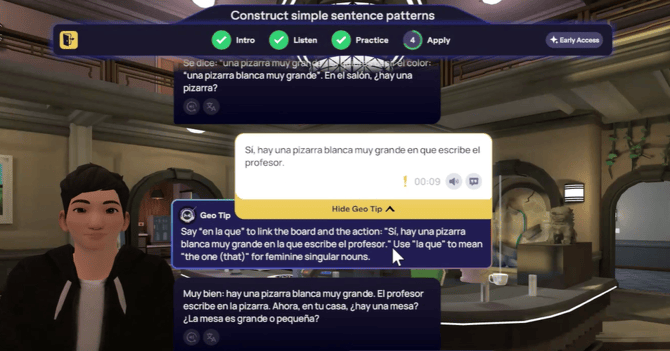
What Geo Concentrates On:
Geo is designed to act like a language coach, not a proofreader. His main goal is to provide a single, high-impact tip that is directly related to the lesson's goal. He focuses on errors that:
-
Block Meaning: Mistakes that make your sentence difficult or impossible to understand (e.g., using the wrong word or tense for the situation).
-
Relate Directly to the Lesson: Clear grammatical mistakes specifically tied to the skill you're currently learning (like verb conjugation, prepositions, etc.).
-
Are Pragmatically Incorrect: Using a tone or level of formality that contradicts the explicit requirements of the scenario.
What Geo Ignores:
To keep the feedback focused and encouraging, Geo is specifically programmed to ignore minor issues, such as:
-
Small slips, typos, punctuation, or capitalization errors that don't change the meaning.
-
Stylistic preferences (e.g., saying "Hi" vs. "Hello").
-
Grammatically correct sentences that are simply different from the lesson's example phrases.
-
Advanced or complex language that you use correctly. Geo will never ask you to simplify your language.
Completing a Lesson
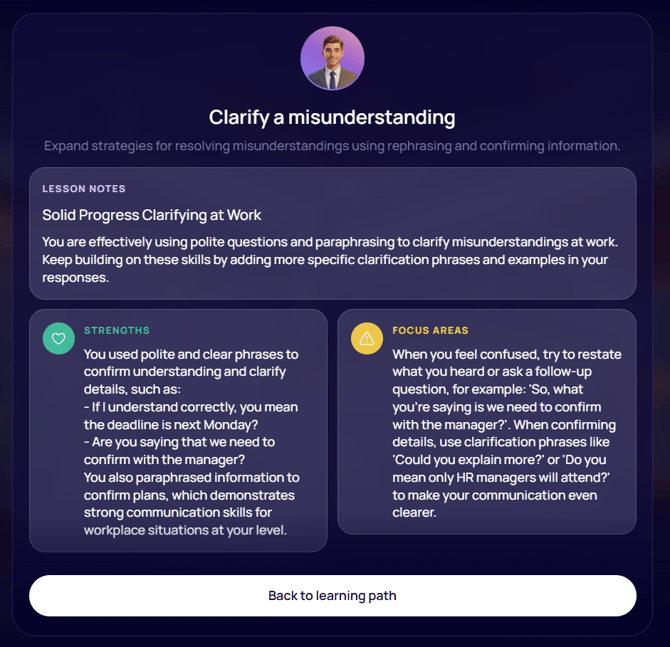
After completing the Apply stage of a lesson, you will be given a Lesson Summary before being prompted to return to your Homeroom.
Lesson Feedback
Your personalized Lesson Summary offers specific, actionable feedback. It highlights your strengths and areas for improvement using the exact language you used during the lesson to provide meaningful insights. Here you'll find an encouraging message from the AI Tutor avatar, a breakdown of your Strengths, and a list of Focus Areas for continued improvement.
Reviewing Lesson Feedback
Lesson Summaries are conveniently saved within each Lesson tile. To view feedback for a completed lesson:
- Select the lesson on the Learning Path
- Click View Feedback (the paper icon in VR).
Returning to the Learning Path
Once you complete a lesson and return to your learning path, you’ll notice that your progress markers have been updated:
- On Mobile & Web: Green checkmarks mean the lesson has been completed. Yellow circles mean the lesson is in progress still. White means the lesson has not been attempted yet.
- In VR: Green circles with a checkmark indicate the lesson has been completed. Partially filled circles around the avatar icons indicate how many modules are done (1/4 increments). The progress bar at the top of the learning path will be filled in further.
Redoing Lessons
To restart the Self-paced AI Lesson and aim for improved performance and feedback, hover over its tile and select Redo Lesson.
⚠️ Previous Attempts’ Lesson Feedback
When you retake a lesson, your previous summary is replaced by your most recent completion. Currently, there's no way to save your lesson summary to your personal notes. We recommend taking a screenshot of your results before retaking the lesson to keep earlier versions and are looking to improve this for you in the future!
Frequently Asked Questions
Can I turn off or disable the Geo Feedback feature?
-
No, not at this time. If this is an ability you'd like, please submit an improvement request through the support messenger beacon in the Help Center at support.immerse.com.
Can I save Geo’s feedback and tips to my Class Notes?
-
No, not at this time. If you'd like this feature in a future build, we encourage you to submit an improvement request to the support team. Alternatively, you can take a screenshot before continuing.
Can I save Lesson Feedback summaries to my Class Notes?
-
Not at this time, though we are working to make this a reality! Be sure to take a screenshot before retaking the lesson so older summaries are not lost.
Am I able to choose the scene or avatar of my Self-Paced Lesson?
-
Self-Paced lessons are pre-programmed with a specific avatar and scene to support the lesson content, and learners cannot change these settings. For practice in different spaces with your choice of avatar, explore our Community Scenes.
Why are certain examples not read out loud during lectures?
-
In your Self-Paced lessons, sometimes you'll see example boxes and hear the terms inside spoken to you, while other times the terms in the example box will not be read aloud.
For example boxes where you see the terms and they are spoken to you, it's really important for you to understand these particular terms to reach the lesson's goal. For example, if you hear and see "My name is, I'm from...", it's crucial for you to learn and use that to complete the objective.
When you only see the text in the example box but it is not read aloud, it's extra information such as words you might have seen before or are already familiar with. This text is just there as an example and isn't something you're expected to be able to produce freely to meet the goal of the lesson.
❓ Have additional questions about AI Lessons? Contact our Support team at support@immerse.com.