
Table of Contents
> Coach or Listen
Review Your Moment
> Learn from Artifacts & Threads
> Practice From a Captured Moment
Capture is a core feature of the new IMMERSE mobile and web app that turns real-life language experiences into structured, personalized study material. Instead of generic textbook content, learners build what we like to describe as a "textbook of your life" — a personal bank of transcripts, vocabulary, and lessons drawn from your actual real-world interactions.
Capture a Moment
A Moment is any real-life language interaction you record through the app — a conversation at a café, a question to a local, a presentation rehearsal, wondering what a cultural element on a sign means. Capture turns these moments into personalized study material.
👓 Have AI glasses? Pair them with the IMMERSE app to capture moments hands-free and heads-up! See Pairing AI Glasses to the Mobile App.
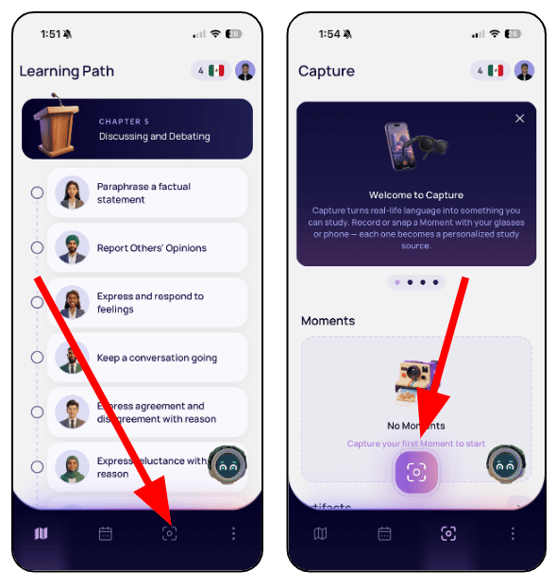
To capture a moment:
- Open the IMMERSE app on mobile or browser.
- Navigate to the Capture screen.
- Tap the Capture button.
- Choose your mode: Coach or Listen.
- If you have AI Glasses paired, choose between using the glasses or your phone to capture the moment.
- Click Start.
To stop capturing a moment:
- Click the red End Session button on your screen.
Coach or Listen
When you start a capture, you choose between two modes:
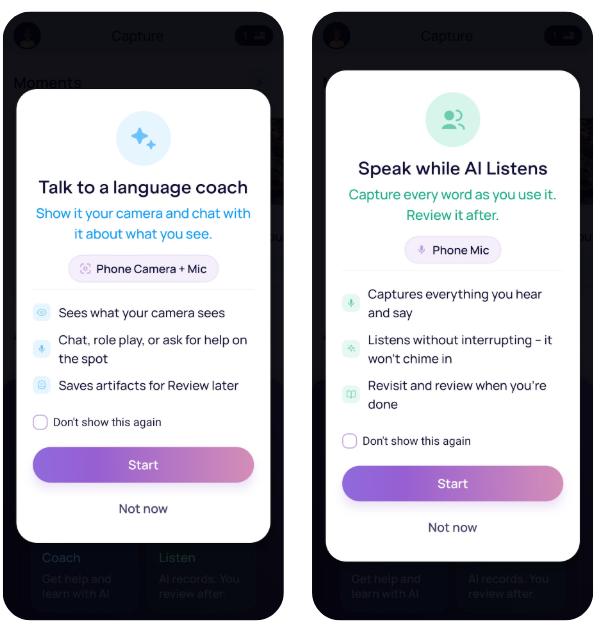
Coach
Coach allows you to ask the AI questions and get an immediate response using your microphone and camera. For example:
- "What would I say to order a coffee?"
- "What's the best way to ask for an extension on this assignment?"
- Ask about what you are seeing — specific monuments, history, local culture, and more.
The AI gives you immediate feedback and captures the new words and phrases you are learning as Artifacts within the Moment.
🧑🏫 Tips for Success:
- Language: Speak to the AI tutor in your native tongue for clarification or use it to fill in an unknown word when practicing your target language.
- Camera (Coach): Point the camera at the item you want to discuss. For a large field of view, ask about specific items or the general topic.
- To switch between back and front cameras on your phone, click the Swap Arrows icon at the bottom right.
- To turn off the camera and use voice mode only, click the On/Off toggle at the bottom right.
Listen
Listen has the AI listen while you either have a conversation with someone else or go through a monologue, like rehearsing a presentation. The AI then provides:
- Direct feedback on your speech and performance
- Corrections and tips for how you can improve your language
- Artifacts based on new language and culture explored
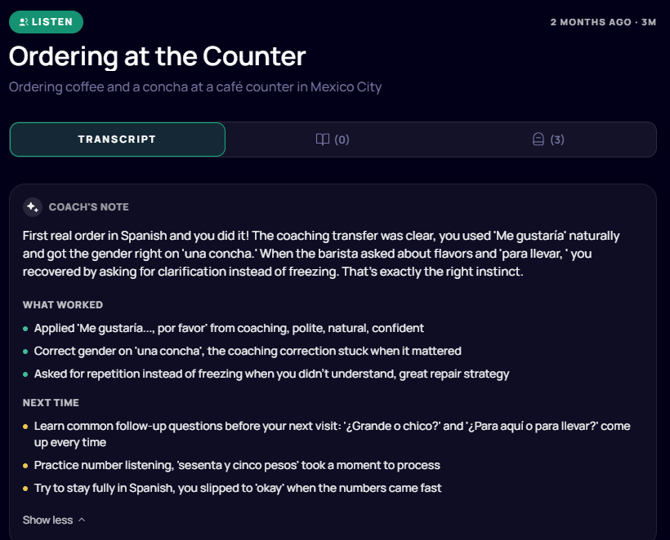
Review Your Moment
After you capture content, you will see the transcript of your conversation. The transcript shows what was said, any corrections, and key language the AI identified.
- A Coach transcript shows the full conversation with performance feedback and corrections highlighted.
- A Listen transcript shows a transcripts of the conversation between you and another speaker, along with a Coach’s Note containing feedback.
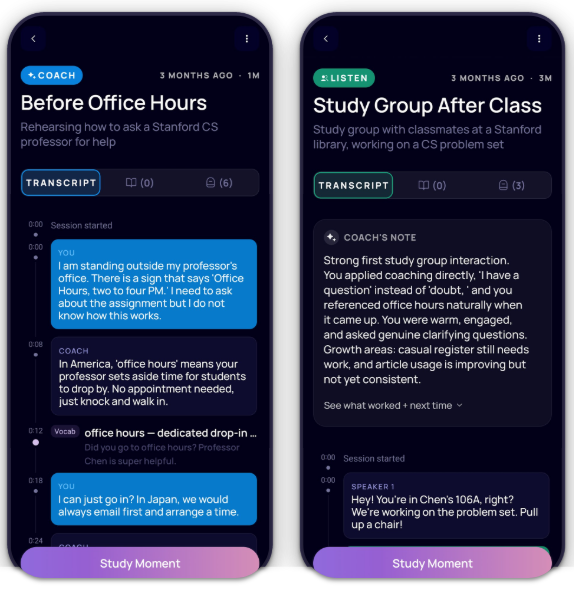
To review moments:
- Log into the IMMERSE mobile app or WebApp
- Click Capture on the menu
- Under the Moments section, click > View All
- Select your view at the top right:
- List: Each Moment is listed in a scrollable list
- Board: Each moment has it’s own card displayed on a board
- Filter by Coach or Listen moments if desired
- Select your view at the top right:
- Select the Moment you want to review
- Click View Moment
- Review the Transcript & Artifacts tabs
ℹ️ Click words (or click and hold to highlight phrases) from other speakers or AI Coach in the transcript to open the Language Assist feature with examples and explanations.
Note: This does not work while Capturing Live Moments, or in the Coach Notes and Artifacts of transcripts.
Learn from Artifacts and Threads
As you capture moments, each moment pulls out Artifacts — vocabulary, phrases, cultural notes, and more that the AI identifies from your interaction.
As you collect more artifacts, patterns emerge. IMMERSE links these patterns and shows them as Threads — themes among what you are learning.
ℹ️ Learn More: Reviewing Artifacts & Threads
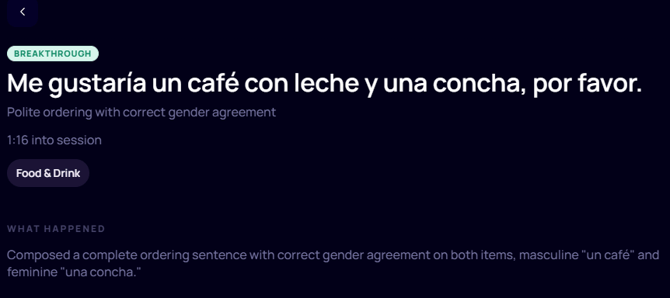 A "Breakthrough" Artifact created while capturing a Moment
Practice With a Captured Moment
After capturing a moment, you can practice concepts further by generating your own personalized lesson. Choose to review essential vocab, dive into grammar, explore culture, or roleplay a similar scenario.
ℹ️ Learn More: Creating Personalized Lessons
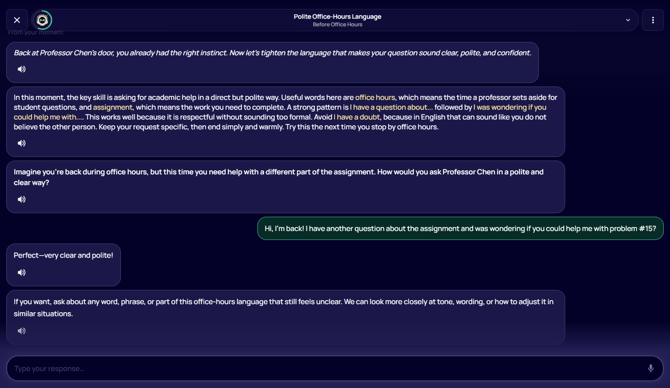 A "Lecture" lesson created from a Moment
Frequently Asked Questions
Can I start or end a capture from my AI Glasses using voice commands or by pushing buttons on the glasses?
No. Captures must be initiated and ended from within the Mobile App itself. Voice commands are not supported at this time.
What happens if I lock my phone or take off my AI glasses mid-capture?
Your phone must stay unlocked and AI Glasses open for the capture feature to work. Locking your device or closing your AI glasses will end the capture and save a Moment at that point of the experience. You won’t be able to add more context or pick up where you left off for that Moment.
Is there a time limit for capturing moments?
Coach interactions last up to 5 minutes, while Listen interactions record up to 15 minutes for review.
Is there a limit to how many moments I can capture? Will I run out of space and need to delete older moments to capture new ones?
Not at this time. The only limitation is your device's available storage and memory.
Are there parameters defining which moments I can capture?
While we don’t recommend capturing confidential or NSFW material, users control what they capture and whether it syncs to the cloud. IMMERSE uses standard third-party (Google) safeguards to prevent the AI from engaging with or describing explicit content—the system won't "expound upon" inappropriate captures.
Are moments separated by level for each language or are they all together?
Moments stay together under the Capture feature tab, regardless of your account level at or after capture. This is the same for artifacts and threads. As you grow in fluency and capture new moments you can look back at older moments to see how far you’ve come!
Do moments I capture on the mobile app appear on the web app for interaction, and vice versa?
Currently, everything within the Capture feature stores locally on the device used for capture. We are working to enable reciprocal access in a future update.
How can I delete a moment?
If you accidentally recorded a moment, exited a brief experience you don't want to save, or want to delete an older moment from when you started, follow these steps:
- Navigate to Capture on the mobile or web app
- Under the Moments section, click > View All
- Select the Moment you want to review
- Click View Moment
- Click the three dot menu at the top right.
- Click Delete Moment
- Click Delete
Keep in mind that deleting a moment also removes all artifacts and personalized lessons linked to it.
❓Have a question not answered here or a problem with the Capture feature? Contact our Support Team at support@immerse.com.