
Table of Contents
In partnership with Meta and Google, IMMERSE on AI Glasses brings audio-first coaching into the moment a conversation actually happens, while keeping you present with the people in front of you — heads-up, hands-free, out of your way.
ℹ️ Learn More:
Pairing Your Glasses
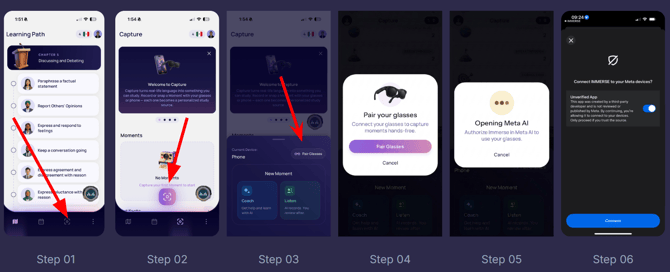
- Open the IMMERSE app on your device.
- Sign in with your credentials.
- Navigate to the Capture feature.
- Tap the Capture button.
- Tap Pair Glasses and then again on the pop up. You will be redirected from the IMMERSE app to the Meta AI app to complete the connection
- Follow the prompts in the Meta AI app to authorize the connection between IMMERSE and your glasses.
- Select “always allow” when asked whether or not to “allow IMMERSE to access the camera on your Meta devices”
- Once the connection is confirmed, return to the IMMERSE app to begin using it.
Troubleshooting Pairing
If pairing is taking longer than usual, try one of the fixes below:
- Unfold the hinges and put your glasses on.
- Make sure your phone’s Bluetooth is on.
- Confirm Meta AI is installed and you are signed in.
- Make sure your glasses are charged.
- Restart your phone.
🔁 After initial pairing, your AI Glasses will connect automatically when you open the IMMERSE app if they are on and the temple arms are open.
Advanced Troubleshooting for Pairing Issues
🥇 Best First Option: Power Cycle / Force Restart your AI Glasses
Before uninstalling apps or unpairing devices, power-cycle your AI Glasses, then try to reconnect to the IMMERSE Capture feature:
- Turn the silver power switch on the inside left arm to OFF.
- Press and hold the capture button, then slide the power switch back on.
- Keep holding the capture button until the LED turns on.
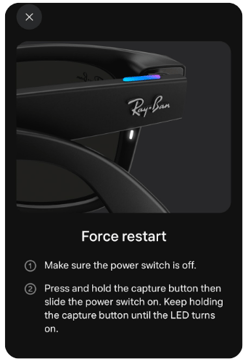
📢 Please note: simply placing your AI Glasses back in their case does not restart them. To perform a proper power cycle you MUST follow the steps above.
Should you encounter further error messages, or pairing continues to fail, please try these additional steps which normally resolve the issue.
- Uninstall and reinstall the IMMERSE app.
- In your phone’s Bluetooth settings, unpair/forget your glasses.
- In Meta AI, go to your glasses device settings:
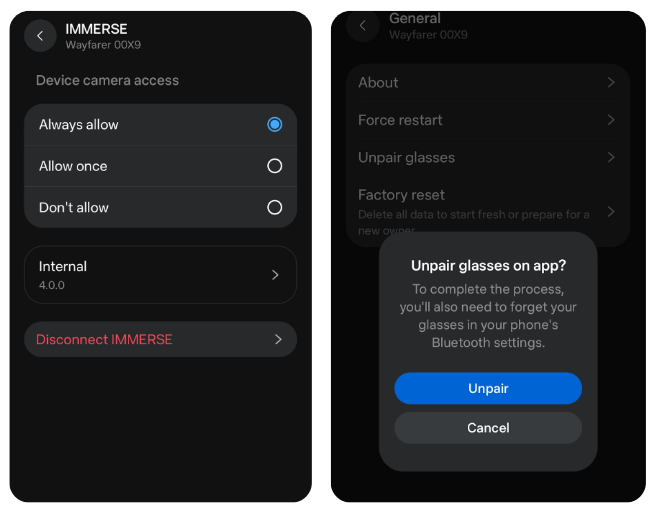
- Go to App connections > IMMERSE > Disconnect IMMERSE
- Go to General > Unpair Your glasses
- Pair your AI Glasses to the Meta AI app again. (instructions below)
- Open the IMMERSE app, and follow the steps (above) for pairing your glasses.
Advanced Troubleshooting for Voice Detection Issues
If the above steps for pairing issues also don’t resolve voice detection, preventing the glasses from responding to your voice, try the following:
- In your Phone’s settings, go to Apps > IMMERSE, and ensure the app has permission to access your camera, microphone, and nearby devices.
- In the Meta AI app (make sure glasses are connected - out of the case with arms open):
- Under regular settings (not specific to the glasses), go to Voice under Meta AI Settings, and toggle on Background Conversations.
- Under device settings (specific to the glasses), go to:
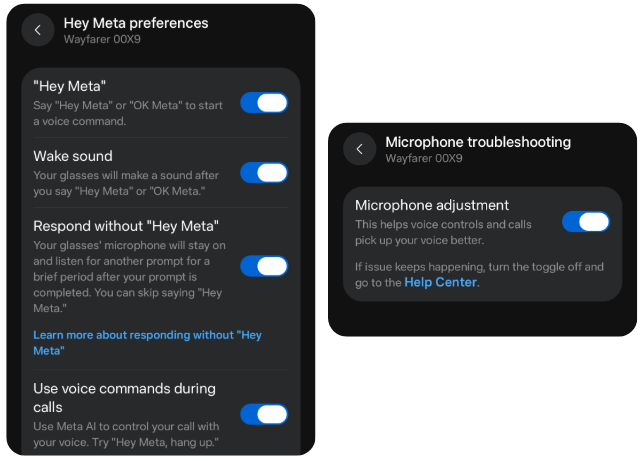
- Meta AI > “Hey Meta” preferences and toggle on everything.
- Microphone troubleshooting > toggle on Microphone adjustment
⚠️ As a last resort, you can factory reset your AI Glasses before trying the steps above again. Pathway: Meta AI > Glasses Device Settings > General > Factory Reset
AI Glasses Setup Instructions
If you're new to AI Glasses, follow these steps for getting started.Unpacking your box
Meta AI glasses come with the following accessories and user manuals:
- Charging case
- Quick Start Guide
- Safety & Warranty Guide
- Cleaning cloth
⚠️ Note: A USB-C charge cable is not included. You will need one to charge your glasses and case.
Setting up your glasses
When you take your AI glasses out of the box, they should already be charged and ready for setup. The directions below will walk you through setting up your glasses and pairing them with the Meta AI mobile app. You can also scan the QR code on your Meta AI Glasses box to start the set up process.
To unbox and prepare your AI glasses for set up.
- Remove the plastic tab between the case and the glasses.
- Remove your glasses from the case.
- Turn your glasses on by sliding the power switch on the left frame towards the front of the glasses.
- Put your glasses back inside the case, making sure to gently push down on the top of the glasses so that the bottom of the nose bridge on your glasses makes contact with the charging port inside the case.
- When the case LED starts flashing blue, your device is ready to pair with the Meta AI mobile app.
- If your device doesn't automatically go into pairing mode, you can manually turn pairing mode on by pressing and holding the button on the back of the case for at least 5 seconds.
How to pair AI glasses with the Meta AI mobile app
The Meta AI mobile app acts as a companion to your AI glasses, allowing you to customize device settings, configure voice controls, use calling and messaging features, live stream, and more.
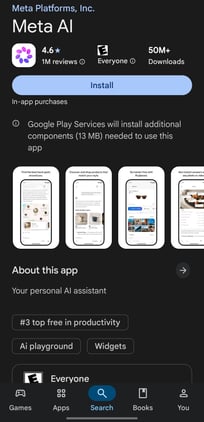
You can download the Meta AI mobile app from the App Store or Google Play and log in using your Meta account. The Meta AI app (formerly known as the Meta View app) is only available on mobile devices and is required to support your glasses experience.
Steps:
- Ensure your device is in pairing mode by following the instructions above.
- Download the Meta AI mobile app from the App Store or Google Play and log in using your Meta account.
- Turn on the Bluetooth setting on your phone.
- Follow the instructions in the Meta AI mobile app to finish setting up your glasses.
⚠️ Keep in mind, AI glasses can only pair with one valid Meta account at a time. You'll need to factory reset your glasses before someone else can pair them to their account.
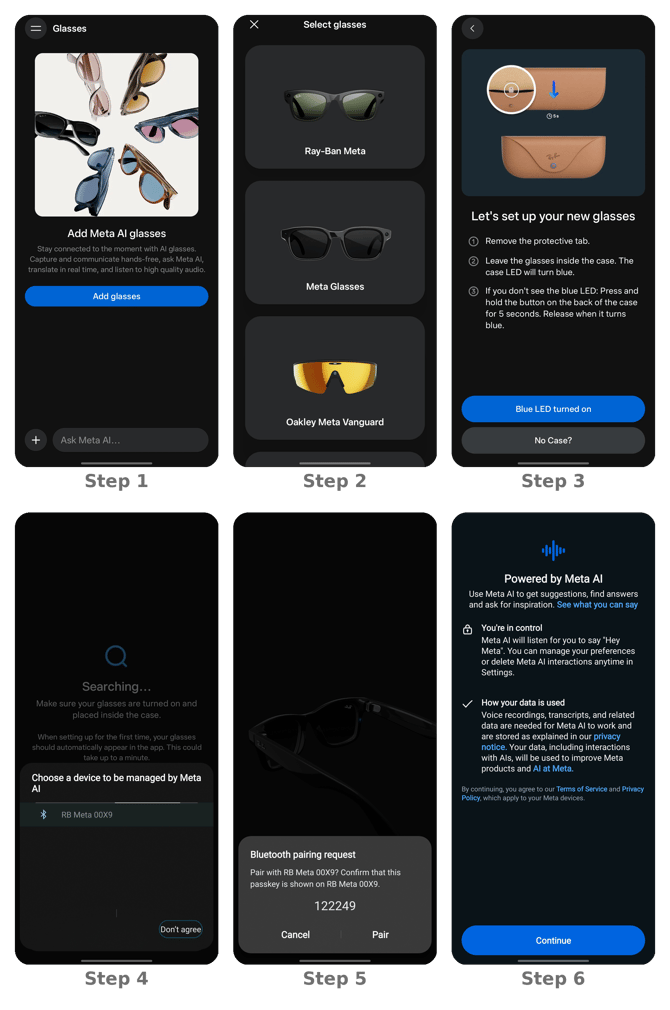
AI glasses features
After device setup you can use AI glasses features, including:
- Capturing and sharing media
- Calling and messaging
- Listening to audio on Spotify or other connected apps
- Using Meta AI to find answers to questions, answer calls, send messages and more
- Asking Meta AI about what you see
Frequently Asked Questions
Are Meta branded glasses the only AI Glasses compatible with IMMERSE?
IMMERSE developed the mobile app Capture feature using Meta software to work seamlessly with Meta-branded glasses and AI. It is not designed for other AI glasses, and if they connect, some features may not work.
Where can I find additional support and troubleshooting for Meta AI Glasses?
We support learners with new hardware when possible, but Meta is the primary resource for troubleshooting and learning about your AI Glasses: