
Table of Contents
The Purpose
IMMERSE provides Guides with a dedicated set of classroom management tools to support the flow, safety, and effectiveness of live, immersive language lessons. These tools work behind the scenes, allowing Guides to monitor engagement, respond to individual needs, manage group dynamics, and access instructional resources without interrupting the lesson experience.
Because our virtual classrooms bring together learners from many cultures, backgrounds, and learning styles, Guides need the ability to quickly reinforce positive behavior, address disruptions when they arise, and adapt their approach in real time. These tools exist not just for moderation, but to protect and enhance your learning experience - helping create a respectful, inclusive environment where learners feel supported, comfortable taking risks, and able to stay focused on meaningful language practice.
Learn More About the Community Guidelines
The Tools
The Guide tools are categorized below by function.
Scene Environment Controls
🧹 Clear Scene Objects
This feature allows all grabbable and interactable objects (including prompt cards, photos, notes, and items placed by the Guide) to disappear instantly. It's useful when a scene becomes cluttered or when connectivity issues lead to performance problems. Fewer items in a scene contribute to greater stability.
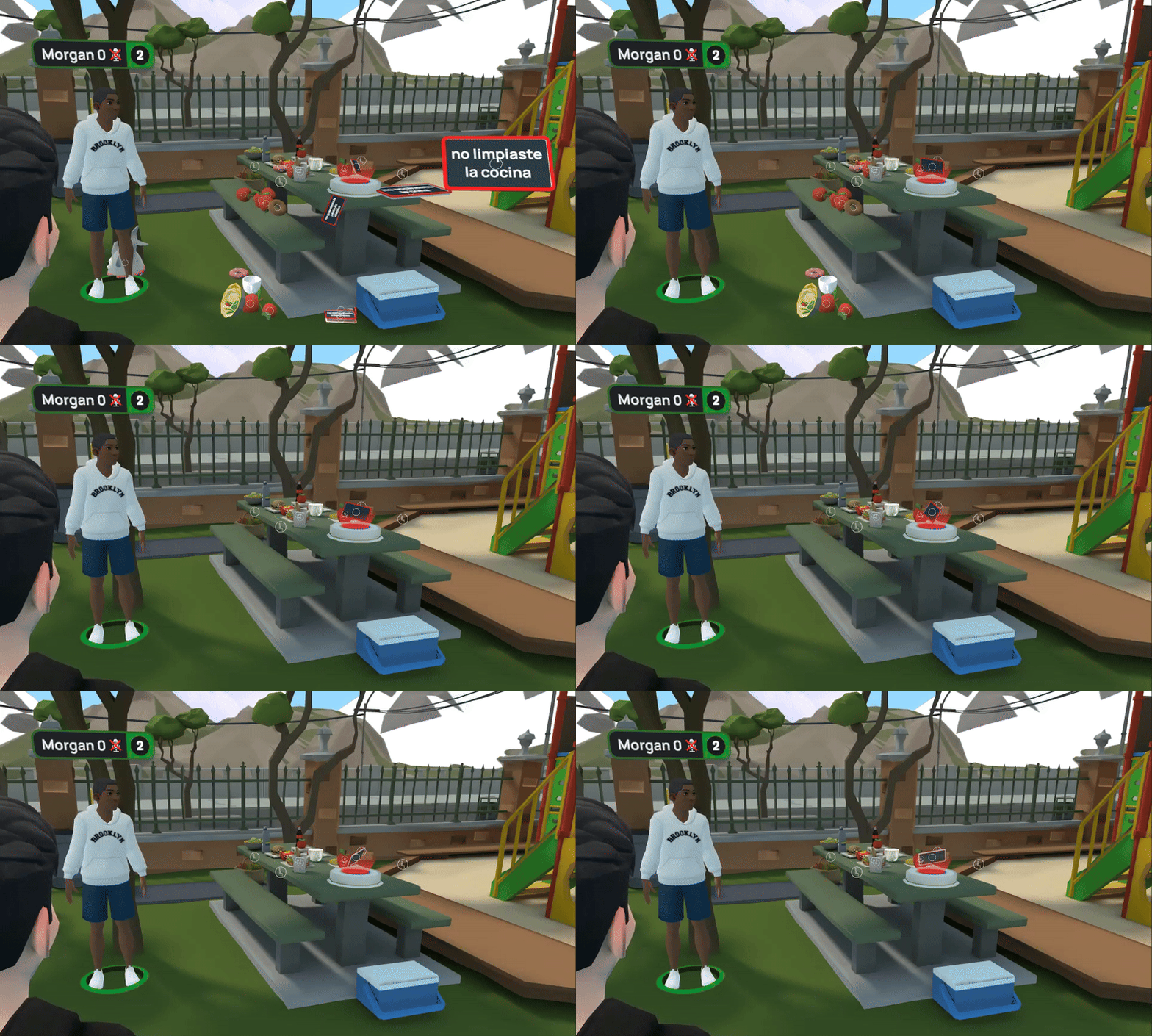
🥾 Remove Learner
Guides have the authority to remove a disruptive learner or one who violates the Community Guidelines from a session. When this feature is used, the learner is sent back to their Homeroom and receives a message indicating their removal by the Guide.
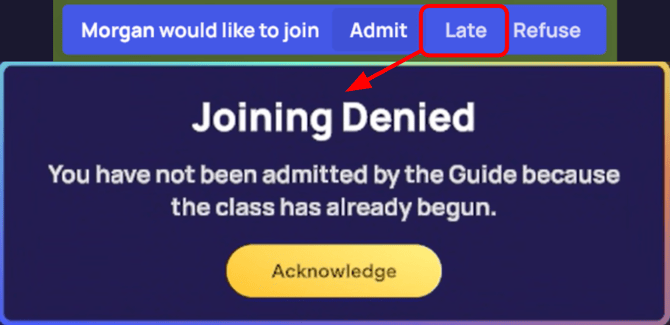
⚠️ Admittance to Live Classes
Guides are equipped with specific tools to prevent disruptive individuals from accessing live classes. These tools include identifying and denying entry to latecomers, as well as outright refusing reentry to removed users or those already marked as late who try to enter again.
🚫 Emergency Suspend Button
Our ultimate safety tool provides Guides with the ability to suspend a user and remove them entirely from the IMMERSE app in extreme cases of verbal or physical harassment. This action, reserved for severe situations, ensures the safety and well-being of the classroom and its learners. Following such an incident, IMMERSE management will initiate an investigation. Our team will contact the suspended user to inform them of their actions and the necessary steps for potential reactivation.
Audio Controls
🔊 Proximity Audio
Larger scenes have this feature built in naturally, but for our small scenes or when grouped together in a smaller area, Guides can activate proximity audio which changes the scene audio so that people talking are quieter the further you are away from them.

📢 Megaphone
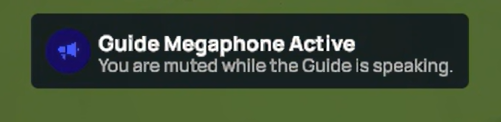
When activated, the megaphone enables the Guide's voice to be heard across all team audio channels. Learners will be briefly muted while the Guide is speaking.
🔇 Mute Individuals
Guides have the ability to mute individual learners who may have background noise or be causing disruptions. They can unmute themselves at will.
🔇Mute Students to Each Other
Guides have the ability to mute learners, preventing them from hearing each other, while still being able to hear each individual user themselves. This feature is ideal for:
-
Individual pronunciation practice: Learners can focus on their own speech without distractions.
-
Spoken pop quizzes: Guides can assess individual understanding through verbal responses.
-
Reducing self-consciousness: Learners may feel more comfortable speaking without the pressure of others hearing their responses.

Private Audio Channel (Team Chat)
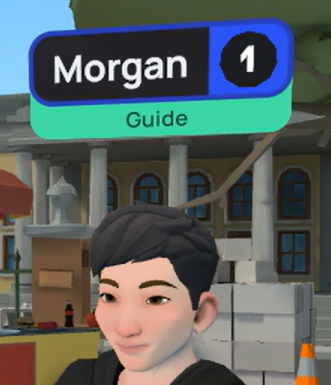
Our Live Class lesson activities frequently incorporate group and partner work. To facilitate focused collaboration, learners can be placed into team audio channels, allowing them to hear only those within their assigned group (indicated by a nameplate above their head). This minimizes noise and enables learners to interact with the entire scene without distractions from other teams. It's particularly beneficial for encouraging learners to independently solve problems rather than relying on other groups.

The Guide can seamlessly move between these team chats, providing individual assistance as they would in a traditional classroom setting. If the Guide isn't in a learner's channel when help is needed, learners can directly approach the Guide in IMMERSE or send a help request. Up to four separate team channels can be active simultaneously.
Movement Controls
❄️ Focus Mode
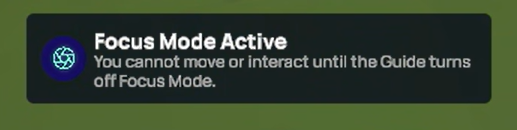
This feature allows a Guide to freeze learners in place to stop them from moving around a scene. This is particularly useful if a learner is interacting with a scene element at an inappropriate time. Learners will remain frozen in place until the Guide deactivates this feature.
🏃🏼➡️ Rally Team / Individual
This feature allows Guides to reposition individuals or entire teams within a scene, serving as an alternative to teleporting or gliding. It is particularly useful when a team requires rapid relocation to a specific spot, or when a learner is experiencing difficulty with movement controls.
⭕ Circle Up
Similar to "Rallying a Team" or an individual, this feature teleports the entire class, forming a semicircle around the Guide. This significantly reduces class time spent traversing extensive environments before beginning an activity.
❓Questions about a Guide Tool you’ve seen in class? Ask our Support Team about it by sending us a message at support@immerse.com.