
Table of Contents
Community Scenes are open spaces to practice what you learn in IMMERSE, with AI Avatars or other members. They’re available 24/7 with no booking required—enter and practice anytime. Choose a private room to practice solo or with friends, or join public spaces to meet new people.
⚠️ These scenes cannot be joined on mobile. You MUST be on a computer or in VR to join.
Available Scenes
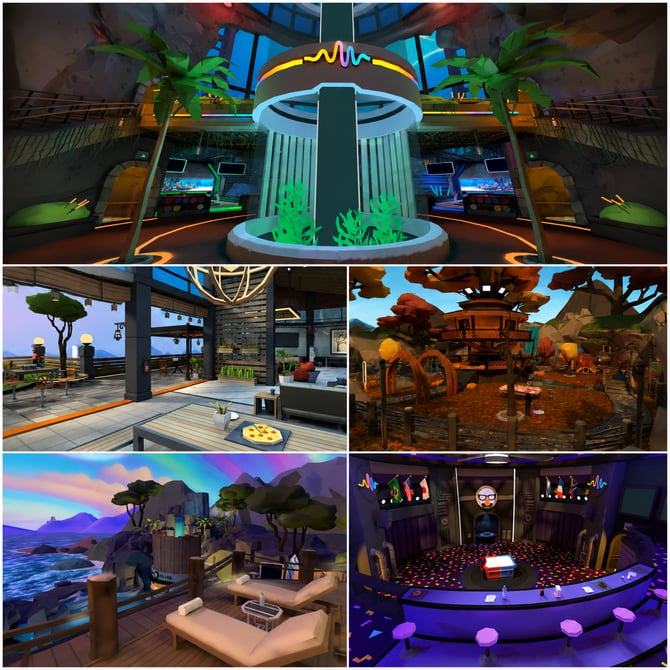
⚙️ Community Scenes offer alternative environments separate from the 40+ Class Scenes found in Self-Paced Lessons and Live Classes. View Class Environments Instead
-
Bowling Alley: An underwater bowling experience! Enjoy multiple lanes set within an aquarium, allowing you to watch fish swim as you bowl.
-
Central Park: A spacious and picturesque autumnal park, complete with vibrant fall foliage, pumpkins, and a charming treehouse.
-
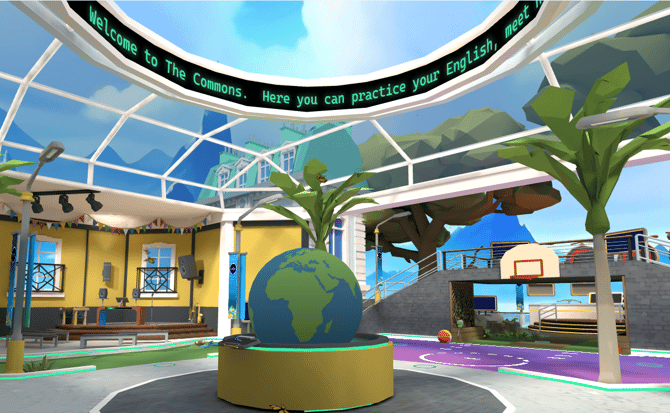
Commons: A private iteration of the Language Exchange commons, offering all the same amenities. Ideal for private gatherings with friends to enjoy language games.
-
Indoor/Outdoor Bar: The perfect spot for an evening out under the stars, where it's always "5 o'clock."
-
Mystery Match: A deductive game, similar to Guess Who, where players take turns asking yes-or-no questions to identify their opponent's character.
-
Networking Event: Features a stunning balcony overlooking a beautiful seaside city, perfect for connections.
-
Resort: A true tropical island escape, boasting a tiki bar and opportunities for beach volleyball.
How to Enter Community Scenes
To begin exploring and building those valuable human connections, navigate to your Homeroom in IMMERSE:
-
Log into IMMERSE on a computer or from VR.
-
Click > Community from the menu.
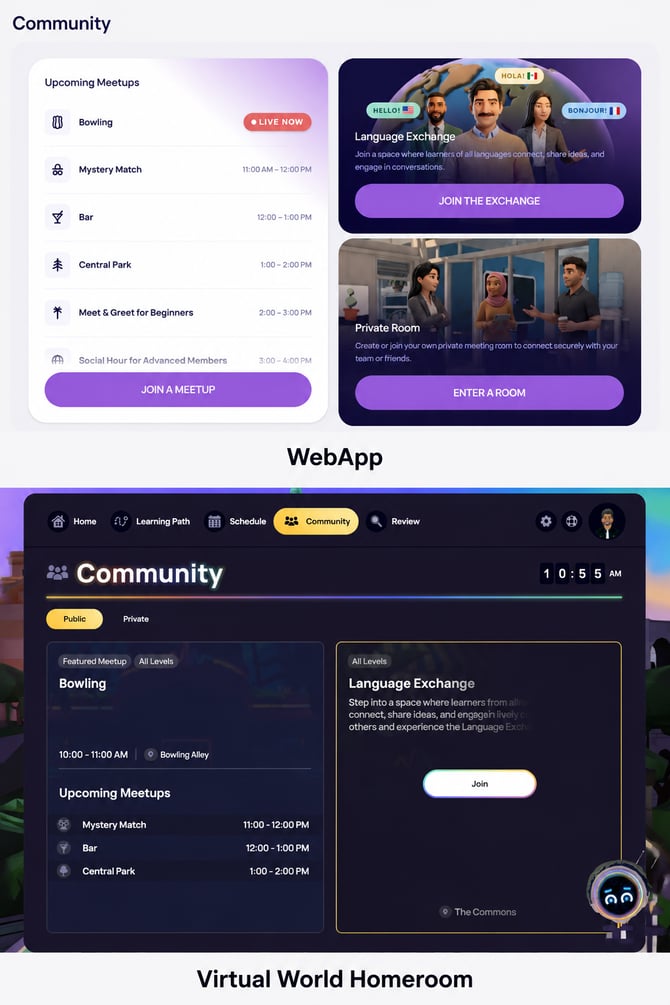
Public Scenes
Featured Meetups
Every hour a different public scene is showcased, so that learners are encouraged to meet up in different locations throughout IMMERSE.
⚠️ Featured Meetups are unique to the language your account is set to. These meetup opportunities are not staffed.
🖥️ If you’re starting from the Web App, clicking “Join a Meetup” will teleport you to your Homeroom where you can continue to follow the steps below.
How to Enter
- Navigate to the Community tab.
- Hover over Featured Meetup tile and click > Join
- Click > Join after reading the pop-up modal
- Click > Join again to enter the scene once teleported out of your Homeroom
Language Exchange
A space where you can connect with learners across all languages and levels in IMMERSE.
Learn More About "Language Exchange"
Private Scenes
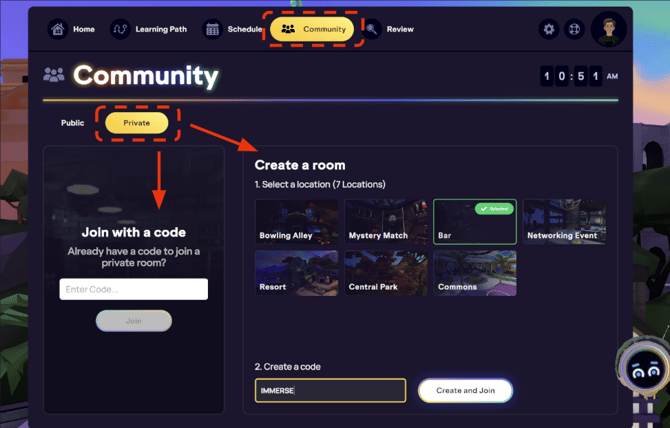
Within the Community tab, the Private section allows you to create or join private scenes. This provides an uninterrupted space for solo exploration or learning with friends.
🖥️ If you’re starting from the Web App, clicking “Enter a Room” will teleport you to your Homeroom where you can continue to follow the steps below.
Creating & Joining Your Own Room
-
Select Private once on the Community tab of your Homeroom
-
Hover over the scene of your choice.
-
Click > Select
-
Click into the typing box to create a code to share.
-
Enter a 4 to 12 letter code. (*Numbers and symbols are not accepted.)
-
Click > Create and Join once illuminated
-
Click > Join again to fully enter the scene after being teleported from your Homeroom.
Joining Someone Else’s Room
You can join a friend in their private scene by entering the code they shared with you.
-
Select Private once on the Community tab of your Homeroom
-
Under Join with a Code, enter the code word that was shared with you
-
Click > Join
-
Click > Join again to fully enter the scene after being teleported from your Homeroom.
⚙️ If you enter a code and are met with a “waiting for room to be created” message, this means that your friend hasn’t created the room yet on their end. They will need to open the room using the code for you to be able to enter.
ℹ️ Entering Community Scenes for Other Languages
When you create your Immerse account, you'll choose the language you want to learn. This selection determines the classes you see on your schedule and the public meetup and private practice spaces you automatically enter.
However, you can change your language settings at any time. This allows you to attend classes, visit practice scenes, or meet conversation partners in public spaces for a different language.
To view classes or access public spaces for other languages, you must change your language setting. 👉 Click here to learn how to change your language.
🚨 Attention: Remember to switch your language setting back to your original language to see your class schedule and use Immerse features for that language.
How to Use Community Scenes
Scene Bulletin
The Scene Bulletin, found at the entrance spawn point of every Community Scene, is crucial for navigating the scene. It acts as a complete guide, offering you information on available activities, tips for scene interaction, and a list of all AI Conversation Partners in the scene. Below are other suggestions for how to best utilize your time in these areas.
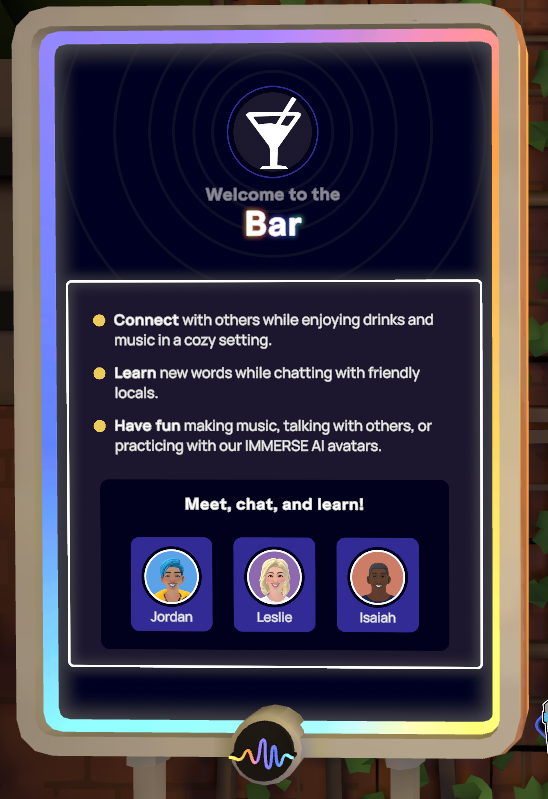
Chat With AI Conversation Partners
AI-powered Meta Avatar conversation partners are now available in each Community Scene, offering immersive and interactive language practice. Each avatar has a unique name, appearance, and background, making interactions feel natural and engaging.
Learn More About How to Use the AI Conversation Partners
Learn and Review Vocabulary
Employ your vocab scanner for new terms or craft a virtual 3D concept map with spawned Class Notes and your 3D pen. Unleash endless possibilities!
Play Language Games
Want to have fun while practicing your target language? Check out all the cool ways you can play and learn with IMMERSE below!
View What Language Games Are Available in IMMERSE
Frequently Asked Questions
How many learners can be in one scene at a time?
-
The scene capacity is 14 users. This includes Guides or other staff that may be present.
Why is there a scene cap?
-
Exceeding this user limit directly impacts your experience. As more learners join a scene, the system struggles to render the environment, process your real-time interactions, and keep everyone synchronized. This increased strain can quickly lead to a frustrating experience, manifesting as delays in responsiveness, dropped frames, audio disruptions, and a generally unstable environment. Ultimately, such conditions can severely diminish the quality of your learning and potentially lead to system crashes. Therefore, adhering to the 14-user capacity is essential for ensuring a stable, responsive, and reliable platform for all learners.
What happens if I try to join a room and it’s already full/at capacity?
-
For public scenes, a new room is created when the 15th person attempts to join. This 15th person will be the first occupant of this new scene, alone. Subsequent individuals attempting to join will be directed to this room until it reaches its capacity, at which point another scene will be generated. This process repeats as needed.
-
For private scenes, when you are the 15th person to attempt to join, you will be unable to enter. A push notification will inform you that the scene is full and advise you to try again later.
How many AI Conversation Partners are in each scene?
-
Depending on its size, each scene provides 2-5 different avatars. For more information, please refer to the AI Conversation Partner article.
How do I request a new Community Scene?
-
If you have a suggestion for a new community scene, please fill out and submit a Feedback Ticket from the Messenger Beacon on our Help Center.
Learn More About Submitting a Ticket
❓ Have more questions about Community Scenes? Send us a message at support@immerse.com.