
Table of contents
> Personalizing your Simulations
Simulations are short, spoken roleplay conversations with an AI character. Each one puts you in a realistic situation, such as a meeting with a client, a request for a repair, or plans for a trip. You get a clear goal and a short list of tasks to complete in your target language. Tasks check off as you complete them, and a results screen afterward shows you what to say better next time.
What Are Simulations?
Lessons and Live Classes teach you new language. Simulations let you rehearse it. Each simulation asks you to use what you have learned to get something done in a real conversation, at your level, with no real-world pressure.
Every simulation includes:
- A goal: what you need to accomplish in the conversation (for example, "Request a repair for something that is not working").
- A situation: a short description of the scene, your role, and who you are talking to.
- Tasks: usually three specific things to do during the conversation.
- A character: an AI conversation partner who stays in role and responds to you in real time.
How Simulations Compare
|
Feature |
Best for |
How it works |
|---|---|---|
|
Self-Paced Lessons |
Learning new skills |
Step-by-step instruction, practice, and feedback built around one communicative goal. |
|
Simulations |
Rehearsing a real situation |
A live, spoken roleplay with clear tasks, followed by line-by-line feedback. |
|
AI Conversation Partners (Community Scenes) |
Free conversation practice |
Open, unstructured conversations with avatars inside Community Scenes. |
💭 Why doesn't the character correct my mistakes during the conversation?
Simulations work like a real conversation. The character stays in role. It may slow down, rephrase, or offer you a choice, like a patient native speaker would. It does not explain grammar or comment on your language mid-conversation. All of your feedback appears on the results screen when the conversation ends.
Accessing Simulations
Simulations are available on the IMMERSE web app and the IMMERSE mobile app for iOS and Android.
To open Simulations:
- Log into the IMMERSE web app or mobile app.
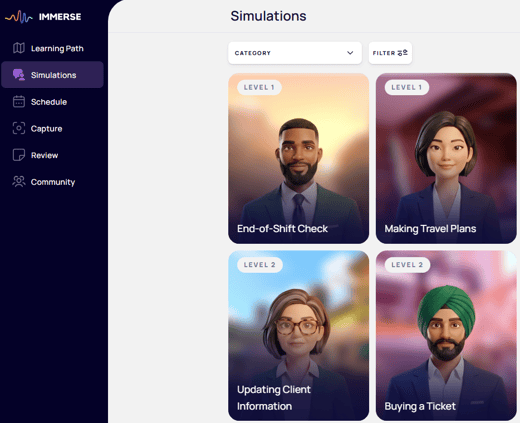
- On Web: Click Simulations in the main menu, directly after Learning Path. For accounts on an Essential subscription, it appears between Learning Path and Capture. If your plan includes Live Classes, it appears between Learning Path and Schedule.
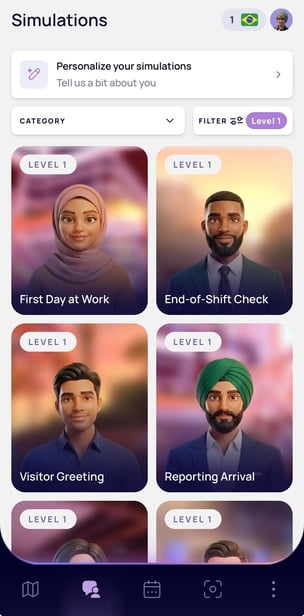
- On Mobile: You can find Simulations in the main bottom menu on mobile, directly after Learning Path. For accounts on an Essential subscription, it appears between Learning Path and Capture. If your plan includes Live Classes, it appears between Learning Path and Schedule.
Browsing the Library
The Simulations library shows each simulation as a card. Each card shows the character, the title, and a Level badge. After you try a simulation, the card also shows how many times you have attempted it.
Use the filters at the top of the library to find a simulation:
- Category: Choose a topic, such as Workplace Basics, Teamwork, Client Communication, Problem Solving, Travel, Social Life, Home & Community, or Around Town.
- Level: This filter starts at your current level, so you see simulations that match your skills. You can change it at any time.
ℹ️ New simulations are added to the library regularly. Check back often to find new situations to practice.
Personalizing Your Simulations
Simulations can adapt each scene to your work and your goals. To do this, IMMERSE uses the About You section of your profile, where you can share your role, your industry, why you are learning, and a little about your work.
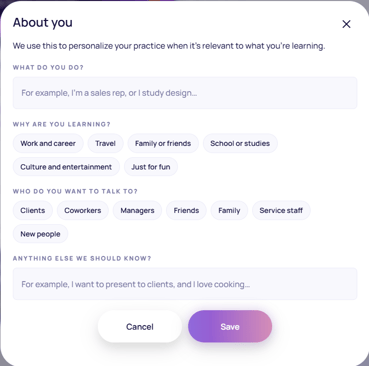
If your About You section is empty, you will see a Personalize your simulations banner in the library. Click it to open About You in your profile.
- Every field is optional. You can start any simulation without filling it in.
- If your organization already provides your industry, that field will not appear.
- Other AI features in IMMERSE also use About You to personalize your conversations.
Starting a Simulation
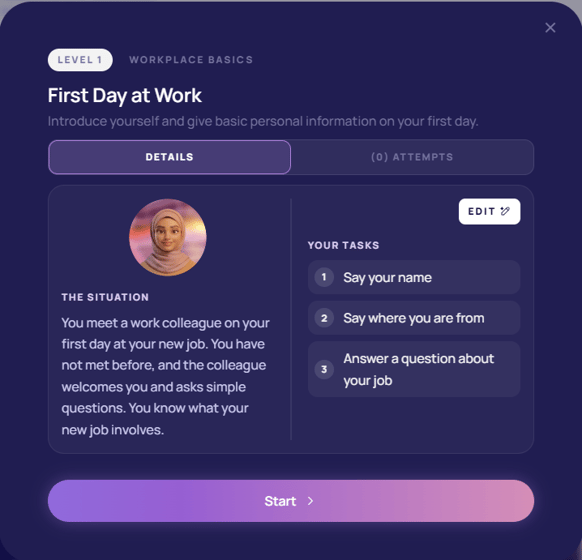
Select a card in the library to open its details. On web, the details open in a window. On mobile, they open from the bottom of the screen.
The Details tab shows:
- The level, category, and title
- The goal of the simulation
- The situation: a short scene written for you
- Your tasks: what you need to do in the conversation
- The character you will talk to
To start a simulation:
- Select a simulation card in the library.
- Read the situation and your tasks.
- (Optional) Click Edit to change the setup. See Customizing the Setup below.
- Click Start.
- Read the goal card, then click I'm ready to begin the conversation.
✅ Tips for Success:
- Microphone: Allow microphone access when your browser or device asks. Simulations are spoken conversations, so a microphone is required.
- Environment: Use a quiet space so the character can hear you clearly.
- Take your time: The conversation does not begin until you click I'm ready. Read your tasks first.
Customizing the Setup
You can adapt a simulation to match your own role, industry, or interests before you start. For example, you can change the scene from a general office to your own workplace.
To customize a simulation:
- Open the simulation details and click Edit.
- Change any of these fields:
- You are: your role in the scene
- Talking to: who the character is
- What's happening: the situation
- Character: the AI character you will talk to
- (Optional) Click Suggest another setup to see a new setup and a new character.
- Click Apply. The simulation rebuilds with your changes.
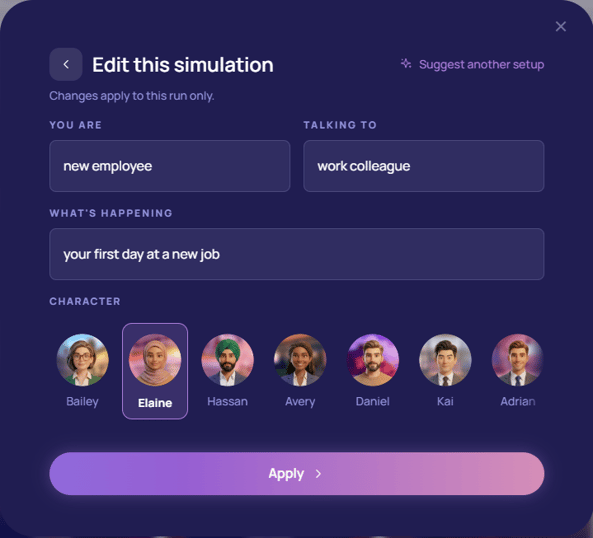
📋 Note: Your changes apply to the setup only. The tasks stay the same, so your results always measure the same skills. Your changes also apply only to that attempt.
During the Conversation
A simulation is a real-time voice conversation, like a video call. Speak naturally. You do not need to press a button to record each response, and you can interrupt the character, just like in a real conversation.
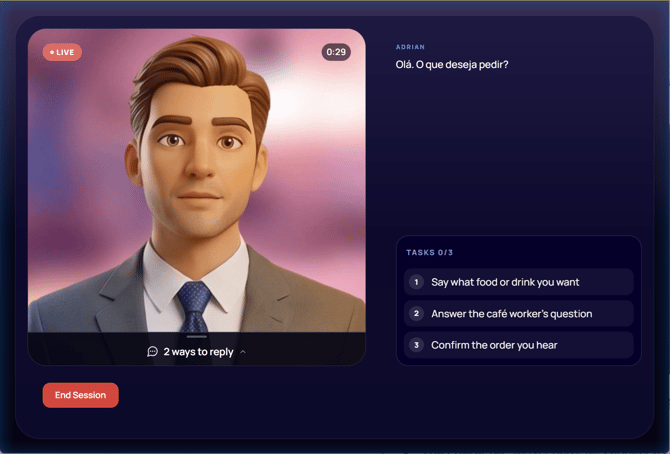
What You See on Screen
- The character: Most characters appear as a live, animated avatar. Sometimes the character appears as a still portrait with a Voice Only label. The conversation, tasks, and feedback work the same way.
- Live indicator and timer: A red Live label and a timer appear on the video. Each session has a 5-minute time limit. Near the end, the timer counts down and the character begins to wrap up the conversation.
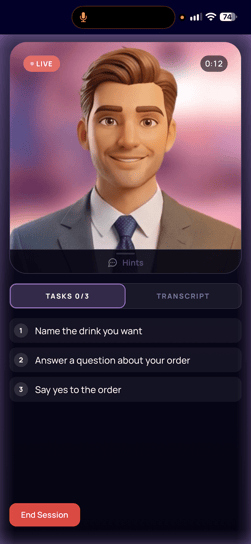
- Tasks: Your tasks check off automatically as you complete them. You can complete them in any order. Once a task is checked, it stays checked.
- Transcript: The conversation appears as text while you speak.
On web, the video appears on the left, with the transcript and tasks on the right. On mobile, the video appears at the top, with Tasks and Transcript tabs below it.
Using Hints
If you are not sure what to say, open the hints drawer at the bottom of the video. Hints offer two or three ways to reply, with example words and phrases you can use. Hints are always optional.
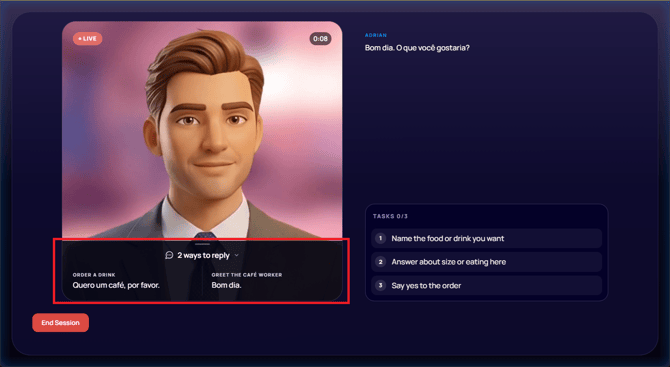
✅ Click a word in a hint (or click and hold to hear it) to open the Language Assist feature for a translation and pronunciation.
Ending the Conversation
There are two ways a simulation ends:
- You complete every task. A green border and an All tasks done label appear. Click Complete and view results. You can also keep talking first if you want more practice.
- You end it yourself. Click the red End Session button at any time.
The session also ends when the time limit is reached.
💭What if I don't complete every task?
That is okay. Your attempt is still saved, and your results show which tasks you completed. Partial results are often the most useful, because the feedback shows you exactly what to say next time.
Reviewing Your Results
After each simulation, a results screen walks you back through your conversation.
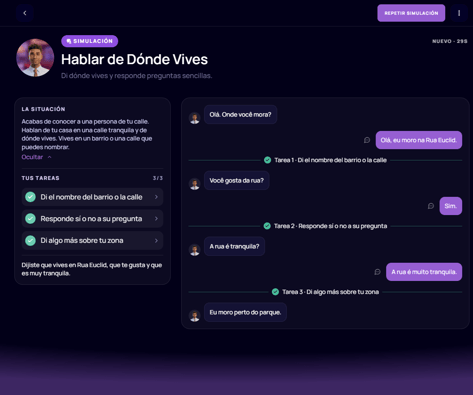
Your results include:
- Stats: a summary of your attempt, such as tasks completed, turns, and time.
- Your annotated conversation: the full conversation, with each task marked where you completed it. Under any line that needs work, a short note explains the issue and offers You could say… with a better way to say it.
- To work on and Next time: specific suggestions to help you complete any tasks you missed.
ℹ️ Click any word in a You could say… suggestion (or click and hold to hear it) to open the Language Assist feature.
To try again: Click Replay simulation to run the same simulation with the same setup. Each replay is saved as a new attempt.
Tracking Your Attempts
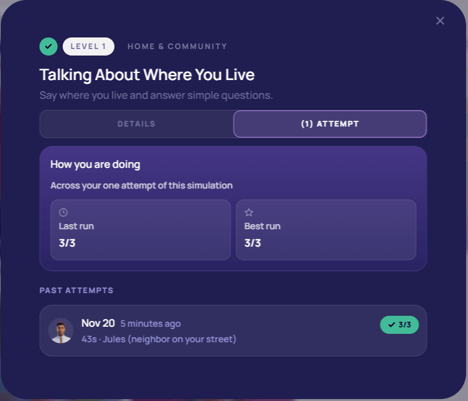
Each simulation keeps a history of your attempts, so you can see your progress over time.
To view your attempts:
- Select the simulation card in the library.
- Click the Attempt tab.
- Review How you are doing (your last attempt and your best attempt) and a dated list of past attempts with their task results.
ℹ️ Treat your first attempt as a starting point, not a test. Simulations are designed to be repeated. Each attempt helps you build confidence for the real conversation.
Daily Limits
Simulations include generous daily limits. Limits may vary by plan or by your organization's program.
- Every simulation you start counts toward your daily limit, even if you end it early. Opening a simulation and reading the goal card does not count until you click I'm ready.
- The live, animated avatar has its own daily limit. If you reach it, you can keep practicing. The character will appear as a still portrait with Voice Only, and everything else works the same way.
- If you reach a limit, a message will tell you when you can start again.
Frequently Asked Questions
Which devices support Simulations?
Simulations are available on the IMMERSE web app and the IMMERSE mobile app for iOS and Android. They are not available in VR at this time. Learn more about the IMMERSE mobile app.
Can I complete simulations on my AI glasses?
No. Simulations do not use a camera, so they do not connect to AI glasses the way the Capture feature does. Task lists and hints also cannot be displayed on the glasses.
Can I change the tasks in a simulation?
No. You can change the setup, such as your role, the situation, and the character, but the tasks always stay the same. This keeps your results consistent each time you practice.
Why does the character appear as a still portrait instead of an animated avatar?
The character may appear as a portrait with a Voice Only label if you have reached your daily limit for live avatars, or if a live avatar is not available at that moment. This is expected. Your conversation, tasks, and feedback work the same way.
Can I extend my daily limits?
Individual learners cannot request a higher limit at this time. Some organizations have higher limits as part of their agreement with IMMERSE. If you use IMMERSE through your organization, please contact your program administrator.
Can I create my own simulations?
Not at this time. To make a simulation more relevant to you, use Edit to customize the setup, or fill in the About You section of your profile.
A task did not check off, but I think I completed it. What should I do?
First, try to complete the task again with a clear, complete sentence in your target language. If the task still does not check off, contact our Support Team. Please include the simulation name and the date and time of your attempt so we can review it.
The character cannot hear me. What should I do?
Make sure you allowed microphone access when your browser or device asked. You can check this in your browser settings or your device settings. Then close the simulation and start it again.
Is my conversation data used to train AI?
No. Your Simulations conversations are not used to train AI models.
Does my attempt history appear on all of my devices?
Not yet. Your attempt history is currently saved on the device you used for each attempt. We are working to make it available across devices in a future update.
❓ Have a question not answered here or a problem with Simulations? Contact our Support Team at support@immerse.com.